Introducing the Ditto Fire OS Receiver
The new Ditto Fire OS Receiver brings wireless screen mirroring, digital signage and emergency alerts to Fire OS devices. It joins Windows, Apple TV...

1 min read
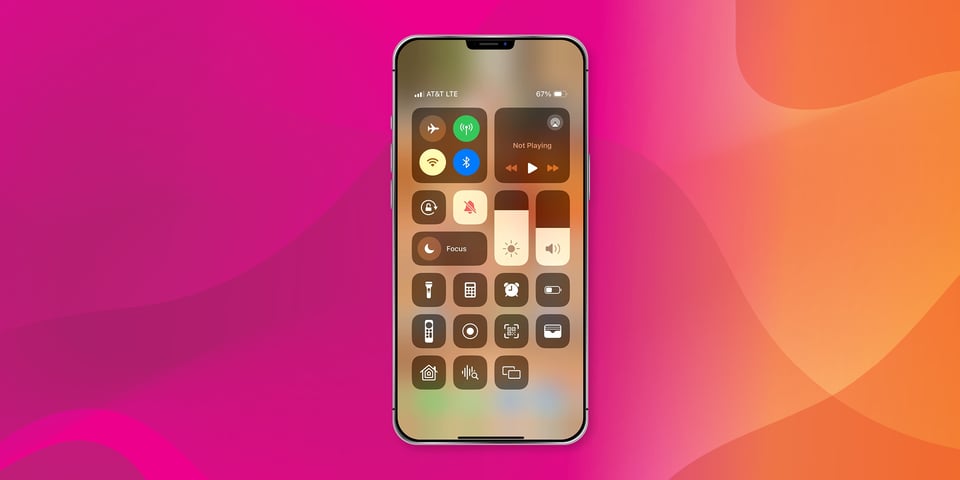
iPhone 15 Pro and Pro Max users may be surprised to discover that the screen mirroring icon seemingly vanished. Where did it go? Why did it change? Get answers here.
The popular iPhone screen mirroring feature spent many years in the same default location across numerous iPhone models and operating systems. The familiar icon with two overlapping rectangles was prominently featured near the top of the iPhone Control Center for quick access.
iPhone users now have to scroll a little further in Control Center to find it. See the picture below to find the new default location for the screen mirroring icon.
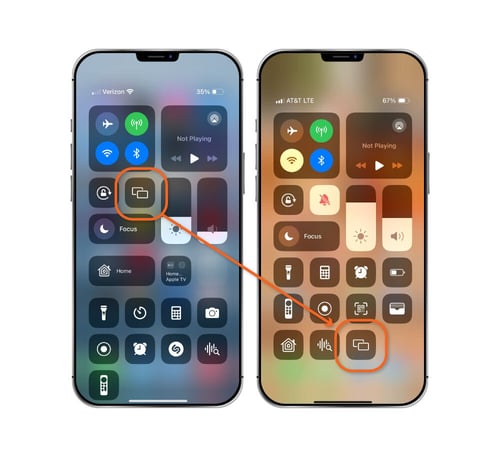
Fortunately, you can rearrange many of the Control Center icons if you don't like the new setup. Add, remove and rearrange iPhone Control Center icons in your iPhone Settings app. Simply open Settings, go to Control Center and make your desired changes.
It’s important to note that the default screen mirroring icon only moved on two of the 2023 iPhone models: the iPhone 15 Pro and iPhone 15 Pro Max. The screen mirroring icon did not move on the iPhone 15 and iPhone 15 Plus.
Need more help? Get the complete guide for screen mirroring iPhone 15 and iOS 17 right here.
The reason for this change is the new iPhone Action button. The Action button replaced the mute switch on the iPhone 15 Pro and Pro Max. It can be programmed to do almost anything—turn on the flashlight, launch the camera, mute the phone, access your shortcuts and so on.
Since the Action button can be used for tasks other than muting your iPhone, Apple needed a way to keep the mute function easily accessible. Apple put the mute icon in Control Center, displacing the screen mirroring icon.
Use Ditto screen mirroring in the places you meet and collaborate. Ditto makes it easy to wirelessly share content from your devices to larger screens. Ditch HDMI cables, adapters and complex/overpriced hardware. Enjoy multi-device and multi-display mirroring, reliable connections, annotations, moderation controls, digital signage and so much more.
Begin sharing wirelessly with Ditto today. Get started for free.
The new Ditto Fire OS Receiver brings wireless screen mirroring, digital signage and emergency alerts to Fire OS devices. It joins Windows, Apple TV...
Ditto now runs on Android-powered displays. The new Ditto Android Receiver gives schools and businesses another way to bring wireless screen...
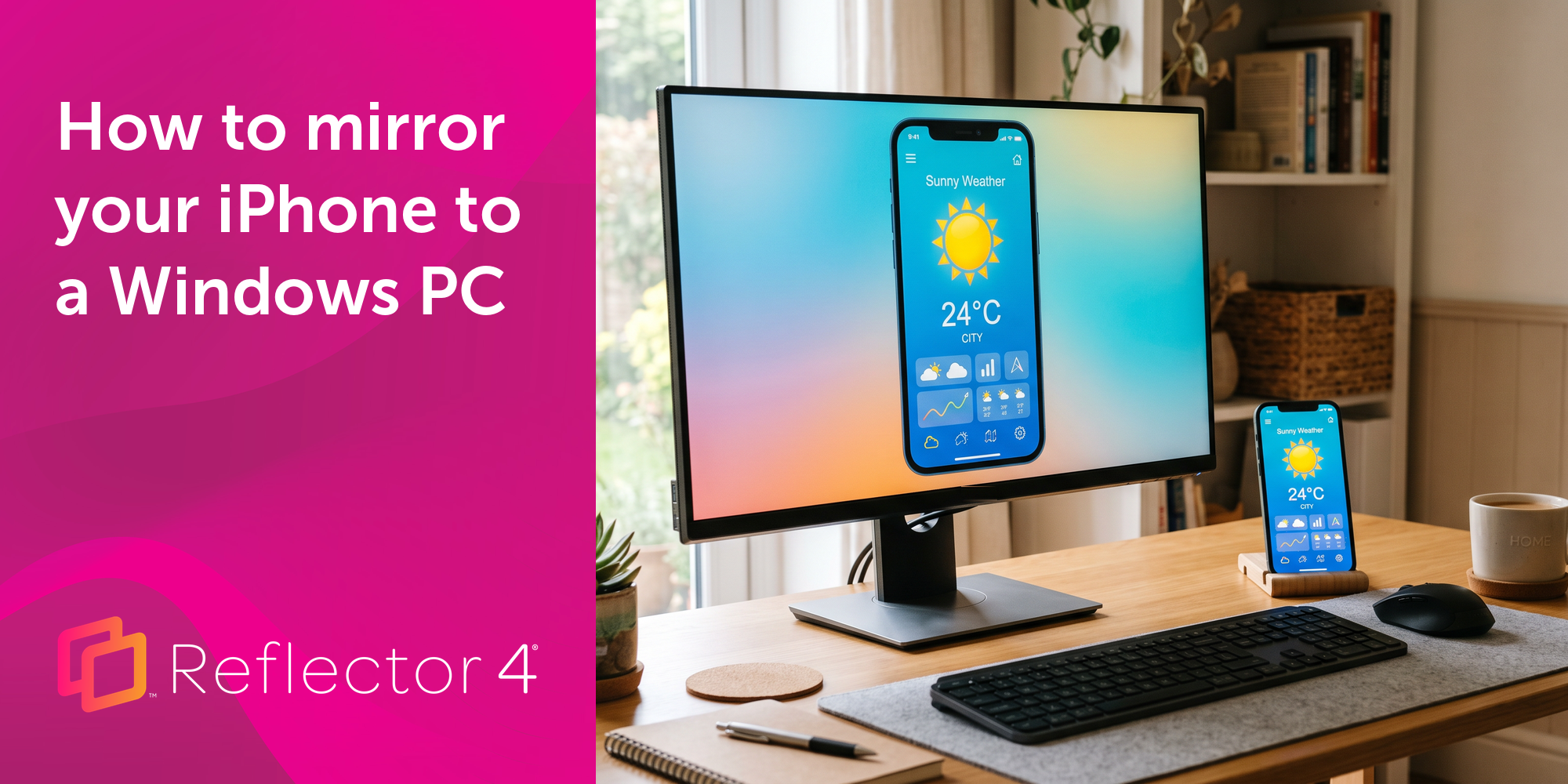
Windows still can't receive AirPlay connections on its own. Try to open Screen Mirroring on an iPhone in a room full of PCs. The list comes back...
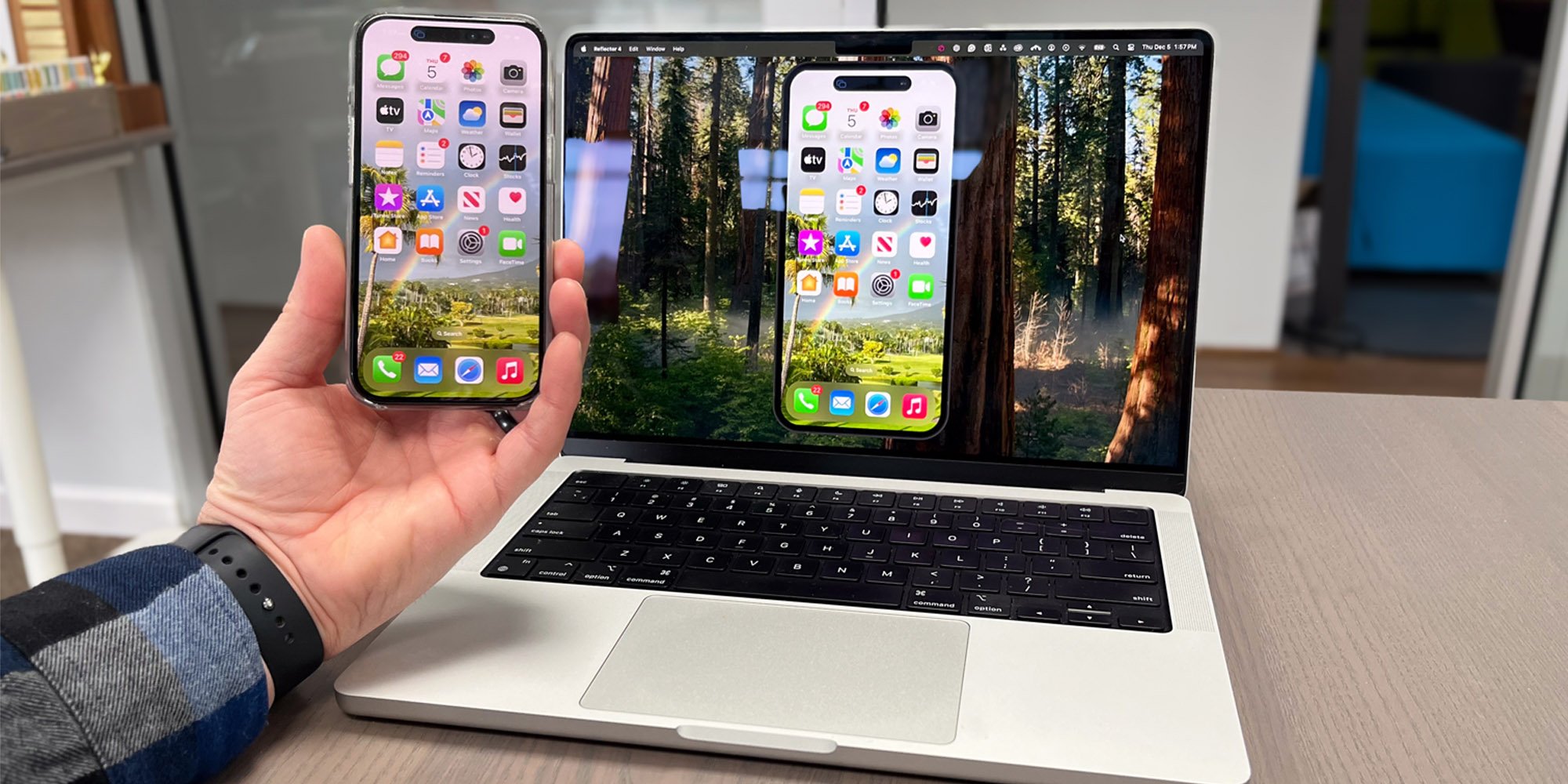
Learn all the ways to screen mirror iPhone running iOS 18 to your TVs and devices. This works for iPhone 16, iPhone 15, iPhone 14, iPhone 13 and more.
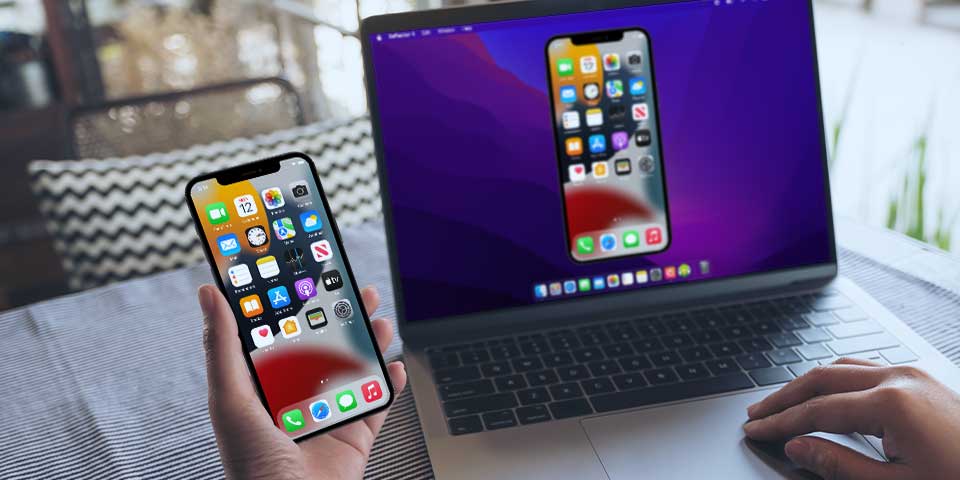
Learn how to screen mirror iOS 15 iPhones. Discover easy steps to cast your iPhone screen to MacBook and other devices using AirPlay and Reflector.
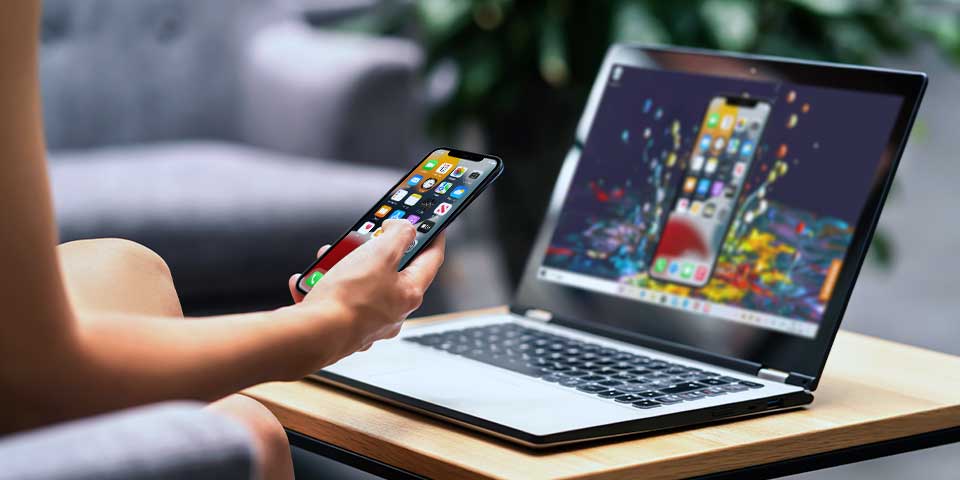
See how to screen mirror iPhone to Windows on iOS 15. Use AirPlay screen mirroring to share iPhone to Windows with Reflector. Instructional video...

Mirror any device to your screen — wirelessly.
One universal license for each app — works on macOS and Windows.
— or buy Reflector 4 on its own —



For schools, districts or volume licensing — contact us.

Stream audio and video from your Mac or PC to any screen.
One universal license for each app — works on macOS and Windows.
— or buy AirParrot 3 on its own —
For schools, districts or volume licensing — contact us.