Introducing the Ditto Fire OS Receiver
The new Ditto Fire OS Receiver brings wireless screen mirroring, digital signage and emergency alerts to Fire OS devices. It joins Windows, Apple TV...

2 min read
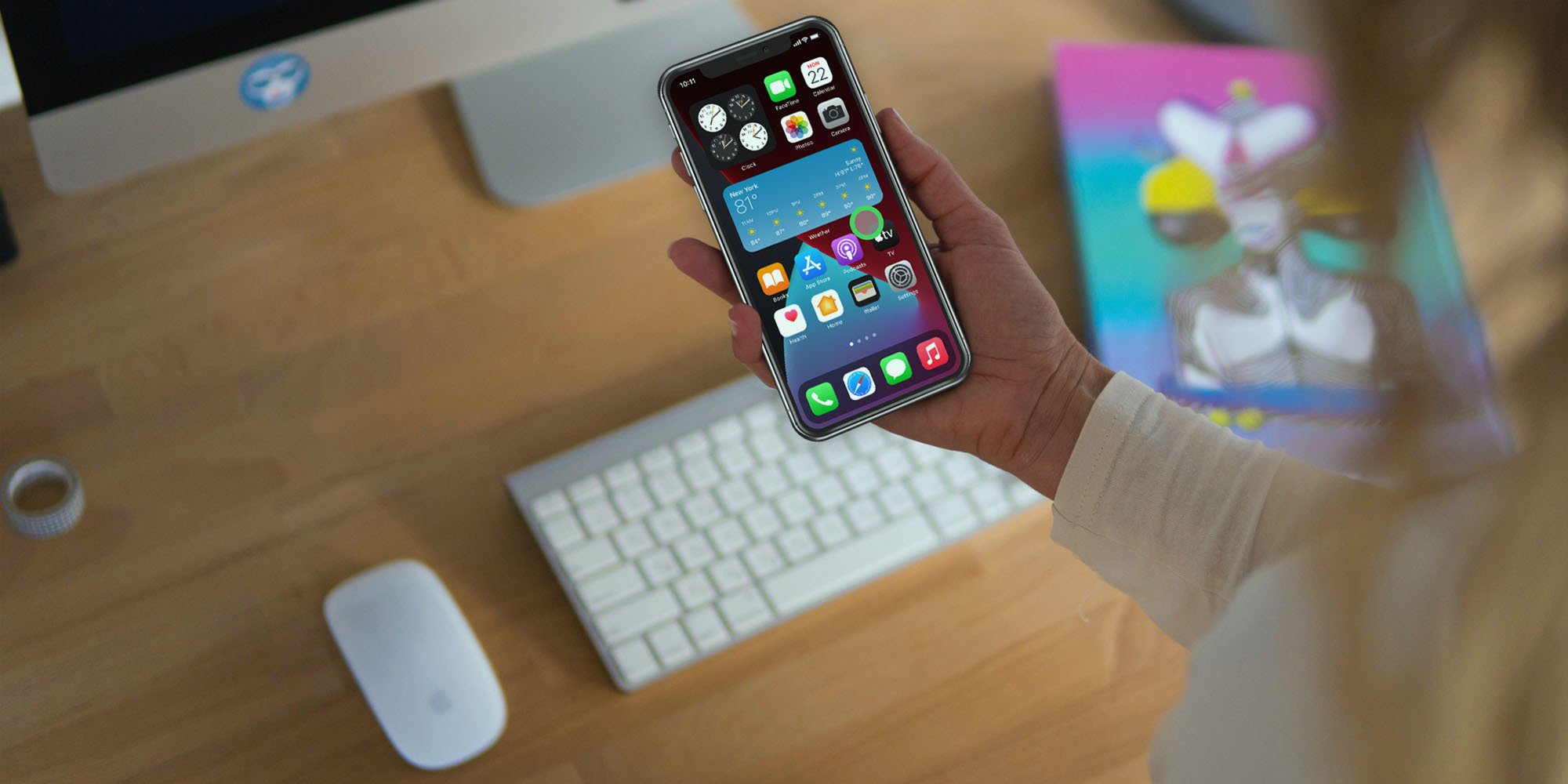
If you want to show taps on your phone or tablet display, you're not alone. While there is not a reliable or consistent way to natively show taps on an iPhone with iOS 14, you can show clicks and track motion. All you need to do is connect a Bluetooth mouse to your iPhone. It's an easy way to show where and how you're interacting with your phone screen during how-to tutorials, lessons and more.
In a few simple steps, learn how to show clicks and motion in place of taps and touches on your iPhone, including the iPhone 12. Plus, learn how to display different cursor sizes and colors. This quick guide shows you how.
Controlling your iPhone with a mouse is perfect if you demo apps remotely, teach remotely or record how-to videos and other types of instructional content. Users can easily see the mouse cursor and follow along to see where you click on your phone, like this:

Follow these simple steps to set up and connect a Bluetooth mouse to an iPhone on iOS 14.
You can customize how your iPhone mouse pointer looks and moves with this comprehensive guide.
Note: While you can enable certain accessibility settings on your iPhone that natively display where you tap your screen, this feature times out after a few seconds of inactivity and must be re-enabled after every timeout. If you're recording videos or other how-to content, it's not feasible to stop your recording and re-enable this screen tap feature every time you touch your device screen.
Looking for the guide to using a mouse in iPadOS 14? Find it here.
Begin by making sure Bluetooth is enabled on your iPhone. Ensure your Bluetooth mouse is on and discoverable.
On your iPhone, open the Settings app and navigate to Accessibility > Touch > AssistiveTouch.
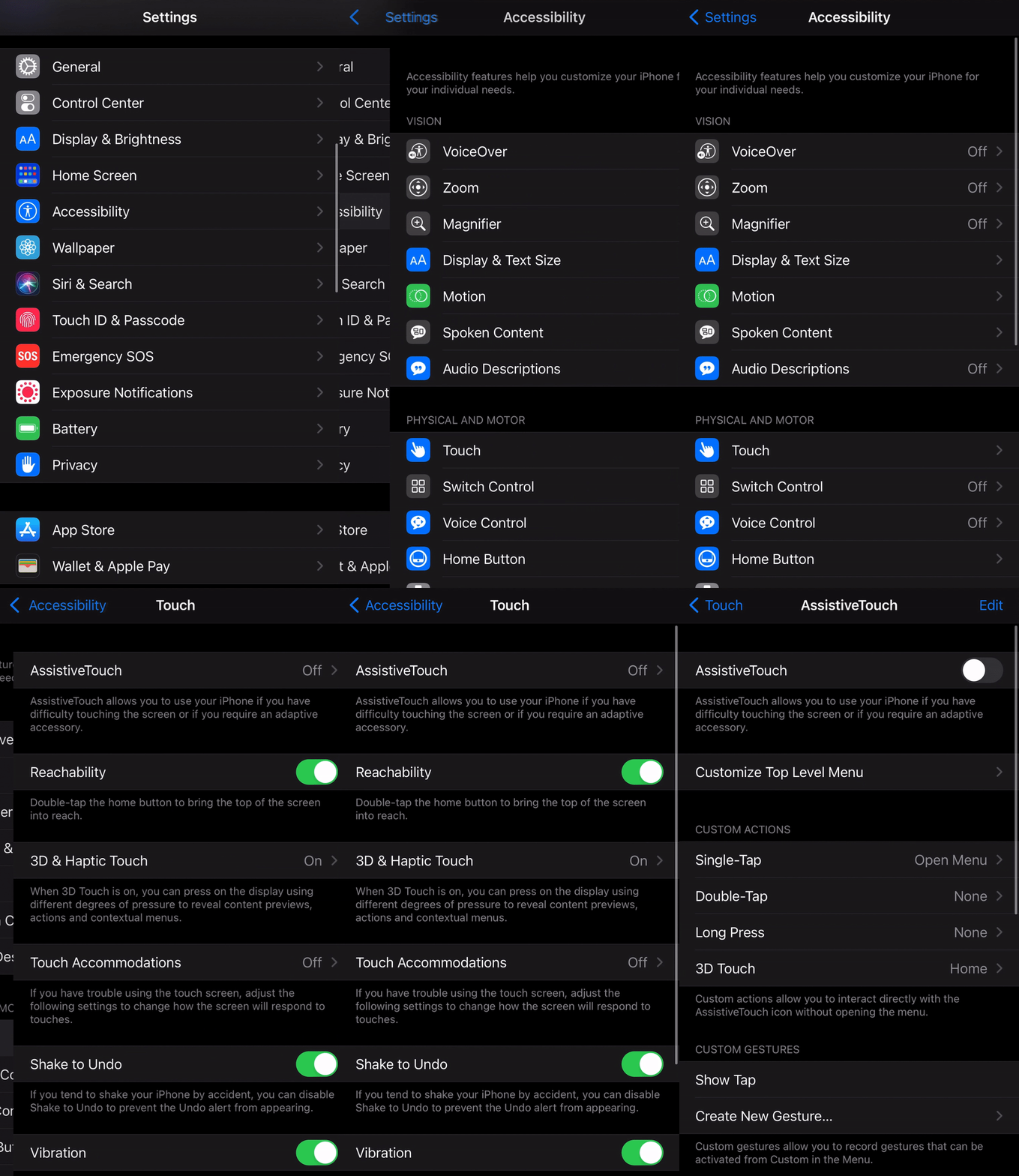
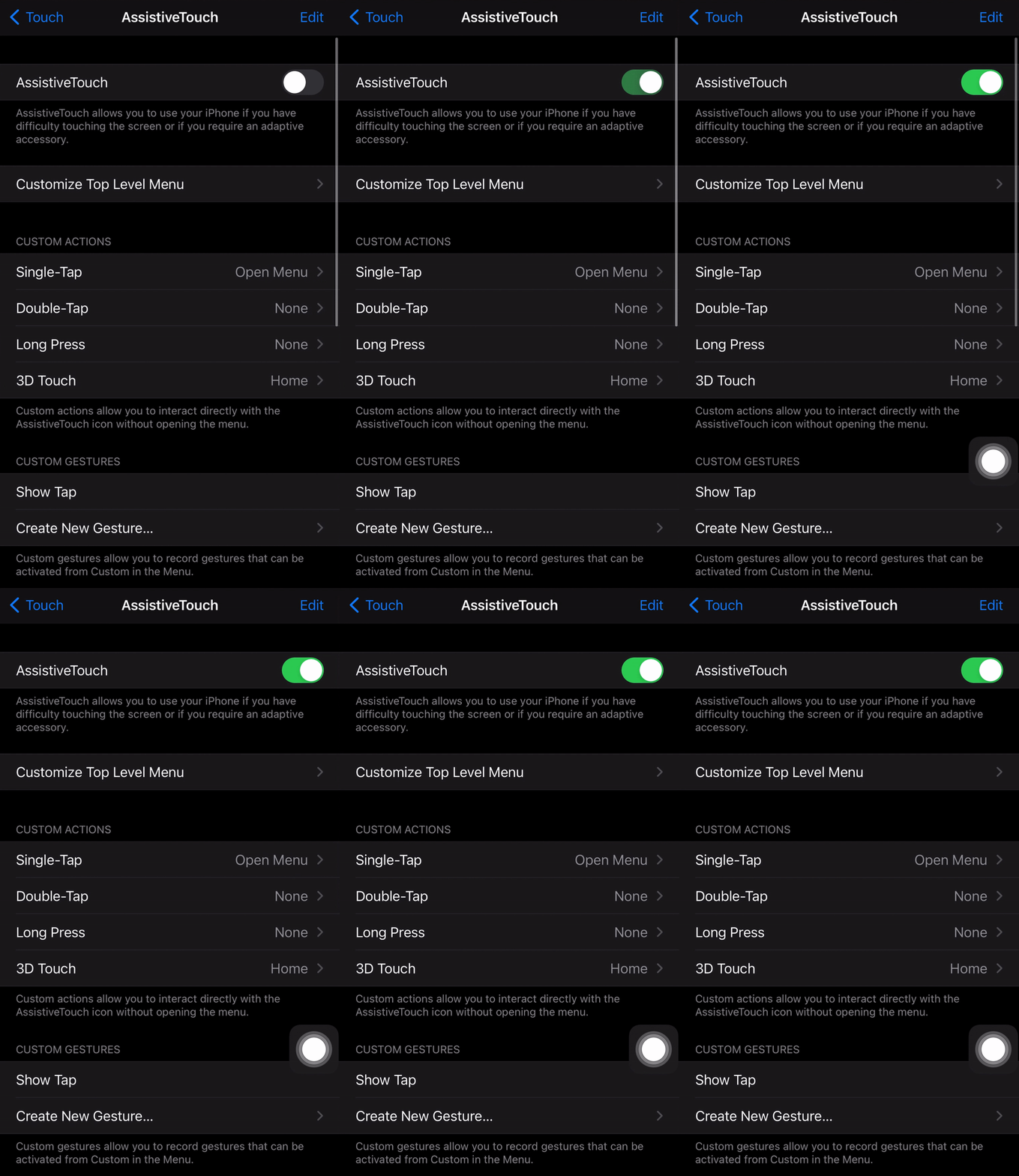
Toggle AssistiveTouch on. The floating AssistiveTouch button will appear.
Scroll down to the Pointer Devices section and tap Devices. Then tap "Bluetooth Devices..."
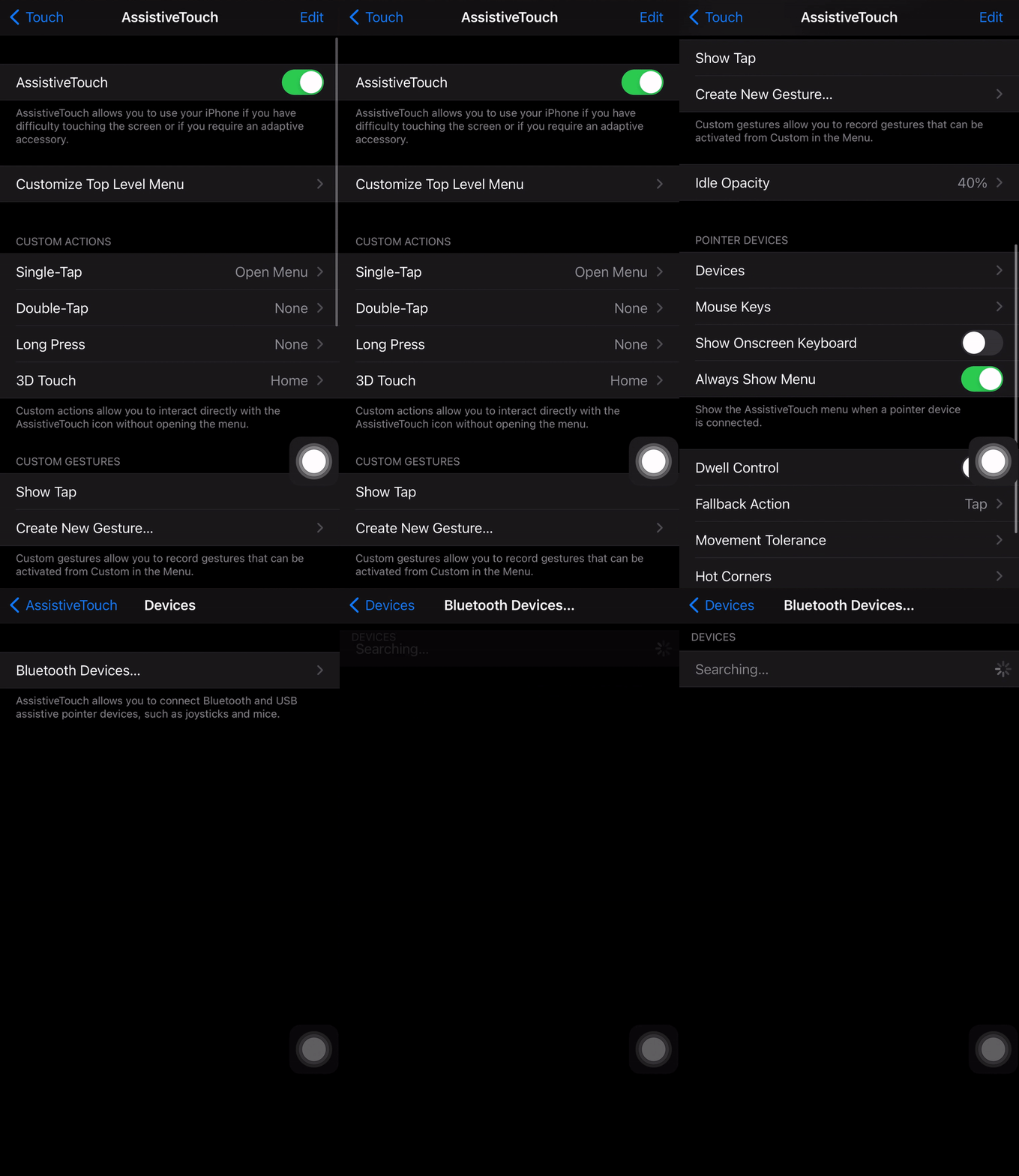
Your iPhone will begin searching for available Bluetooth devices. Tap the name of your mouse that appears.
Note: You may be prompted to enter a PIN number to pair your mouse. The default PIN number for many Bluetooth devices is 0-0-0-0, but check your manufacturer’s instructions if needed. After entering the number, tap Pair.

Your Bluetooth mouse will connect. You can now operate your iPhone with your mouse and show viewers exactly where you are clicking on screen.
If you need to record your iPhone and show taps on screen, you can do so by tapping the Record button in Control Center. An even better way to record videos with your phone is by using the computer app Reflector. Reflector lets you screen mirror, record and narrate videos from your phone all at once. Learn more about Reflector here.
Learn more about screen mirroring, find the most popular screen mirroring products and answer common screen mirroring questions: Read The Ultimate Screen Mirroring Guide.
The new Ditto Fire OS Receiver brings wireless screen mirroring, digital signage and emergency alerts to Fire OS devices. It joins Windows, Apple TV...
Ditto now runs on Android-powered displays. The new Ditto Android Receiver gives schools and businesses another way to bring wireless screen...
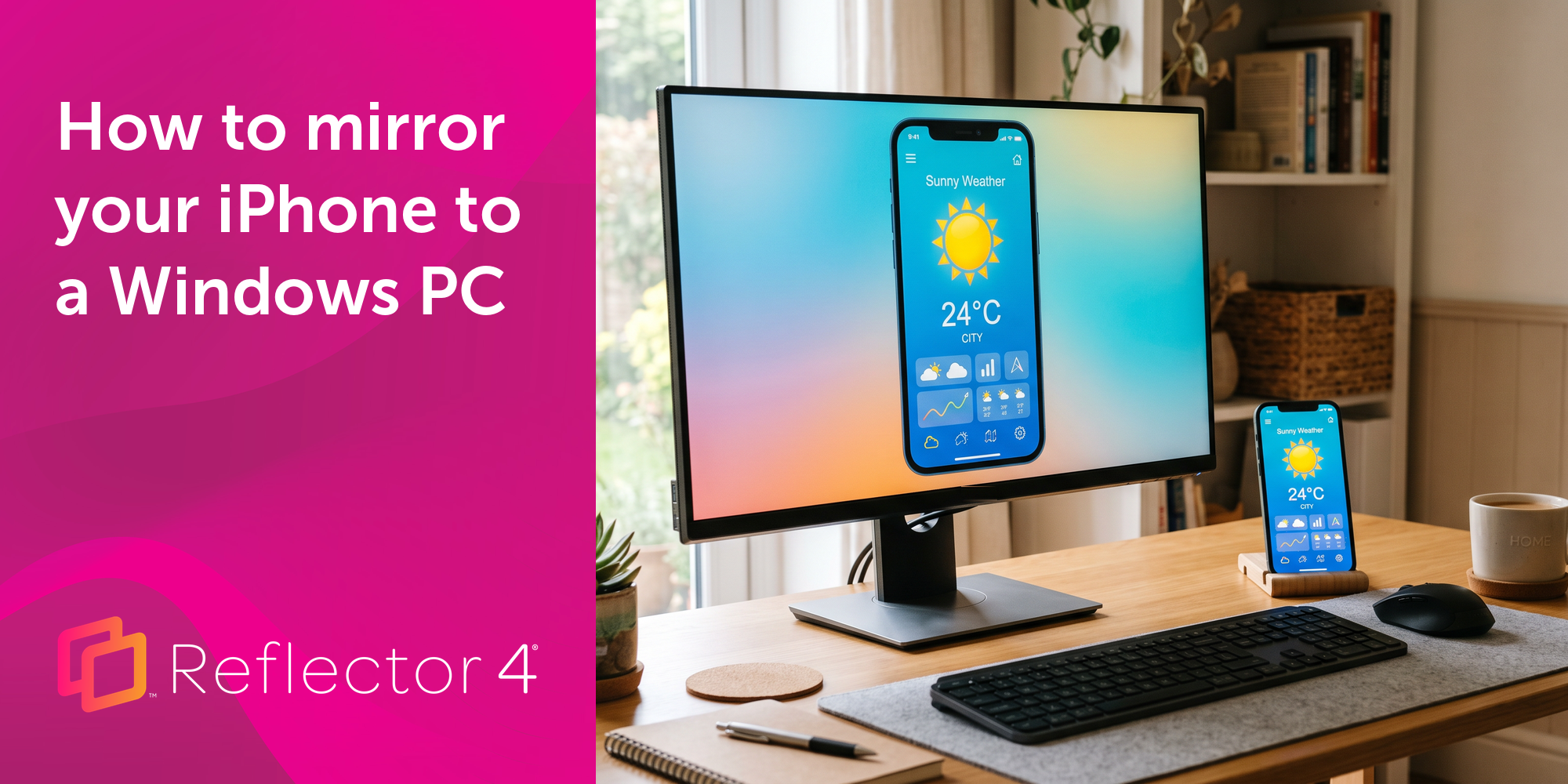
Windows still can't receive AirPlay connections on its own. Try to open Screen Mirroring on an iPhone in a room full of PCs. The list comes back...
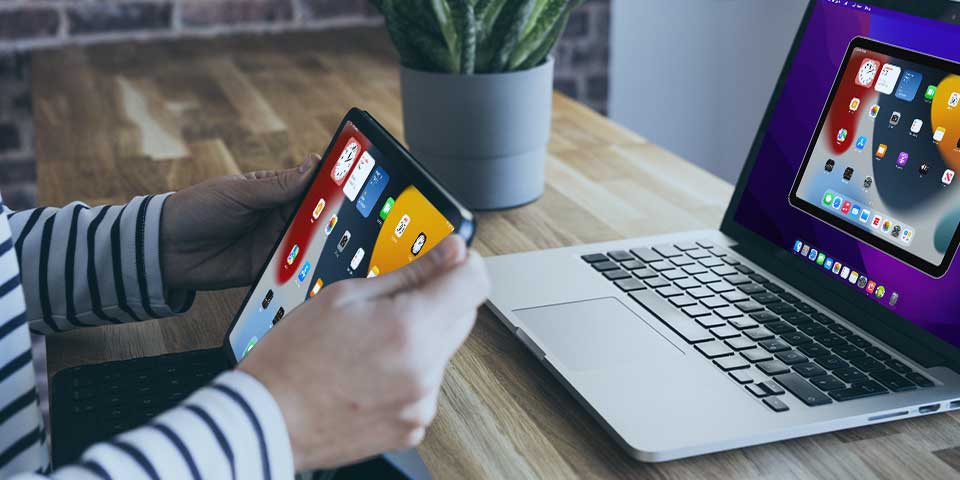
This quick guide shows you how to screen mirror an iPad to a Mac computer with iPadOS 15. Follow these simple steps using AirPlay and Reflector to...
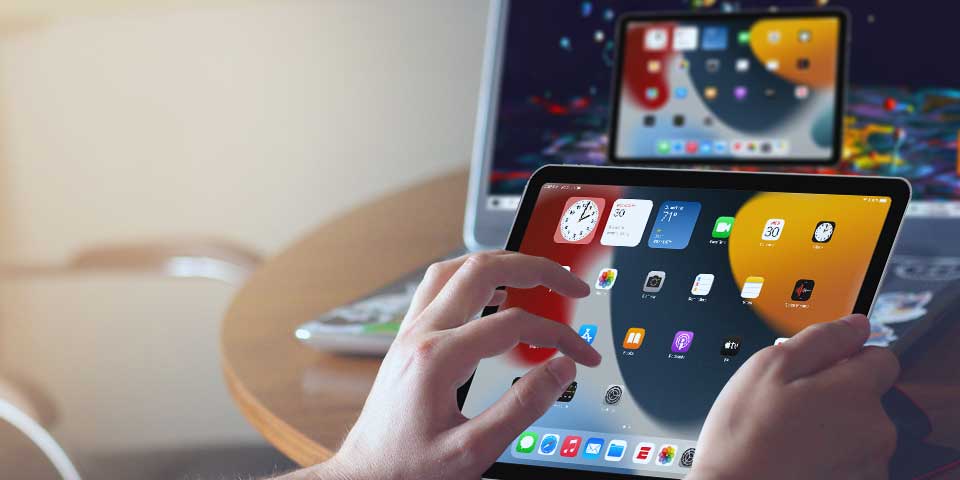
Learn how to share your iPad with AirPlay to Windows using the app Reflector and iPadOS 15. Quickly screen mirror an iPad to any PC.
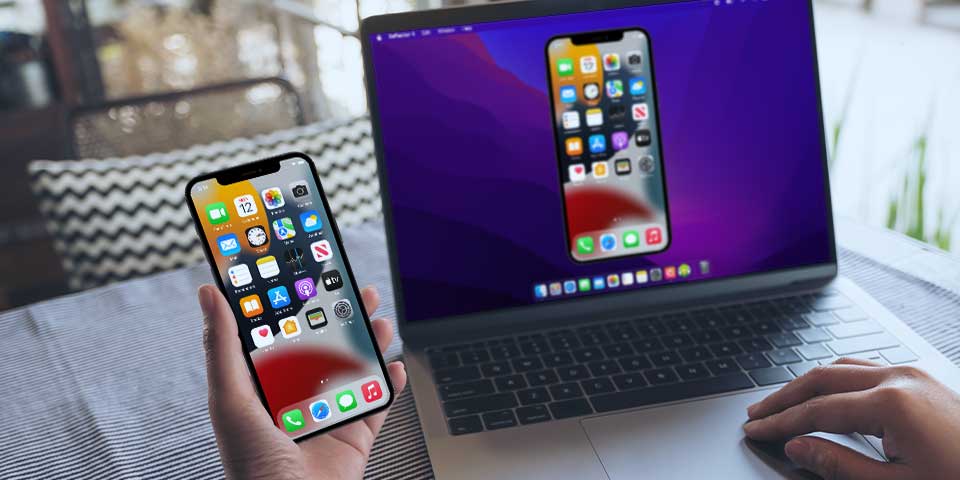
Learn how to screen mirror iOS 15 iPhones. Discover easy steps to cast your iPhone screen to MacBook and other devices using AirPlay and Reflector.

Mirror any device to your screen — wirelessly.
One universal license for each app — works on macOS and Windows.
— or buy Reflector 4 on its own —



For schools, districts or volume licensing — contact us.

Stream audio and video from your Mac or PC to any screen.
One universal license for each app — works on macOS and Windows.
— or buy AirParrot 3 on its own —
For schools, districts or volume licensing — contact us.