Introducing the Ditto Fire OS Receiver
The new Ditto Fire OS Receiver brings wireless screen mirroring, digital signage and emergency alerts to Fire OS devices. It joins Windows, Apple TV...

1 min read
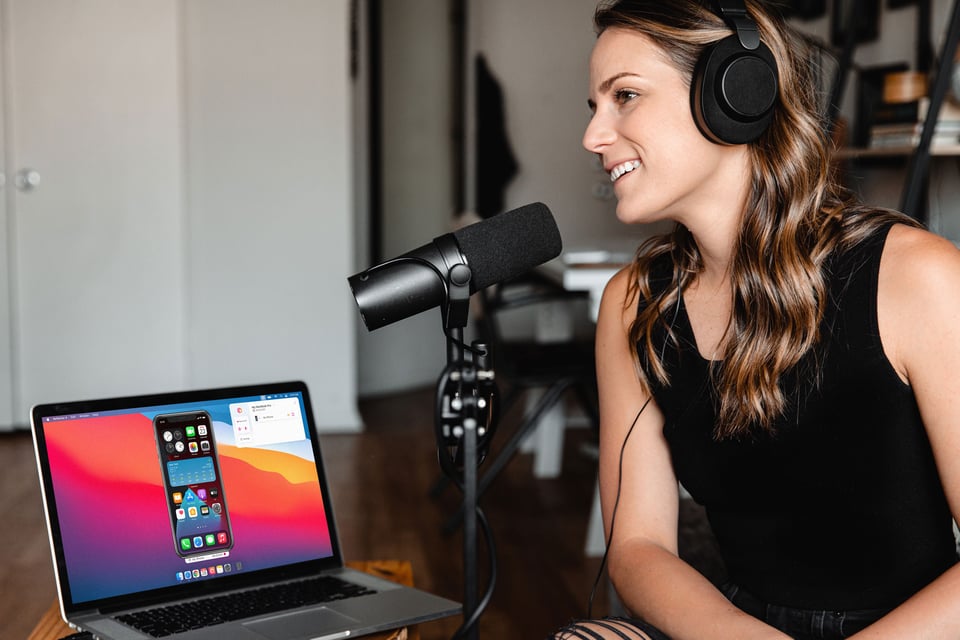
Recording instructional videos on iPhone, demonstrating apps, teaching from home and producing digital how-to content often requires voiceover narration. It's easy to record an iPhone screen—especially with an iPhone 14—but many people find it challenging to add voiceover narration to the mix.
Fortunately, there's an easy way to narrate while recording phone and tablet content at the same time. The app Reflector allows you to record audio while screen mirroring an iPhone to a computer. In just a couple clicks, Reflector compiles your iPhone screen recording with your audio narration into one complete video.
Follow this guide to learn how.

Note: You can use your computer’s built-in mic, or you can plug an external microphone into your computer for better audio quality. Using your mobile device’s microphone isn’t possible.
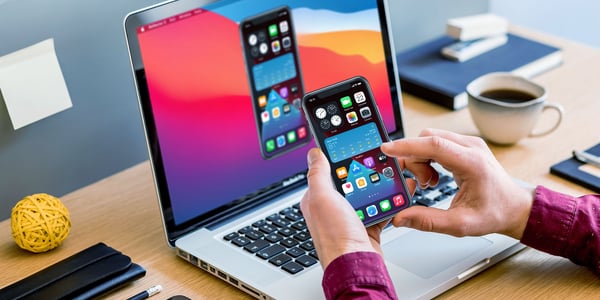
Download Reflector on your computer and begin screen mirroring your iPhone 14 or other iPhone or mobile device. Don't know how to screen mirror iPhone? Follow these easy iPhone screen mirroring instructions.
After you begin screen mirroring, click the drop-down arrow next to the microphone icon in the Reflector menu. Select the microphone you will use to record the voiceover. This can be your computer’s built-in microphone or an external mic connected to your computer.
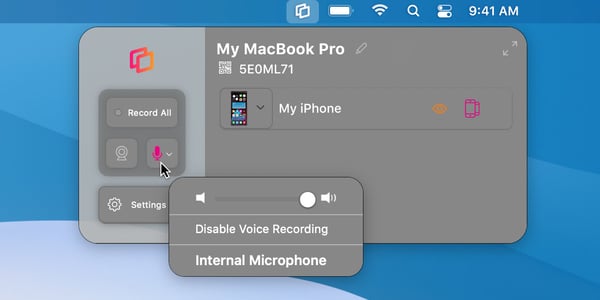
Click “Record All.” You can begin speaking into the microphone and operating your iPhone. Reflector will record the phone screen and microphone audio and combine them into a single video.
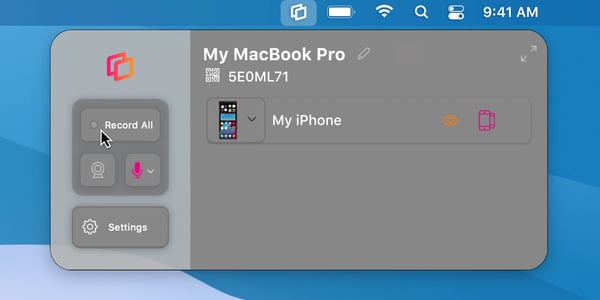
When you’re finished recording, click “Stop” in the Reflector menu.
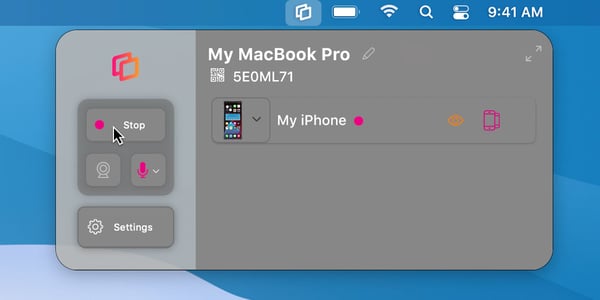
Select where you’d like to save the video on your computer. That’s it — the video of your device screen with voiceover is complete!
Get Reflector today to mirror, record and narrate all of your devices to the big screen.
Last updated 1/25/22
The new Ditto Fire OS Receiver brings wireless screen mirroring, digital signage and emergency alerts to Fire OS devices. It joins Windows, Apple TV...
Ditto now runs on Android-powered displays. The new Ditto Android Receiver gives schools and businesses another way to bring wireless screen...
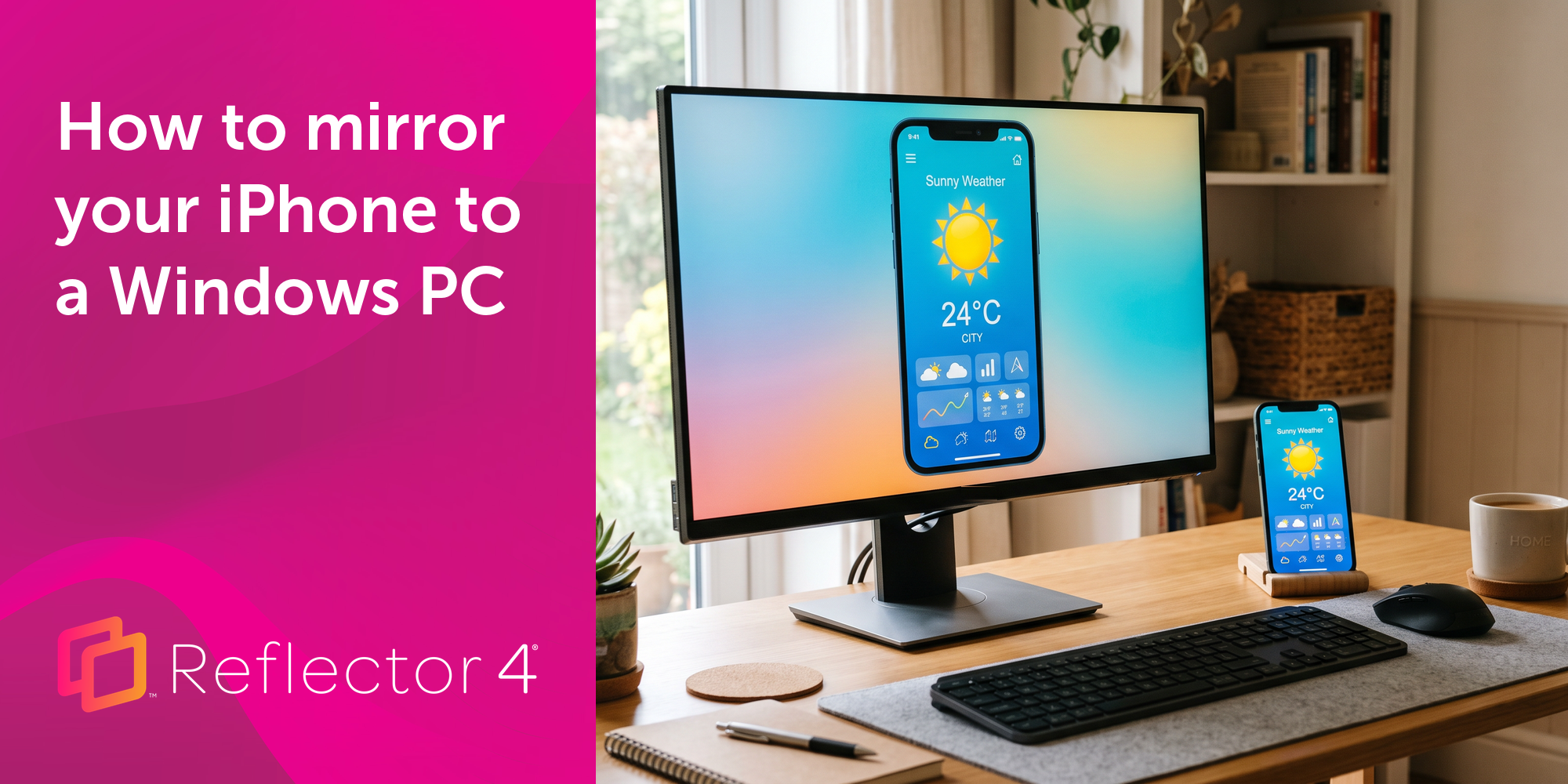
Windows still can't receive AirPlay connections on its own. Try to open Screen Mirroring on an iPhone in a room full of PCs. The list comes back...
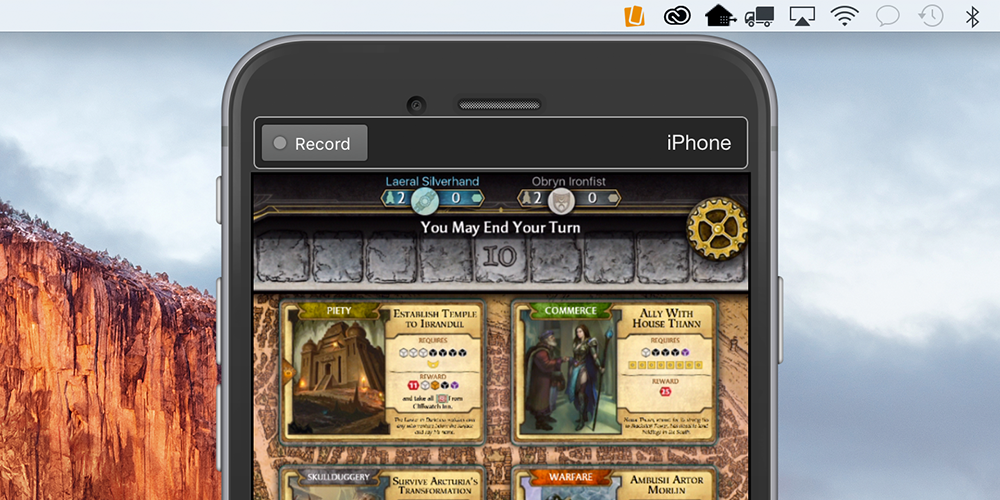
Learn how to record and share Bubble Witch gameplay with Reflector.
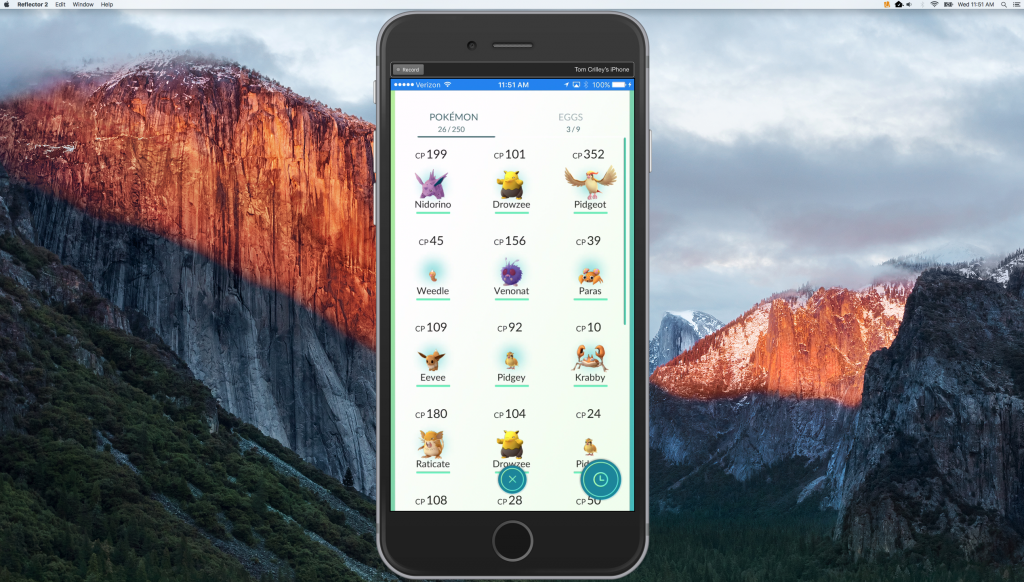
How To Record Pokémon Go Gameplay on iOS and Android Devices
Mirror any device to your screen — wirelessly.
One universal license for each app — works on macOS and Windows.
— or buy Reflector 4 on its own —



For schools, districts or volume licensing — contact us.

Stream audio and video from your Mac or PC to any screen.
One universal license for each app — works on macOS and Windows.
— or buy AirParrot 3 on its own —
For schools, districts or volume licensing — contact us.