Introducing the Ditto Fire OS Receiver
The new Ditto Fire OS Receiver brings wireless screen mirroring, digital signage and emergency alerts to Fire OS devices. It joins Windows, Apple TV...
1 min read
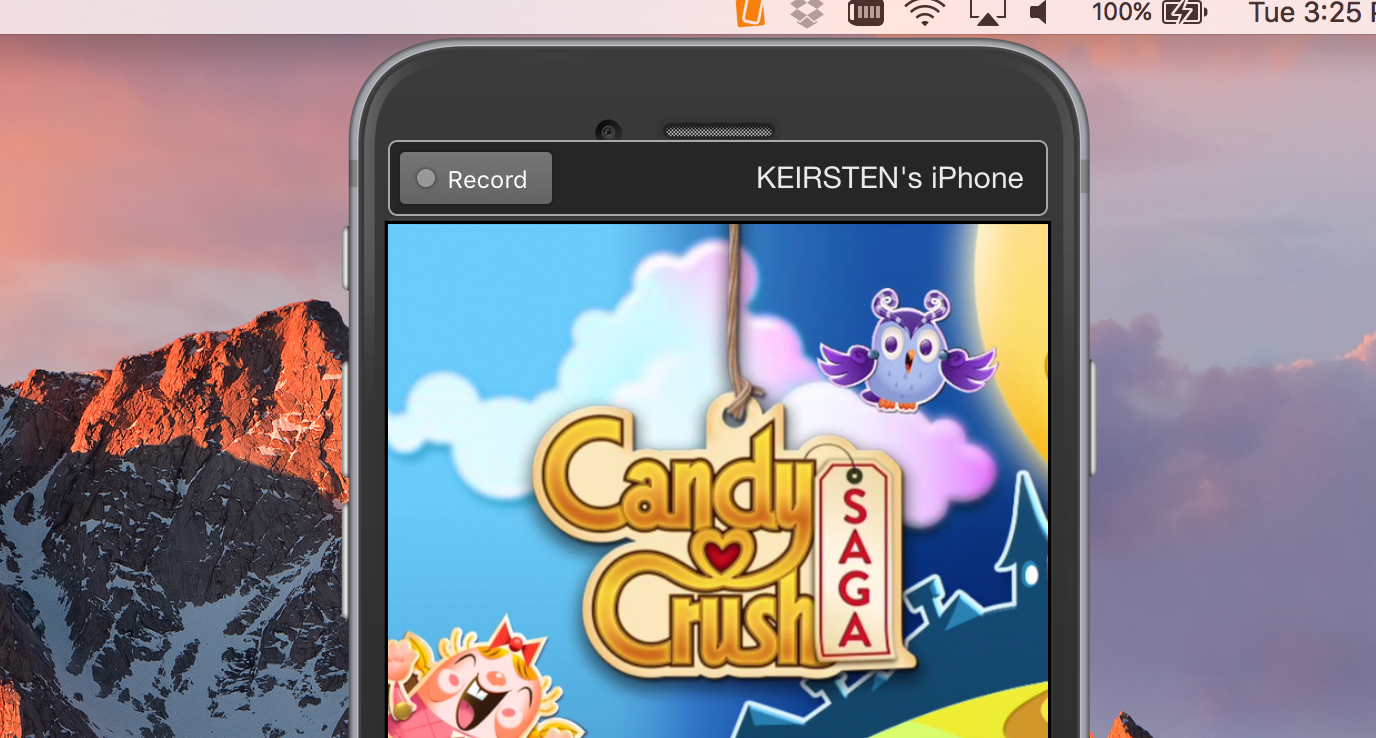
This week's Recorded with Reflector video of the week is an app that is no stranger to the gaming world. That's right, it's Candy Crush Saga!
Candy Crush Saga is a well-known app that has taken the mobile gaming world by storm, as it currently ranks fourth in the top grossing mobile games. It even won the People’s Choice Awards for Favorite Mobile Game. We can’t argue with those results, we’re just as addicted as everyone else!
You can download Candy Crush Saga for free in the App Store or in the Google Play Store
Note: While the game can be played completely through without spending money, players can buy special actions to help clear more difficult boards.
How to record with Reflector:
Pro tip: You can also mirror and record Android gameplay by connecting to Reflector using the native Cast technology on your Android device.
Learn more about the Reflector screen-mirroring app
The new Ditto Fire OS Receiver brings wireless screen mirroring, digital signage and emergency alerts to Fire OS devices. It joins Windows, Apple TV...
Ditto now runs on Android-powered displays. The new Ditto Android Receiver gives schools and businesses another way to bring wireless screen...
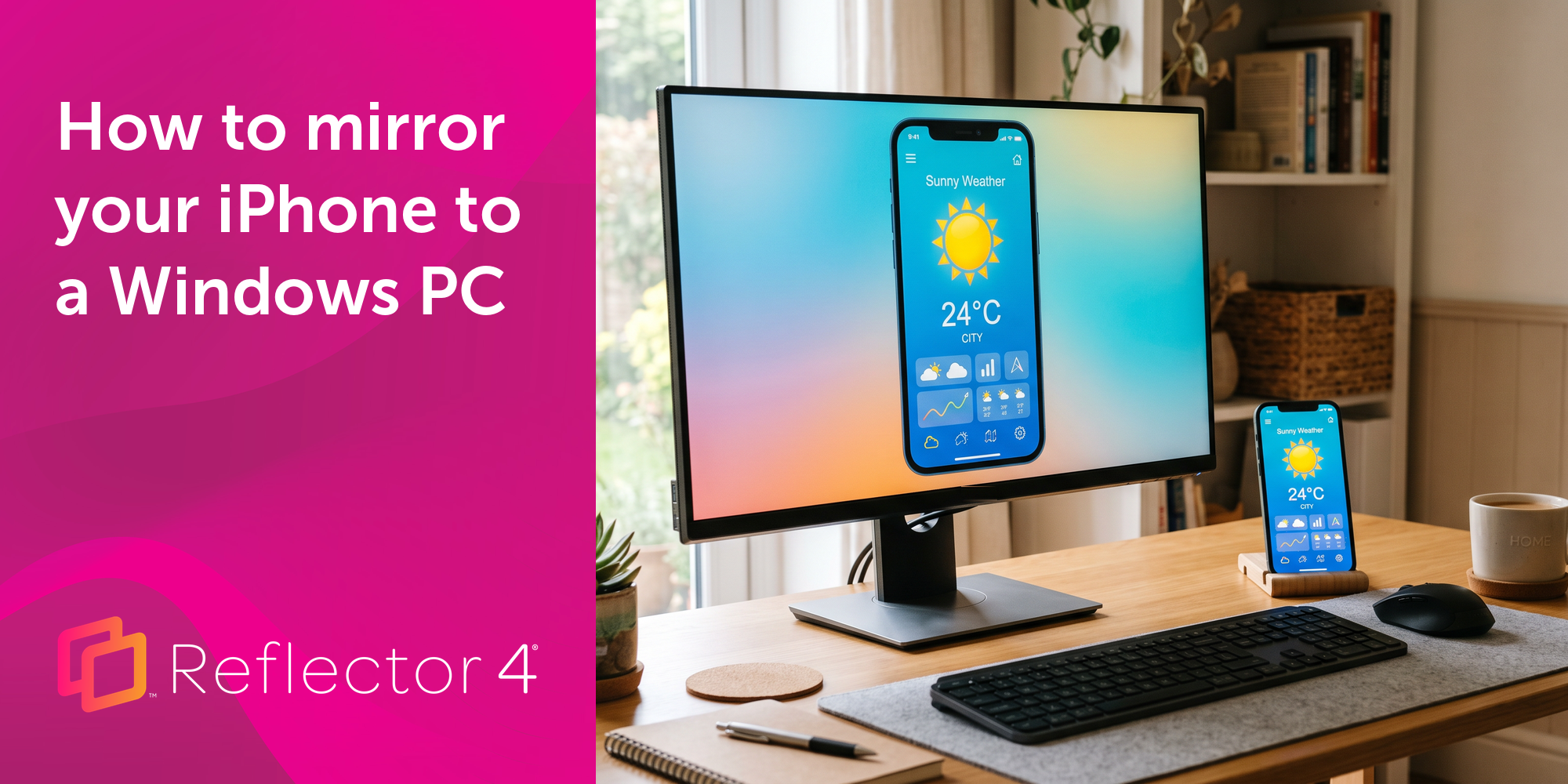
Windows still can't receive AirPlay connections on its own. Try to open Screen Mirroring on an iPhone in a room full of PCs. The list comes back...
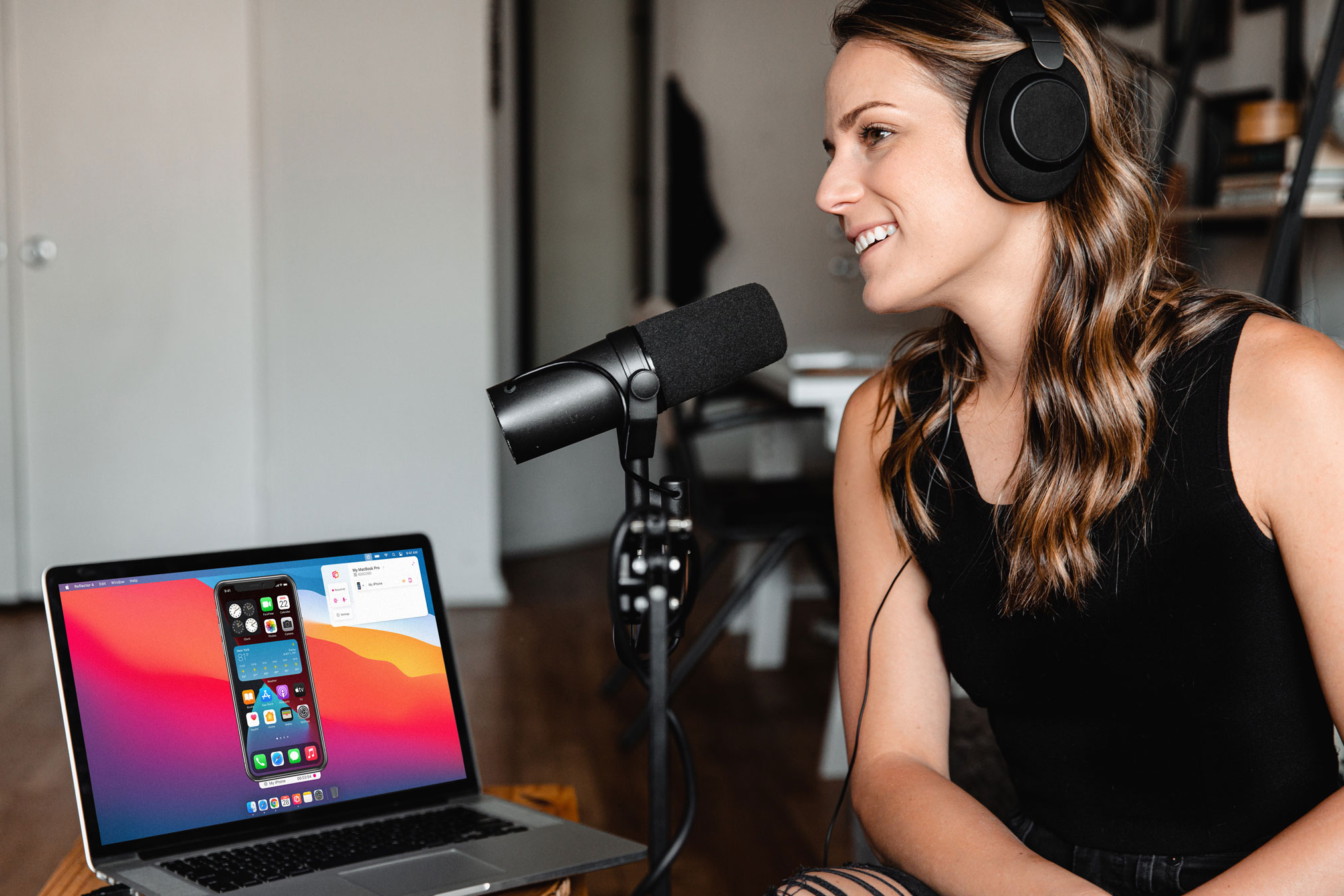
Learn how to easily narrate audio and record voiceover while screen recording iPhone using this quick guide.
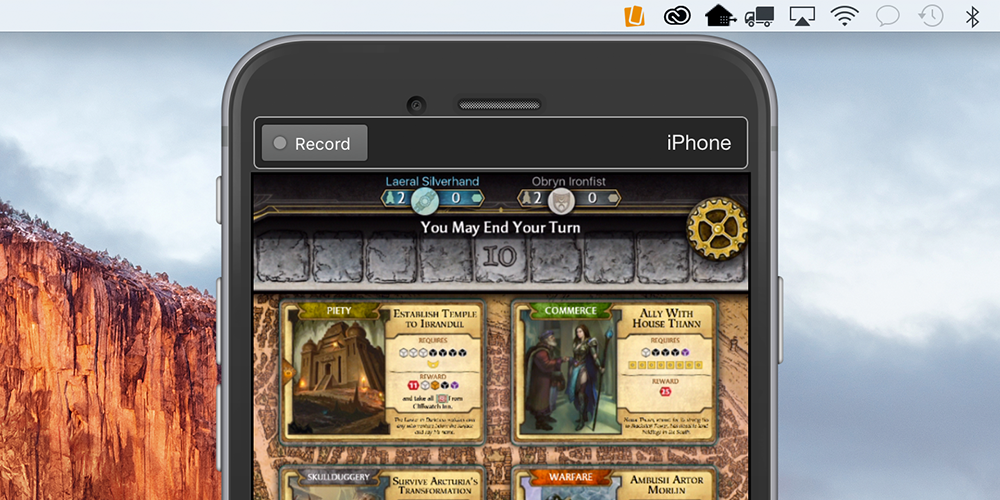
Learn how to record and share Bubble Witch gameplay with Reflector.
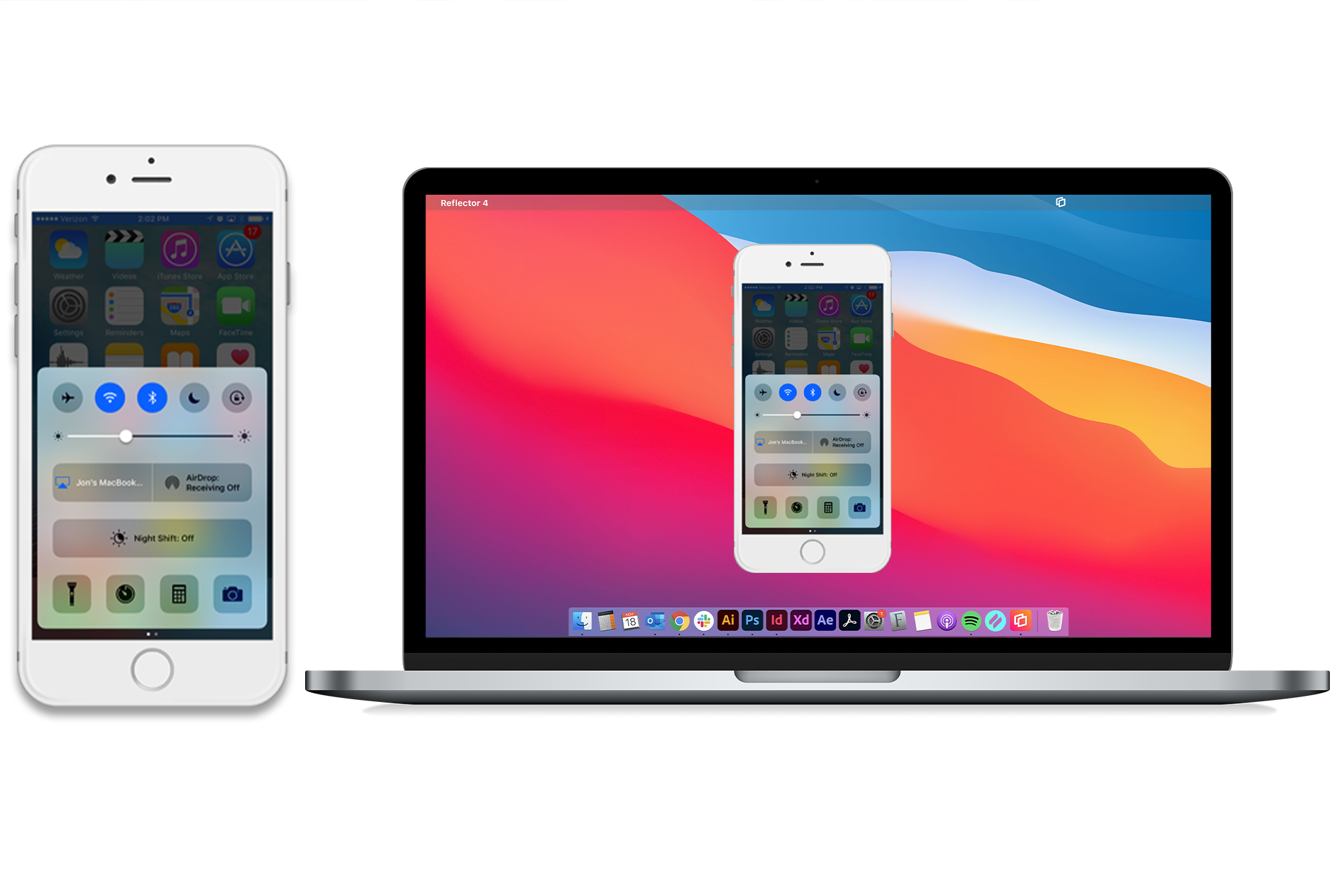
Your screen mirroring app won’t work with iOS 9 (unless you have Reflector)
Mirror any device to your screen — wirelessly.
One universal license for each app — works on macOS and Windows.
— or buy Reflector 4 on its own —



For schools, districts or volume licensing — contact us.
Stream audio and video from your Mac or PC to any screen.
One universal license for each app — works on macOS and Windows.
— or buy AirParrot 3 on its own —
For schools, districts or volume licensing — contact us.