Introducing the Ditto Fire OS Receiver
Transform Amazon Fire OS-powered TVs in your school or business into screen sharing, digital signage and emergency alerting hubs with Ditto.

2 min read
Most people don't need a second monitor every day. Sometimes it's just helpful to have one for the next two hours: tax documents next to the filing website or research notes beside a draft. That occasional need is a hard sell for a $200 monitor that will use desk space the other 360 days a year.
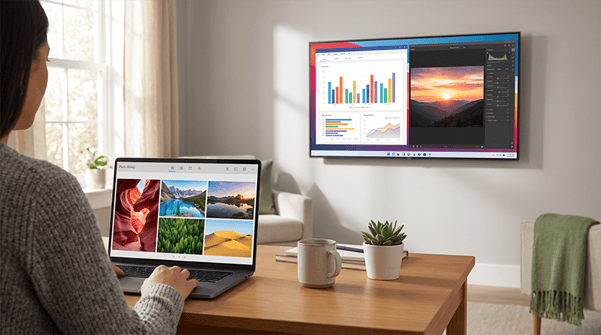
What most people overlook is that they already own a second monitor. It's the TV in the next room, or the one mounted on the wall near you.
The extended desktop feature in AirParrot 3 turns that TV into a wireless extension of your Mac or Windows desktop. Not a mirror of your screen, an extension. Your computer treats it like a second display that you can drag windows onto, without requiring an HDMI cable or a rearranged desk.
A Mac or Windows computer running AirParrot 3 and one of these on the same network:
That last one surprises people. If there's a spare laptop in the house, Reflector turns it into a receiver. That old MacBook can quickly become a second screen for your PC.
Open AirParrot 3, pick your receiver from the list and choose Extend Desktop. That's it. The TV becomes more workspace.
On Windows, this happens without touching your display settings. AirParrot handles the extended display itself, so there's nothing to configure and nothing to undo when you disconnect.
Drag a window toward the edge of your screen and keep going. It slides onto the TV the same way it would with a plugged-in monitor. Park your reference material there, like the PDF or dashboard you keep tabbing back to. Your main screen stays free for the actual work you're doing.
When you're done, disconnect. The TV goes back to being a TV, and your desk never changed.
Extended desktop has a second life in meeting rooms, and if you present often, it may be the better reason to use it.
When you extend your desktop to the room's TV instead of mirroring it, the audience sees an empty desktop. Just the wallpaper. Your screen, your email app, your notes and your half-finished slides stay on your laptop where only you can see them.
Then you show things on your terms. Ready for the audience to see the proposal? Drag it onto the TV. Want the budget next to it? Drag that over too. Everything else stays private.
The difference: Mirroring your screen shows people everything. Specific-app mirroring in AirParrot narrows that to a single application, which prevents private notifications from appearing. Extend Desktop goes a different direction: you build the audience's view window by window, and you can show several things side by side while your own screen stays yours. It's the difference between handing someone your laptop and setting the table for them.
Native options mostly mirror, and mirroring means your whole screen, notifications included. Extended desktop over AirPlay is limited to newer Macs and Apple TVs, and Windows has nothing built in for Apple TV at all. AirParrot covers Mac and Windows and works with Apple TV, Chromecast, Google TV Streamer and Reflector. It also adds the pieces the native options skip, like connecting by Quick Connect Code™ when the receiver mysteriously doesn't show up in the list.
AirParrot 3 has a free trial, so you can test Extend Desktop with your own TV before spending anything. Download the free 7-day trial, point it at the Apple TV or Chromecast in your living room and drag a window over.
The second monitor was there the whole time.
Transform Amazon Fire OS-powered TVs in your school or business into screen sharing, digital signage and emergency alerting hubs with Ditto.
Transform Android-powered TVs, projectors and IFPs in your school or business into receivers for screen sharing, digital signage and emergency alerts.
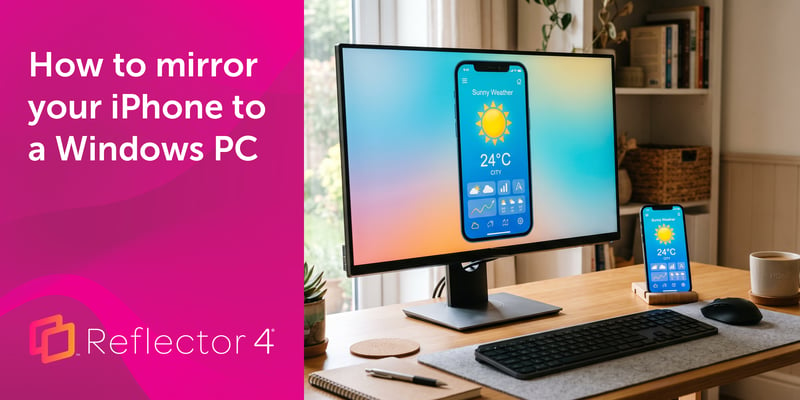
Windows can't receive AirPlay natively. Install Reflector 4 to wirelessly mirror an iPhone to your PC in four steps. No cables, adapters or extras...
![How to Wirelessly Stream a Windows Surface Pro to a Computer or Projector [2021 Update]](https://blog.airsquirrels.com/hubfs/Blog%20Images/B307%20-%20AirParrot%20Surface%20Pro%202019%20Update/Blog-Featured-Image.jpg)
Learn how to wirelessly screen mirror and stream a Windows Surface Pro to a computer or projector with this quick how-to guide.
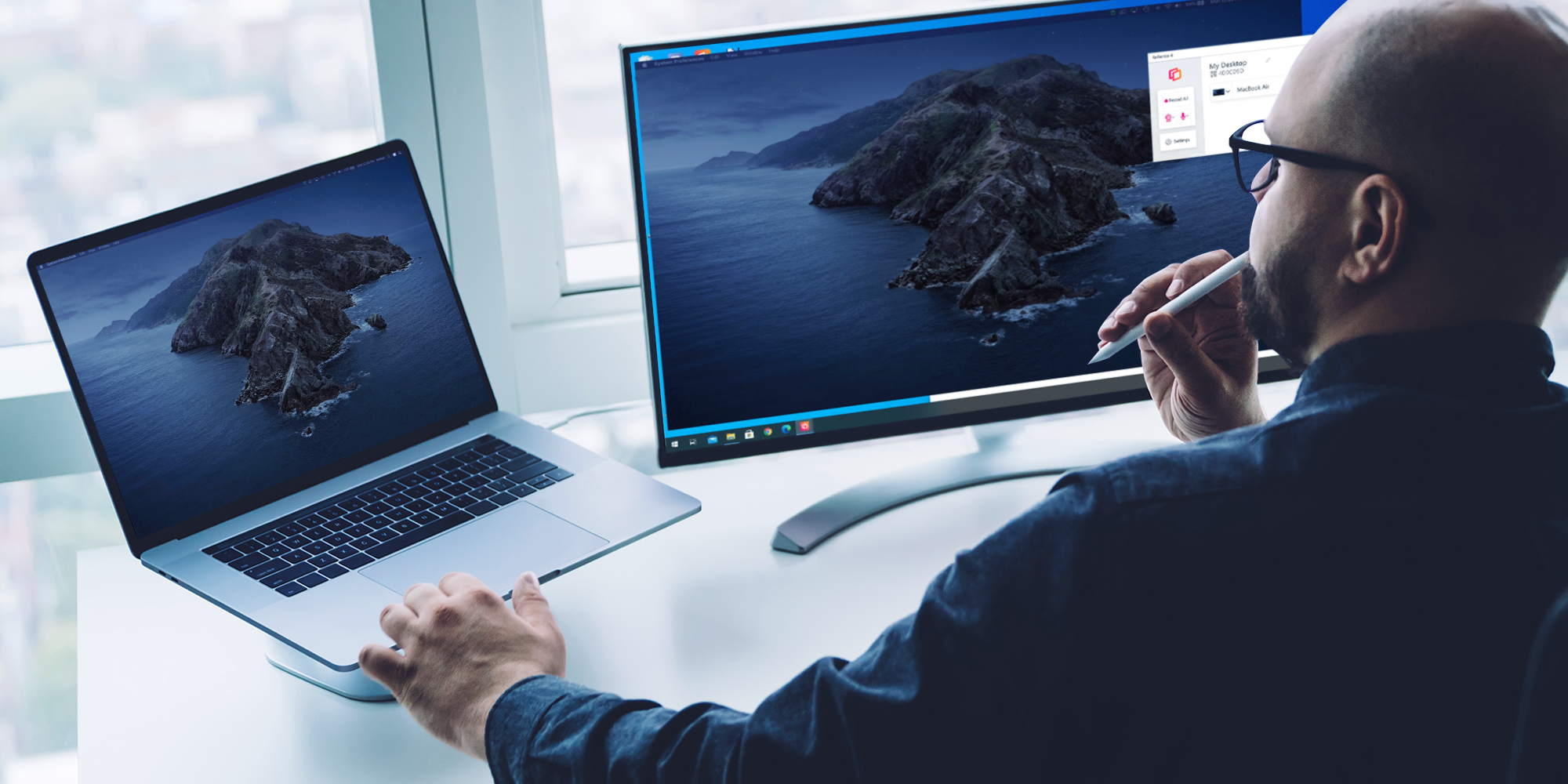
This quick guide shows you how to extend your macOS desktop to your Windows computer using AirParrot and Reflector.
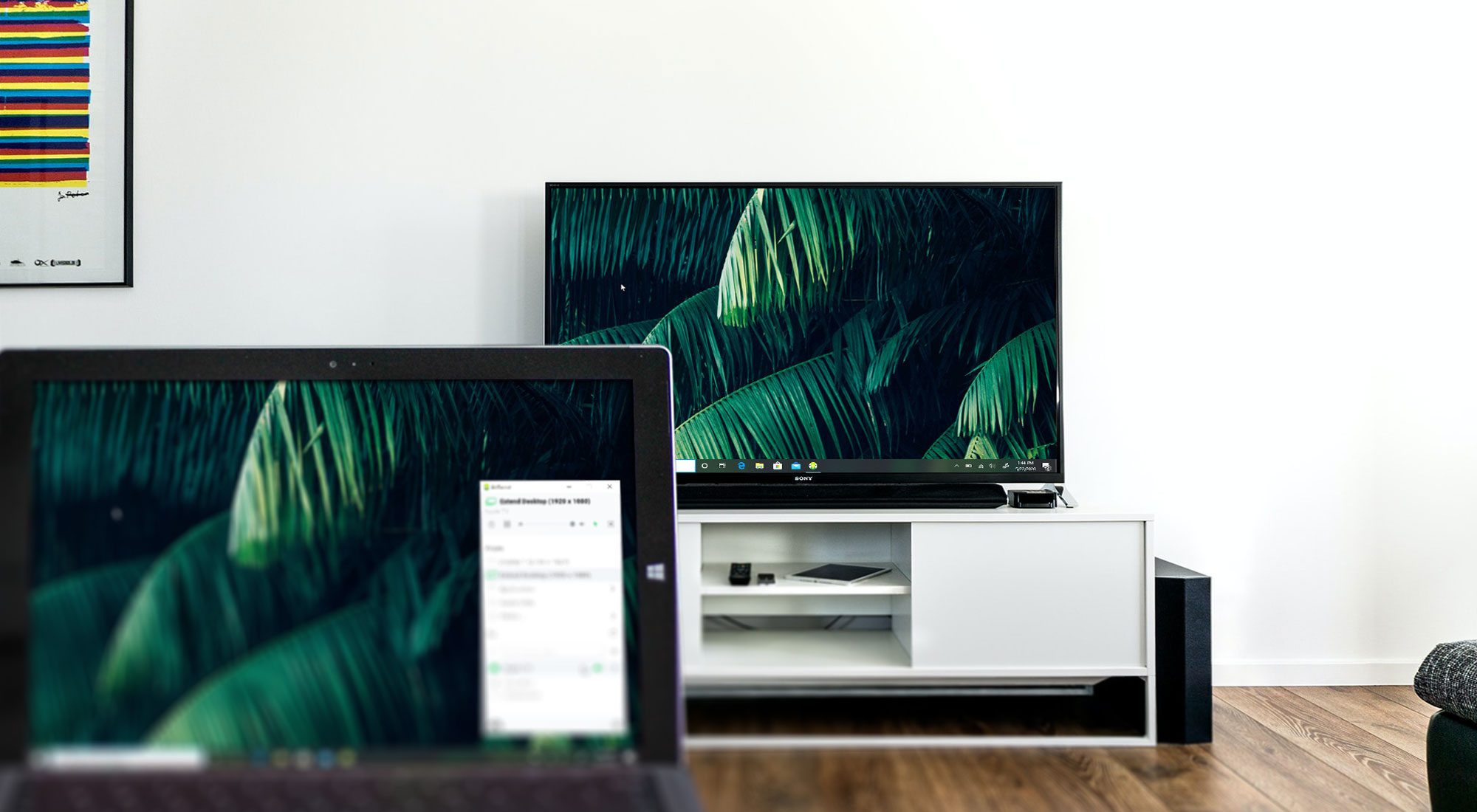
Use this quick how-to guide to learn how to extend the desktop of your Windows PC to your Apple TV or Chromecast for a two-monitor display setup.

Mirror any device to your screen — wirelessly.
One universal license for each app — works on macOS and Windows.
— or buy Reflector 4 on its own —



For schools, districts or volume licensing — contact us.

Stream audio and video from your Mac or PC to any screen.
One universal license for each app — works on macOS and Windows.
— or buy AirParrot 3 on its own —
For schools, districts or volume licensing — contact us.