Ditto Adds Digital Signage Zones, Display Takeovers, YouTube Signage
The takeover begins now. Three major Ditto digital signage updates help you bring the right signage to the right moment.
1 min read
Squirrels Updated on August 18, 2023
Sharing a Chromebook screen to a TV, projector or other large display is easy. You don’t need a Chromecast or confusing hardware to do it. All you need is Ditto.
Ditto is a wireless presentation software that lets you screen mirror Chromebooks (and many other devices) to Apple TVs, Windows devices and more.
Before you begin, a little bit of setup is required. This should take about 10 minutes. You must first create a Ditto account (30-day free trial available).
You will then need to set up Ditto on your display. Learn how to set up Ditto here.
Now you’re ready to begin screen mirroring your Chromebook:
Open the Ditto Connect application on your Chromebook. If you do not already have the application, you can get it from the Chrome web store for free.
Make sure the Ditto Receiver application is open on your Apple TV or Windows device. Your TV or primary display will display the Ditto room code. Enter this code into the Ditto Connect app and click Connect.
Click Start Sharing.
When prompted, click Share.
That’s it! Now you’re wirelessly screen mirroring your Chromebook to your Apple TV or Windows PC.
Pro tip: You can screen mirror multiple Chromebooks to your Apple TV simultaneously if needed. You can also mirror multiple iPhones, iPads, Windows PCs, Macs and Android devices simultaneously.
Click Stop Sharing to disconnect your Chromebook from the display.
With Ditto you can wirelessly present iPhones, iPads, Macs, Windows PCs, and Android devices anywhere people meet, present and learn.
Learn how to screen mirror, find the most popular screen mirroring products and answer common screen mirroring questions. Read The Ultimate Screen Mirroring Guide.
Try Ditto for free today to present all of your devices to the big screen.
The takeover begins now. Three major Ditto digital signage updates help you bring the right signage to the right moment.
iPhone 17 makes screen sharing and media streaming fast and easy. This guide shows you how to wirelessly mirror iPhone 17 to TVs, projectors or...
HDMI cables. Document cameras. DVD players. Dongles and adapters. Many classrooms still rely on these old technologies, but students and educators...
You’re using a Chromebook for your next big presentation. You’ve mirrored to a Chromecast before, but the conference room you’ll be using only has an...
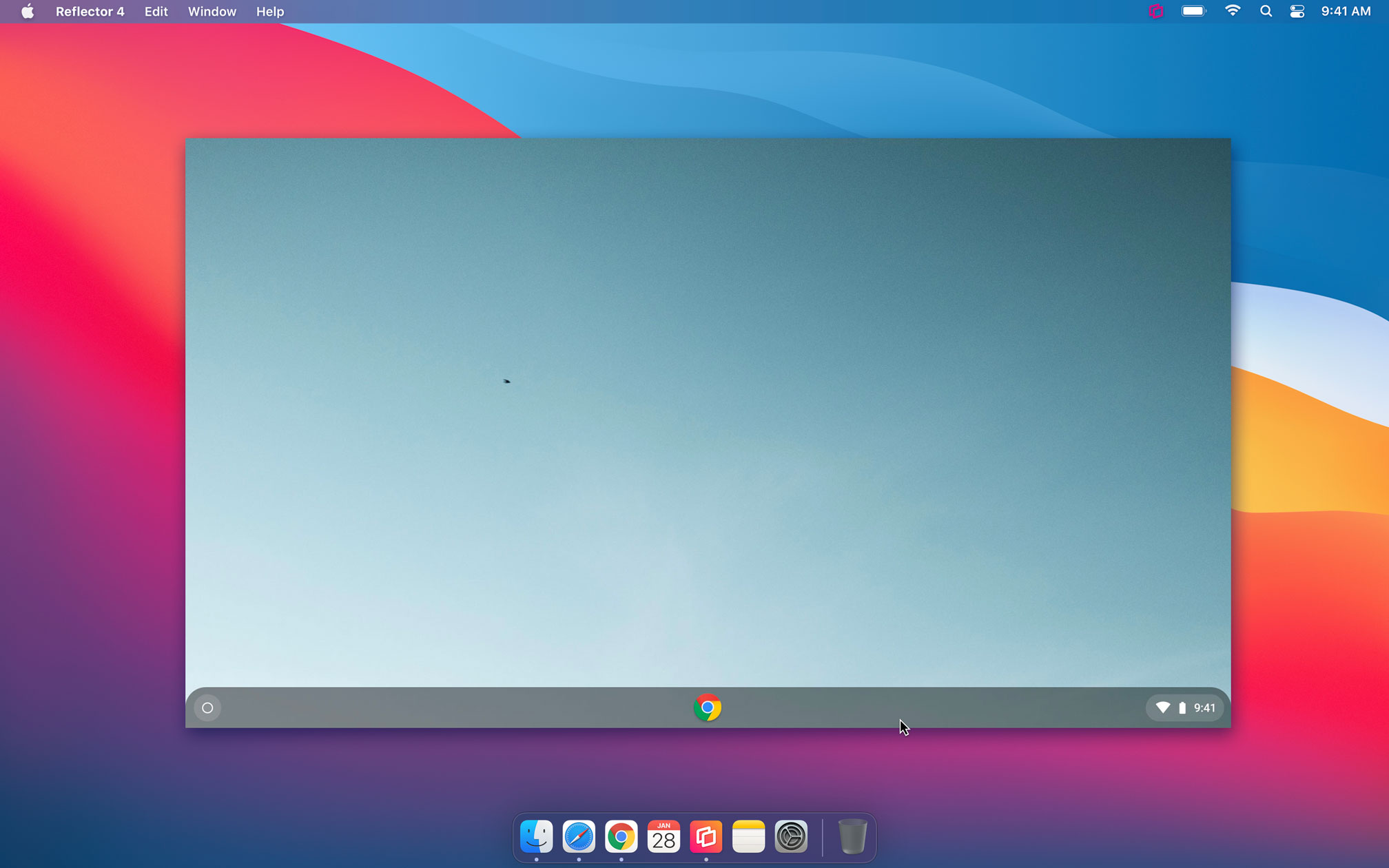
Many educators and consumers use Reflector to wirelessly mirror their Chromebook screen to another computer. People often ask us why they can only...
It’s easy to screen mirror multiple phones, tablets and computers to an Apple TV simultaneously.
Mirror any device to your screen — wirelessly.
One universal license for each app — works on macOS and Windows.
— or buy Reflector 4 on its own —

For schools, districts or volume licensing — contact us.

Stream audio and video from your Mac or PC to any screen.
One universal license for each app — works on macOS and Windows.
— or buy AirParrot 3 on its own —
For schools, districts or volume licensing — contact us.
Before you check out
Save … when you purchase together.
+
Your license key was sent to your email.
Download your software