Introducing the Ditto Fire OS Receiver
The new Ditto Fire OS Receiver brings wireless screen mirroring, digital signage and emergency alerts to Fire OS devices. It joins Windows, Apple TV...

3 min read
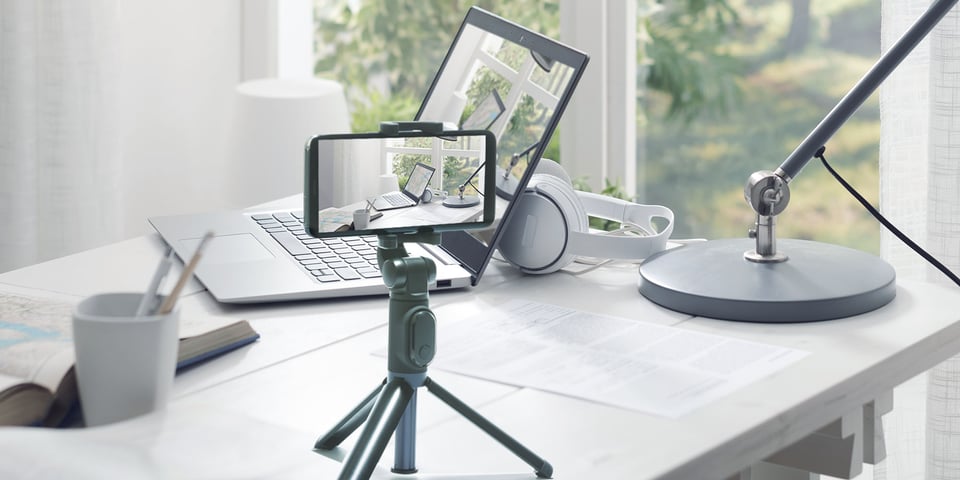
One of the trickiest parts of filming how-to videos for crafts, cooking, recipes, home improvement and other DIY tutorials on your phone is setting up the shot. You can have the best cross stitch skills, the freshest ingredients, and the cleverest life hacks, but if your video shoot looks bad, no one will watch it.
The good news is you don’t need expensive or professional-quality gear to film a great video. You can set up and film high-quality video tutorials directly from your phone or tablet — be it an iPhone, iPad, Google Pixel, Samsung Galaxy or any other common mobile device.
Learn some basic tools and techniques to set up a perfect shot with this guide. We’ll concentrate on filming with mobile devices to screen mirror and make sure everything fits correctly in frame. You can use your laptop and the computer app Reflector as a monitor to ensure everything in the shot looks great. Let’s get started.
Use this guide no matter what mobile device you use: iPhone, iPad, Google Pixel, Samsung Galaxy and more.
First, assemble your materials for your video shoot. Prep a shopping list if you need it, gather supplies and plan what tools you’ll need to shoot. You’ll need some basic film gear to really make your video shine, but luckily, lights, tripods and other gear don’t have to be expensive. You might even already have them lying around the house. Check out this helpful resource on basic DIY film setups.
You’ll also need your phone, a computer and the computer app  . Reflector lets you wirelessly screen mirror anything from your phone to your computer. It’s super easy to use and is vital to correctly setting up your shots when filming on mobile devices. Get Reflector here.
Learn more about Reflector here.
Once you have your materials gathered, prep your setup. Lay out everything you need in your workspace, compile your gear and assemble your film set.
Now is the time to download and install Reflector on your computer if you haven’t already.
Take several test shots before you begin filming. To do this, screen mirror your device to your computer so you can constantly see what’s being filmed.
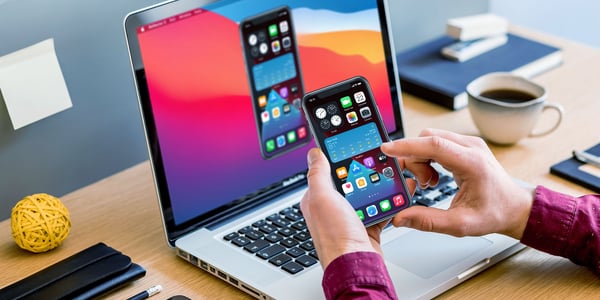
First, open Reflector and screen mirror your phone to your computer. If you don’t know how to do this, use these quick guides:
Now that you’re screen mirroring, open your preferred camera app on your smartphone. Position your phone so every object or person that needs to be present is in the shot.
You don’t need to squint at a tiny phone screen or dash back and forth between your phone and your film set to get the perfect shot. Your computer is now a large monitor for whatever your phone camera captures. Place your computer wherever it’s most helpful for you to see what’s in the shot. Reflector makes this process really simple and efficient.
Record a few test shots and make sure the camera sees everything it needs to. Your computer running Reflector will guide you.
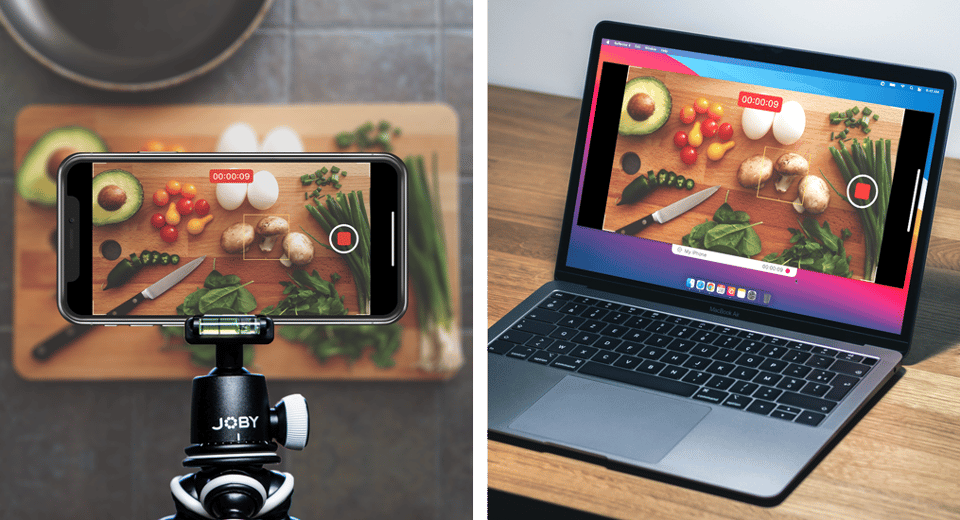
With your set ready to go, your gear set up and your phone camera easily viewable on your computer, you can begin filming.
See how Design firm Uxable uses Reflector to film how people use apps:
Reflector turns your computer into an extra monitor and makes filming on your phone easier. In just a few steps, you’ll master tutorial videos, DIY content and more by viewing everything on the big screen. Get Reflector today.
Last updated 5/3/2023
The new Ditto Fire OS Receiver brings wireless screen mirroring, digital signage and emergency alerts to Fire OS devices. It joins Windows, Apple TV...
Ditto now runs on Android-powered displays. The new Ditto Android Receiver gives schools and businesses another way to bring wireless screen...
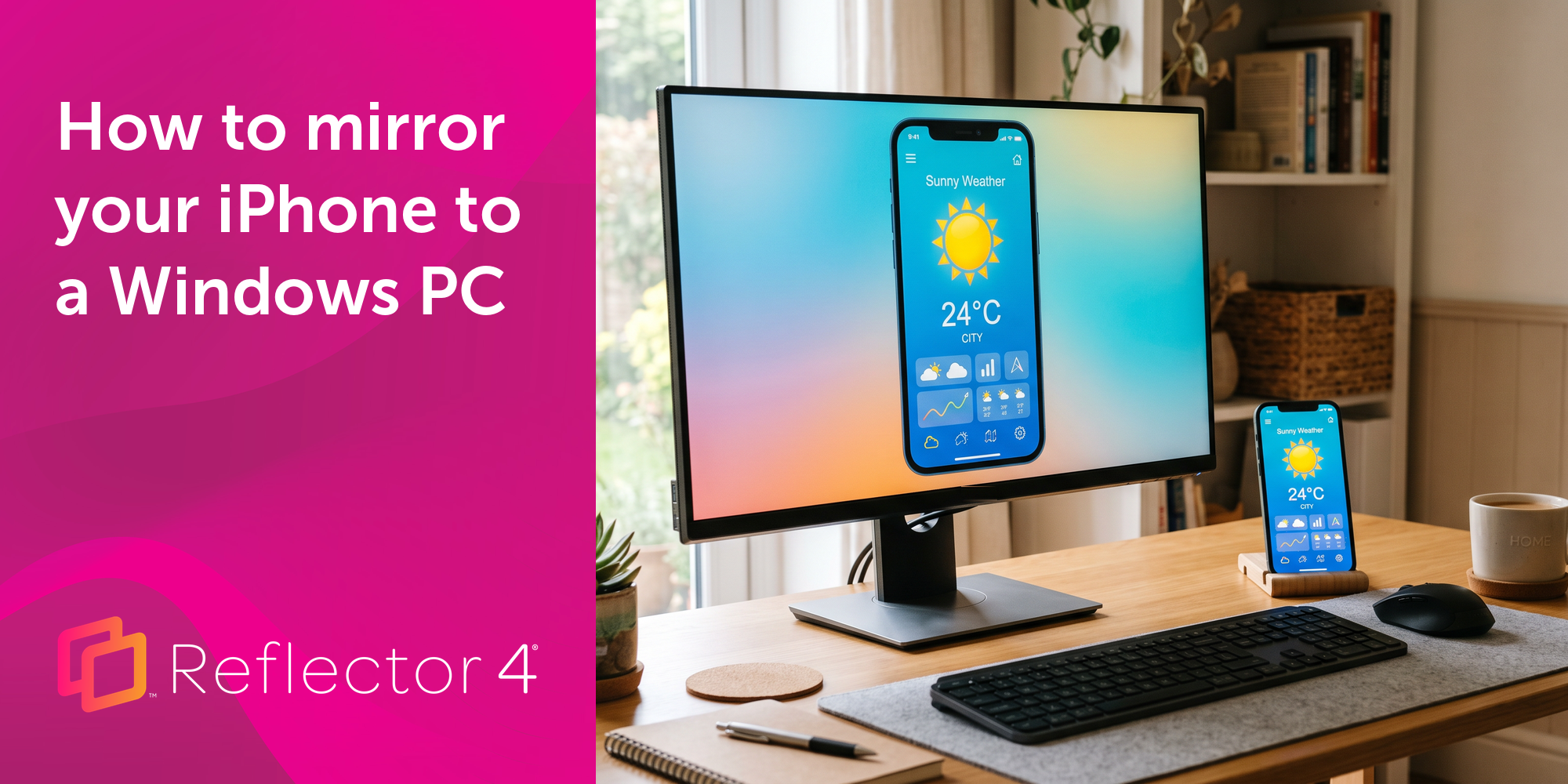
Windows still can't receive AirPlay connections on its own. Try to open Screen Mirroring on an iPhone in a room full of PCs. The list comes back...
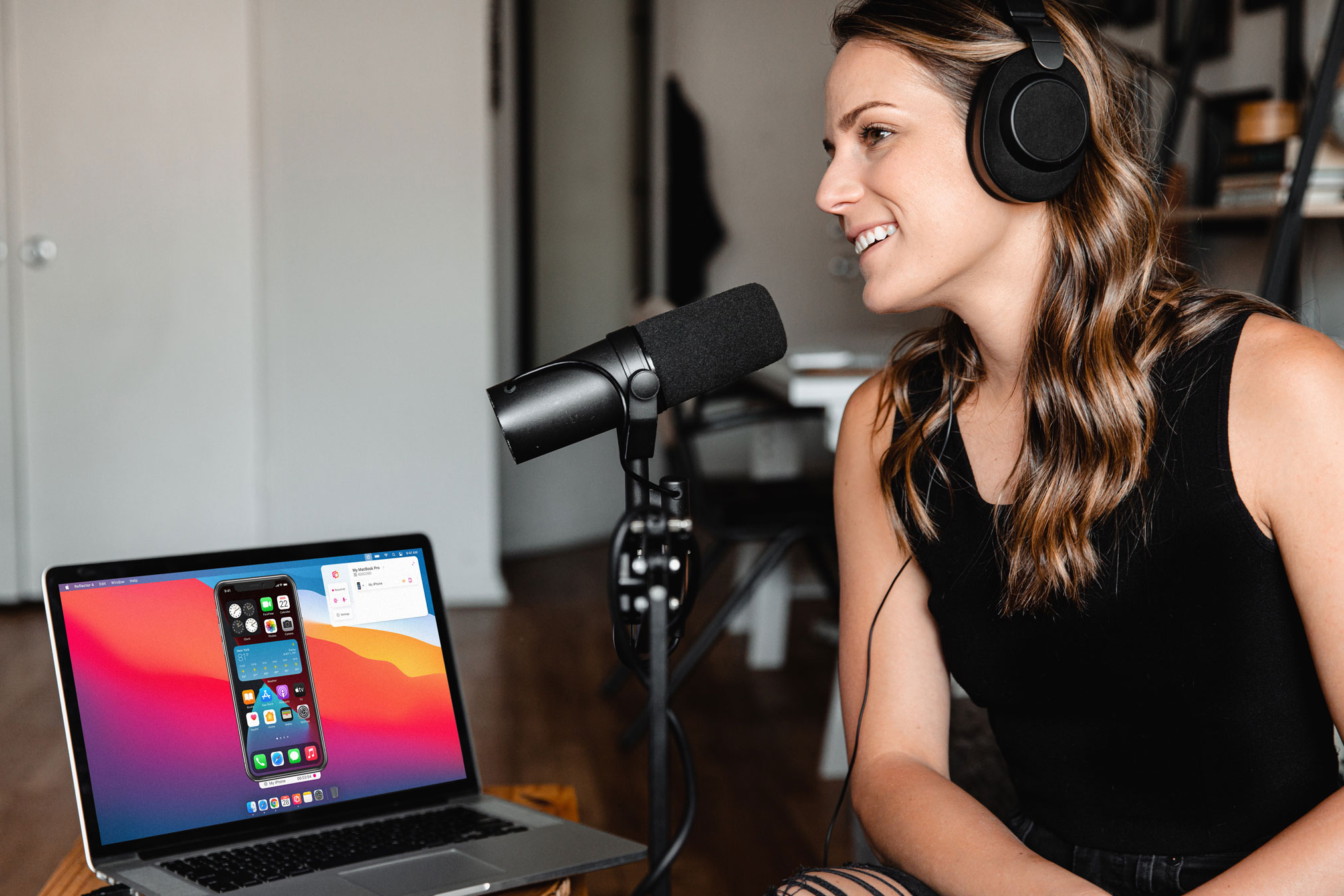
Learn how to easily narrate audio and record voiceover while screen recording iPhone using this quick guide.
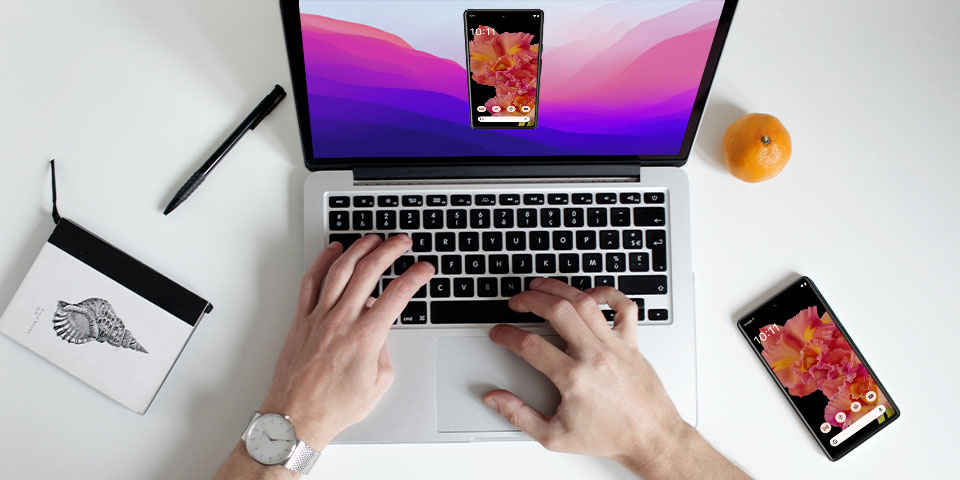
Learn how to screen mirror on an Android phone with this guide. See how to screen mirror your Google Pixel 6 with the Android 12 operating system.
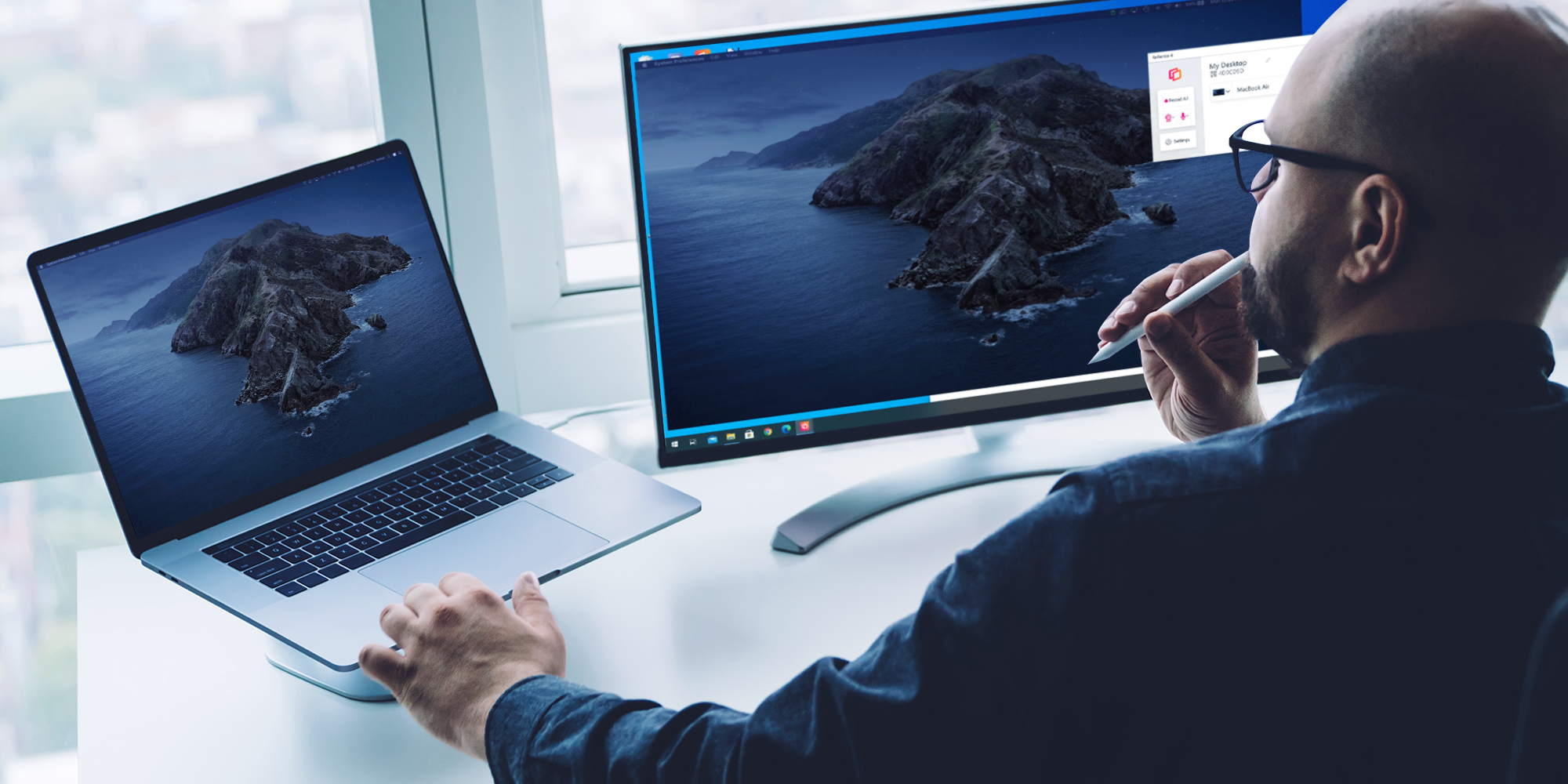
This quick guide shows you how to extend your macOS desktop to your Windows computer using AirParrot and Reflector.
Mirror any device to your screen — wirelessly.
One universal license for each app — works on macOS and Windows.
— or buy Reflector 4 on its own —


For schools, districts or volume licensing — contact us.

Stream audio and video from your Mac or PC to any screen.
One universal license for each app — works on macOS and Windows.
— or buy AirParrot 3 on its own —
For schools, districts or volume licensing — contact us.