Introducing the Ditto Fire OS Receiver
The new Ditto Fire OS Receiver brings wireless screen mirroring, digital signage and emergency alerts to Fire OS devices. It joins Windows, Apple TV...

1 min read
The introduction of iPadOS makes the iPad a powerhouse for both work and play.
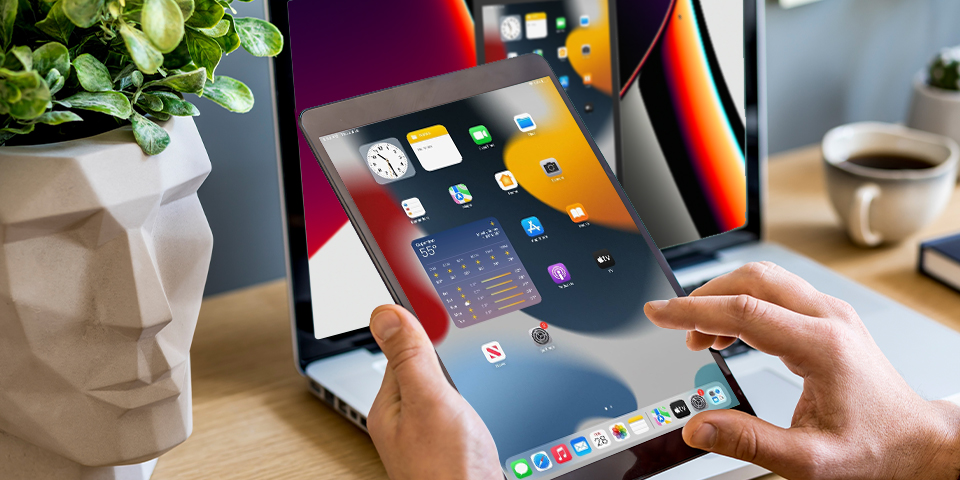
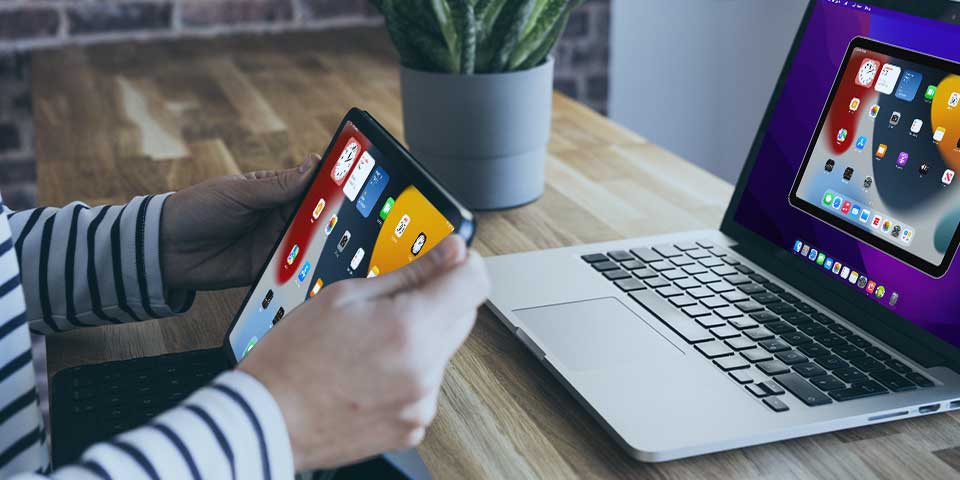
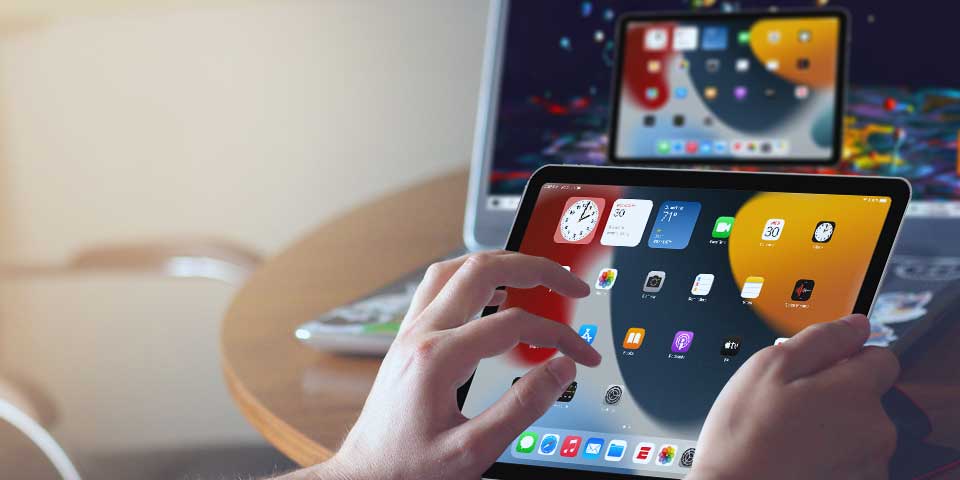
Presenting that next big keynote or sharing the funny new video you found is easy with your computer and an iPad. All you need is the app Reflector on your computer. People around the world use Reflector to screen mirror and record iOS devices, and now you can do it on iPadOS.
If you want to know more about screen mirroring, this article breaks down everything you need to know.
Note: This tutorial shows how to screen mirror iPadOS to Reflector, but you can follow the same steps on the iPad for traditional AirPlay screen mirroring.
Download and install Reflector on your Mac or Windows computer. Then connect your computer and iPad to the same wifi network.
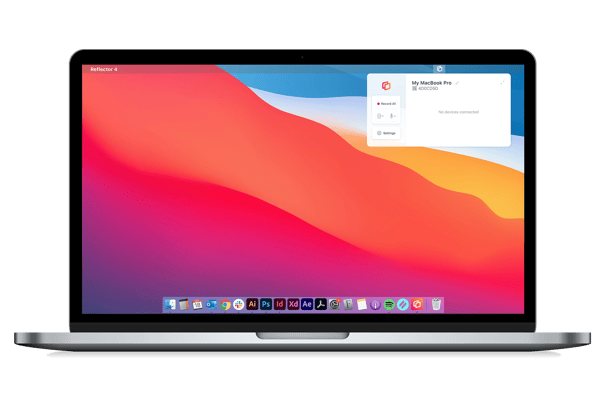
Launch Reflector on your computer.
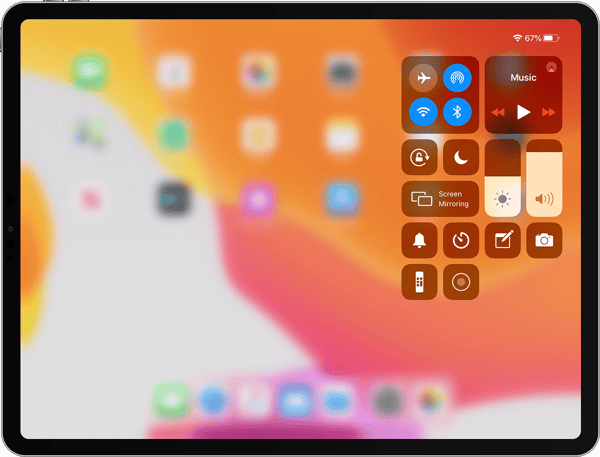
On your iPad, open Control Center by swiping down from the top right corner. Tap "Screen Mirroring."
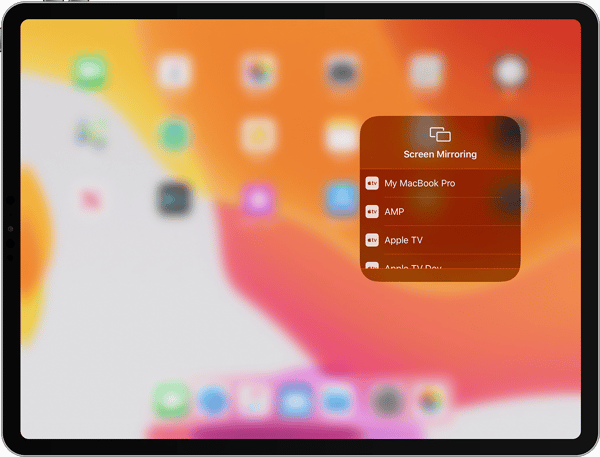
Select the name of your computer from the list of available receivers.
That’s it! Now your iPad will wirelessly display on your computer. Anything you do on your iPad will reflect on your computer’s screen in real time, including audio.
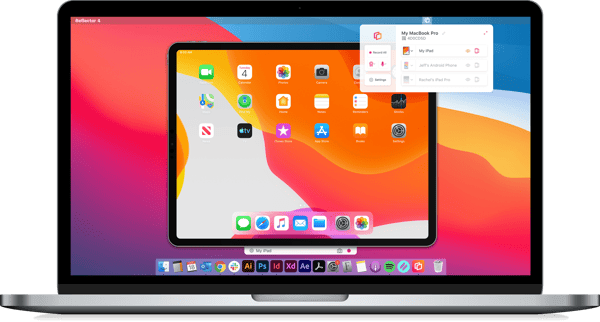
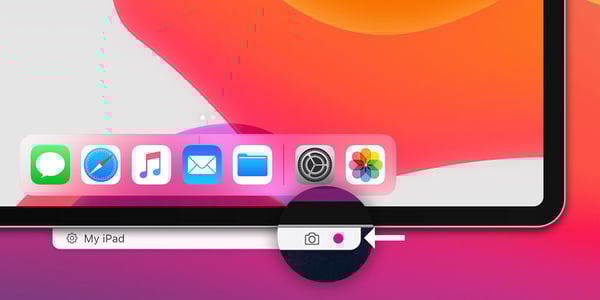
You can also take screenshots and record your iPad screen with Reflector. To take a screenshot, just click the camera icon in the Reflector menu bar above your connected device. To record your iPad screen, just click the red button.
Want to mirror your iPad to the TV? Just connect your computer to your TV with an HDMI cable, and you’ll be wirelessly mirroring your iPad to the big screen.
With Reflector, you can screen mirror iPhones, Android devices, Chromebooks and other computers one at a time or simultaneously.
Get Reflector today to mirror all of your devices.
Last updated 5/3/2023
The new Ditto Fire OS Receiver brings wireless screen mirroring, digital signage and emergency alerts to Fire OS devices. It joins Windows, Apple TV...
Ditto now runs on Android-powered displays. The new Ditto Android Receiver gives schools and businesses another way to bring wireless screen...
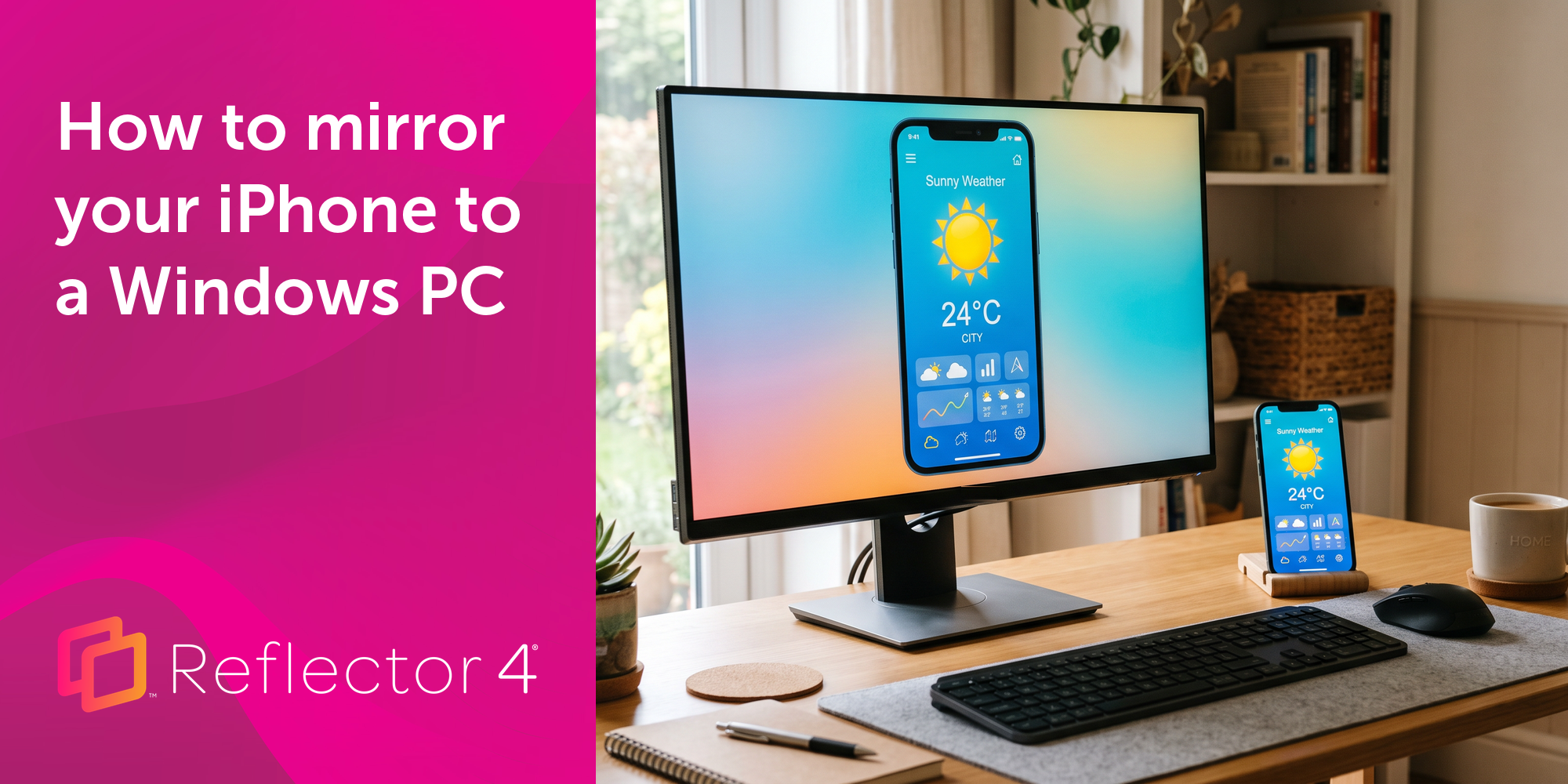
Windows still can't receive AirPlay connections on its own. Try to open Screen Mirroring on an iPhone in a room full of PCs. The list comes back...
Screen mirror an iPad in a few easy steps and unlock advanced AirPlay sharing features. Then discover how to screen mirror iPadOS 16 to Mac and...
This quick guide shows you how to screen mirror an iPad to a Mac computer with iPadOS 15. Follow these simple steps using AirPlay and Reflector to...
Learn how to share your iPad with AirPlay to Windows using the app Reflector and iPadOS 15. Quickly screen mirror an iPad to any PC.
Mirror any device to your screen — wirelessly.
One universal license for each app — works on macOS and Windows.
— or buy Reflector 4 on its own —



For schools, districts or volume licensing — contact us.

Stream audio and video from your Mac or PC to any screen.
One universal license for each app — works on macOS and Windows.
— or buy AirParrot 3 on its own —
For schools, districts or volume licensing — contact us.