Introducing the Ditto Fire OS Receiver
The new Ditto Fire OS Receiver brings wireless screen mirroring, digital signage and emergency alerts to Fire OS devices. It joins Windows, Apple TV...

1 min read
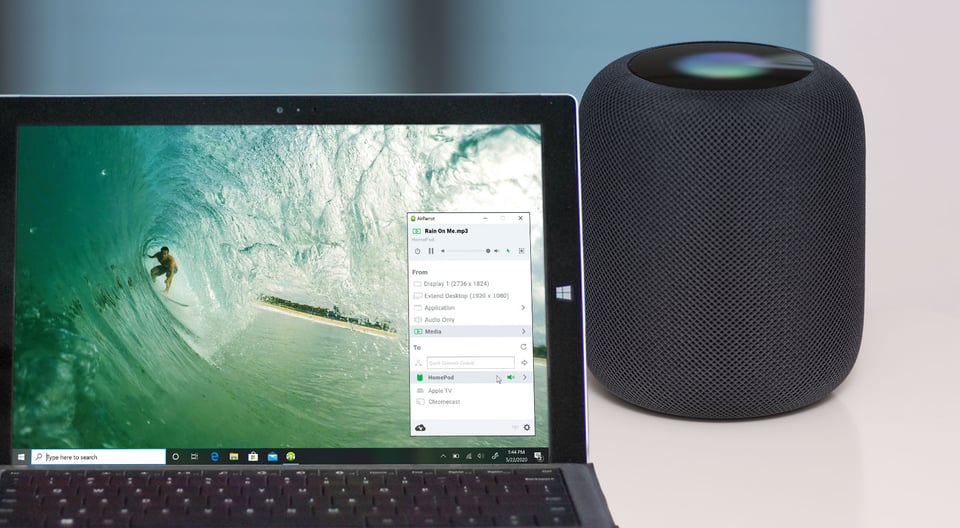
It’s easy to stream music from your Windows PC to your Apple HomePod. You don’t need any other devices made by Apple to stream audio to the HomePod smartspeaker as long as you follow this guide. In just a few minutes, you can play songs and other audio to one or many HomePods from nearly any computer.
What's AirParrot? AirParrot is an app for your Mac or Windows PC that lets you wirelessly stream and send content from your computer to AirPlay and Google Cast devices like Apple TV, Chromecast and HomePod. It’s perfect for streaming songs and other audio throughout the house.
While this guide shows you how to stream music from a Windows computer to a HomePod, the process is nearly the same if you need to learn how to stream music from a Mac to a HomePod.
Download and install AirParrot on your computer. It's available for Mac or Windows.
Make sure your HomePod and computer are on the same wifi network. Ensure you’ve set up your HomePod according to Apple’s instructions.
Launch AirParrot on your PC. Under the “From” section in the AirParrot menu, select either “Audio Only” or “Media.”
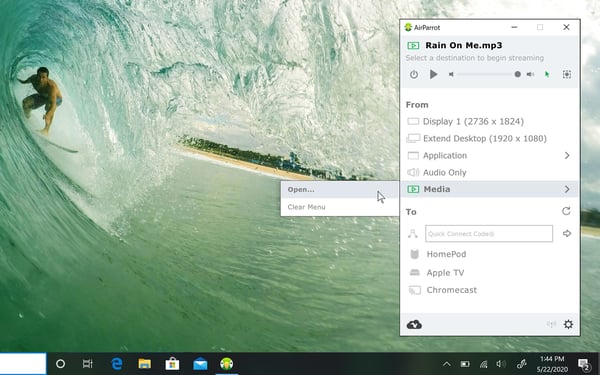
Under the “To” section in the AirParrot menu, select the name of your HomePod(s) to begin streaming.
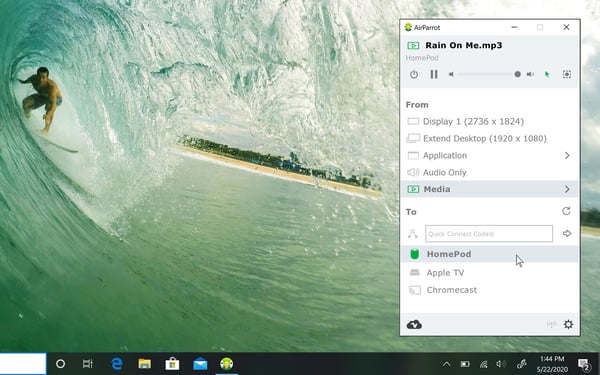
Now you’re wirelessly streaming audio from your Windows PC to your HomePod.
Get AirParrot to stream audio nearly anywhere.
Wirelessly extend your desktop, screen mirror your PC to your TV, and stream the audio almost anywhere from a movie playing on your computer. To see everything you can do with AirParrot and more, check out the helpful guides below.
The new Ditto Fire OS Receiver brings wireless screen mirroring, digital signage and emergency alerts to Fire OS devices. It joins Windows, Apple TV...
Ditto now runs on Android-powered displays. The new Ditto Android Receiver gives schools and businesses another way to bring wireless screen...
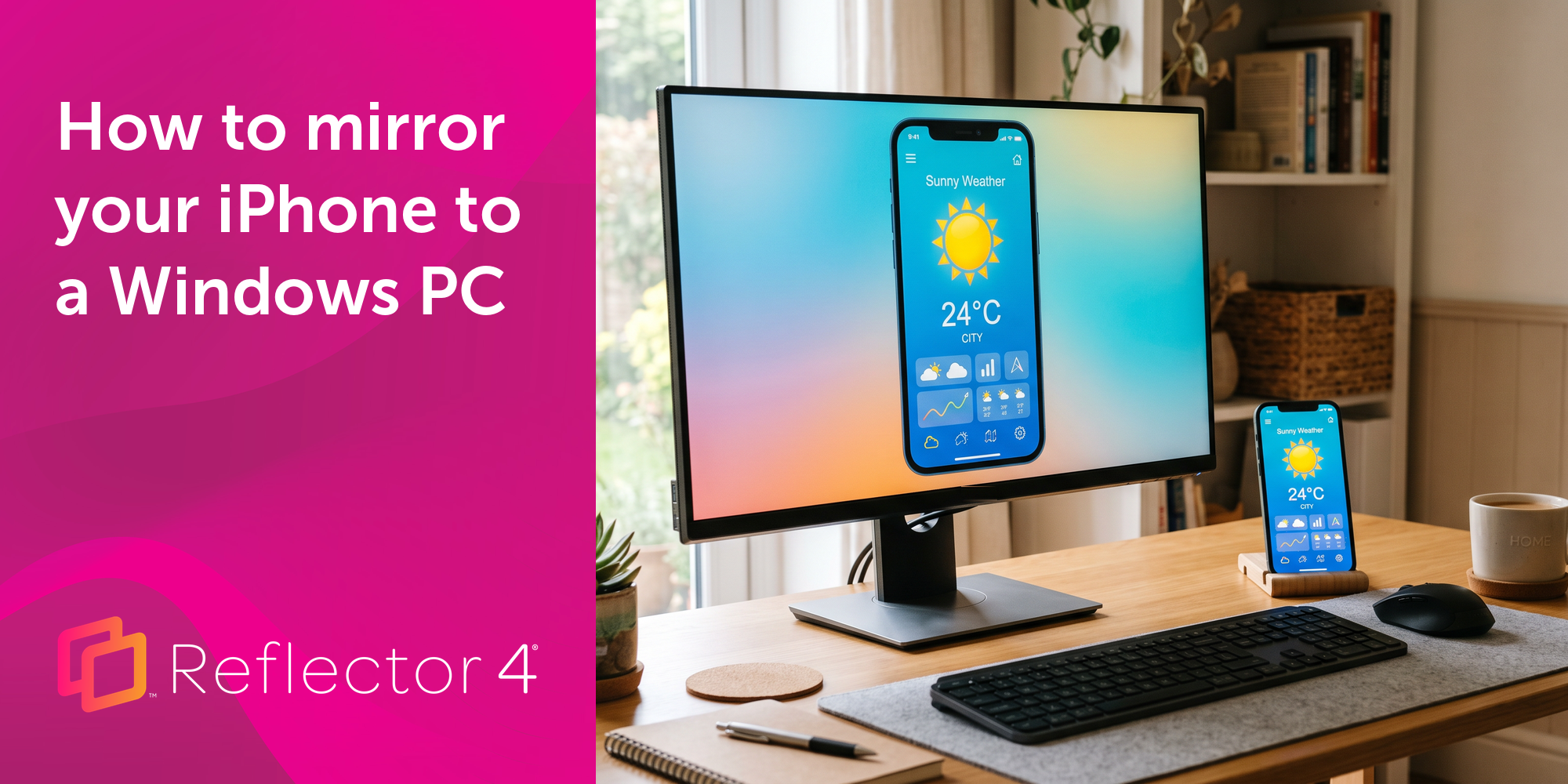
Windows still can't receive AirPlay connections on its own. Try to open Screen Mirroring on an iPhone in a room full of PCs. The list comes back...
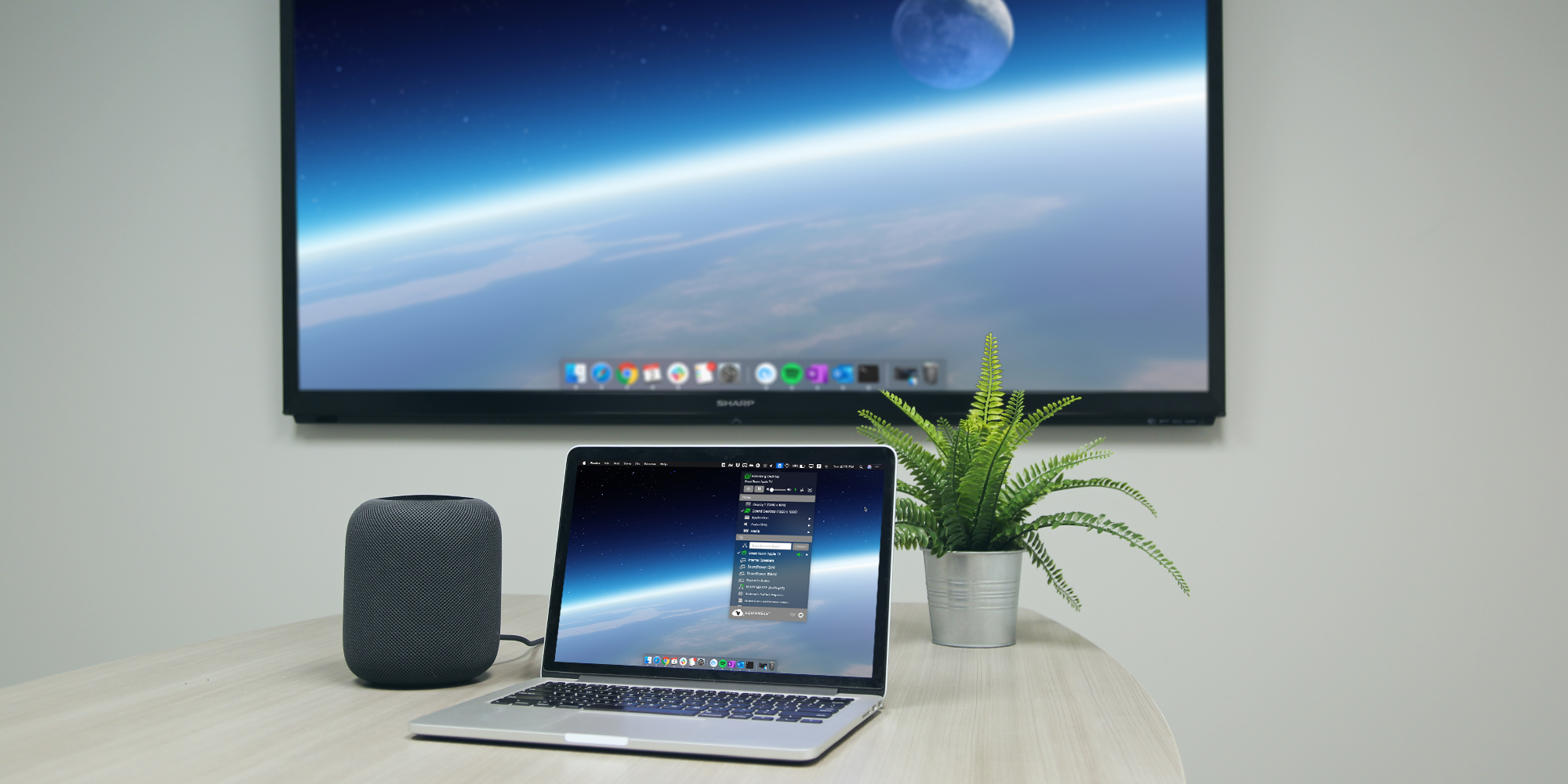
With AirParrot for Mac and Windows, you can now stream media to your Apple HomePod and wirelessly extend your desktop to an external display. Here’s...
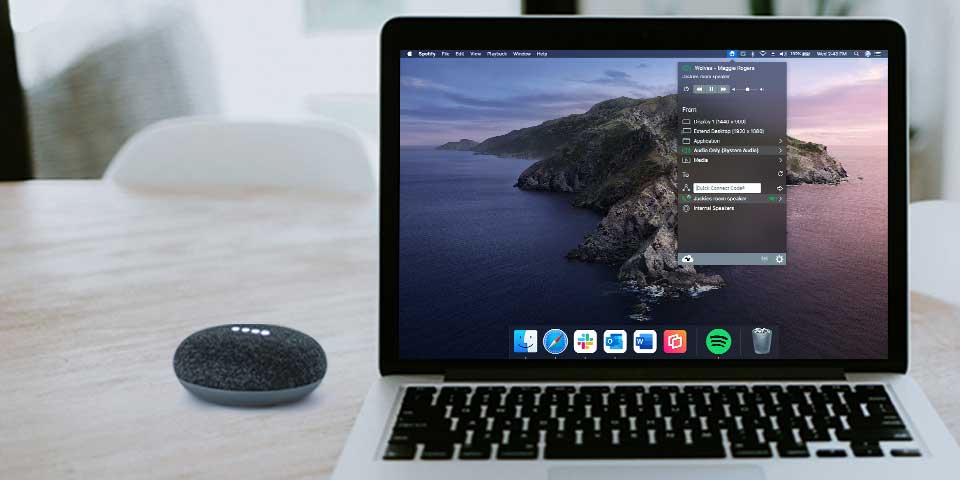
Learn how to wirelessly stream Mac and Windows audio to Google Nest Audio and Nest Mini speakers. Stream music, MP3 files and other audio to Google...
Introducing AirParrot 3. Big performance boosts, Windows extended desktop and HomePod support highlight this all new screen mirroring and streaming...

Mirror any device to your screen — wirelessly.
One universal license for each app — works on macOS and Windows.
— or buy Reflector 4 on its own —



For schools, districts or volume licensing — contact us.

Stream audio and video from your Mac or PC to any screen.
One universal license for each app — works on macOS and Windows.
— or buy AirParrot 3 on its own —
For schools, districts or volume licensing — contact us.