Introducing the Ditto Fire OS Receiver
The new Ditto Fire OS Receiver brings wireless screen mirroring, digital signage and emergency alerts to Fire OS devices. It joins Windows, Apple TV...

2 min read
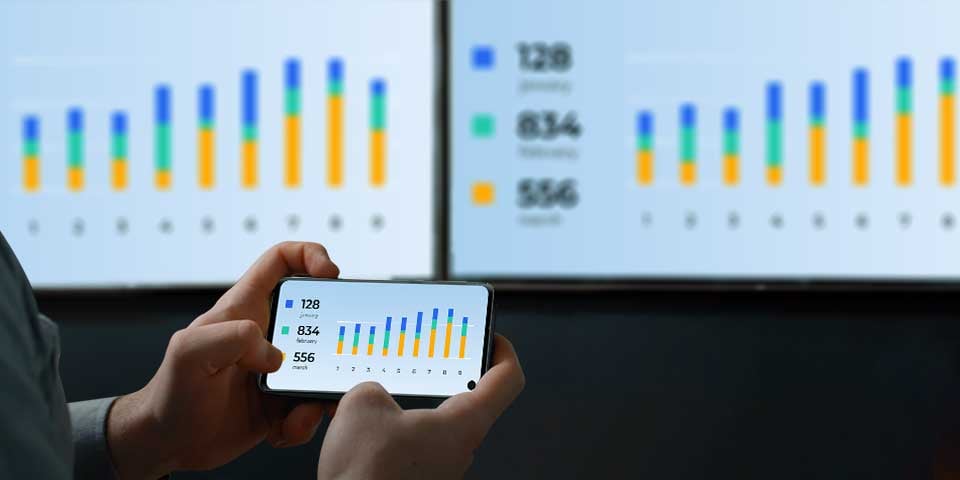
Screen mirroring your Android device to all the Apple TVs in your space is a great way to share content during meetings, class sessions, presentations and more.
Unfortunately, Android devices do not have native AirPlay technology that enables screen mirroring to Apple TVs. Luckily, you can use Ditto to wirelessly share your Android screen to one or more Apple TVs. Ditto provides a quick and seamless way to share your device to multiple displays simultaneously without extra hardware.
Become a screen mirroring expert. Read The Ultimate Screen Mirroring Guide.
A brief setup is required before you can begin. This should take about 10 minutes.
You need three things to wirelessly share an Android phone or tablet to multiple Apple TVs simultaneously:
First, you need to create your Ditto account. Then, set up Ditto on every Apple TV you want to mirror your Android device to. Learn how to set up Ditto here.
Prefer a video tutorial instead? Watch the Ditto setup video:
You’ll need to add each Apple TV as a receiver in your Ditto Account Portal and group the Apple TVs together as part of the same “Ditto room.”
Follow the step-by-step instructions to group your Apple TVs.
Now you’re ready to wirelessly cast your Android device to multiple Apple TVs. Ditto works with popular Android devices like Samsung Galaxy phones, Samsung Galaxy Tabs, Google Pixel phones and many more Android devices.
Open the Ditto Connect application on your Android device. If you do not already have the app, you can download it here (it’s free). Allow permissions for the app if prompted.
Make sure the Ditto Receiver application is open on your Apple TVs.
Enter the room code displayed on your Apple TV into the Ditto Connect application on your Android device and tap “Connect.”
Tap the Share Screen button.
Your Android device will automatically mirror to every Ditto-enabled Apple TV.
Ditto also allows you to screen mirror multiple Android devices to the same Apple TV. Simply download the Ditto Connect application on each Android device you want to mirror and enter the room code displayed on the Apple TV in Ditto Connect on each device.
With Ditto, you can also share iPhone, iPad, Mac, Chromebook and Windows devices as well. Try Ditto today.
Related Reading
Updated 8/18/2023
The new Ditto Fire OS Receiver brings wireless screen mirroring, digital signage and emergency alerts to Fire OS devices. It joins Windows, Apple TV...
Ditto now runs on Android-powered displays. The new Ditto Android Receiver gives schools and businesses another way to bring wireless screen...
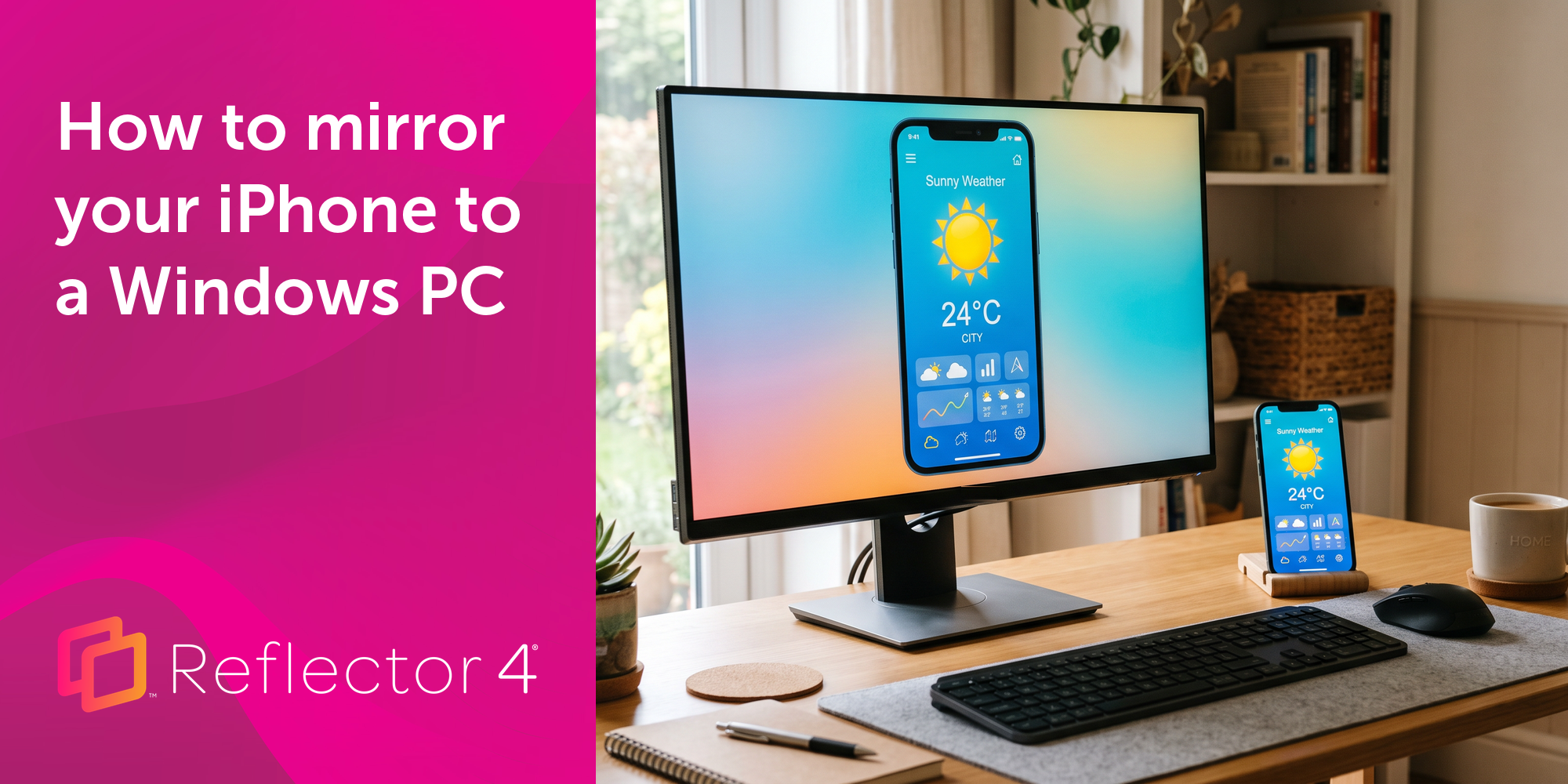
Windows still can't receive AirPlay connections on its own. Try to open Screen Mirroring on an iPhone in a room full of PCs. The list comes back...
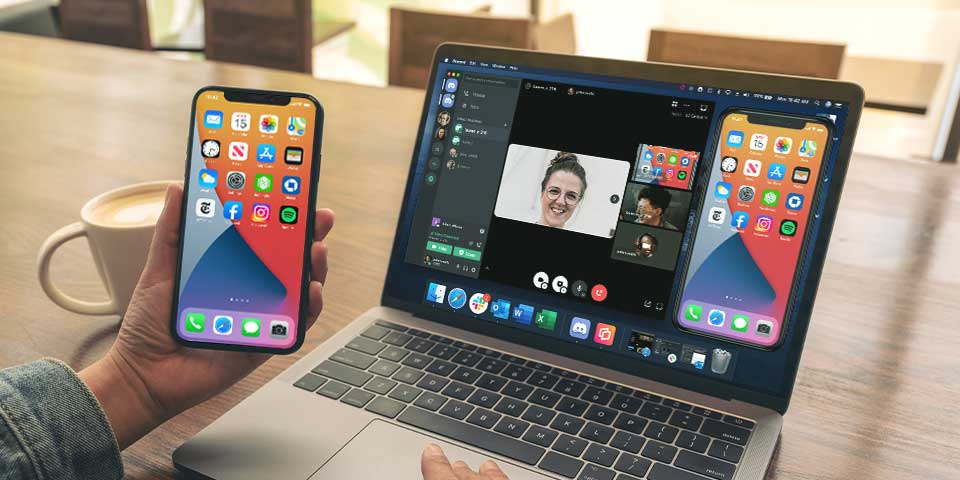
Learn how to screen mirror your iPhone 12, iPad Air, Samsung Galaxy Tab S7, Samsung Galaxy S21, Google Pixel 5 and more in a Discord direct message...
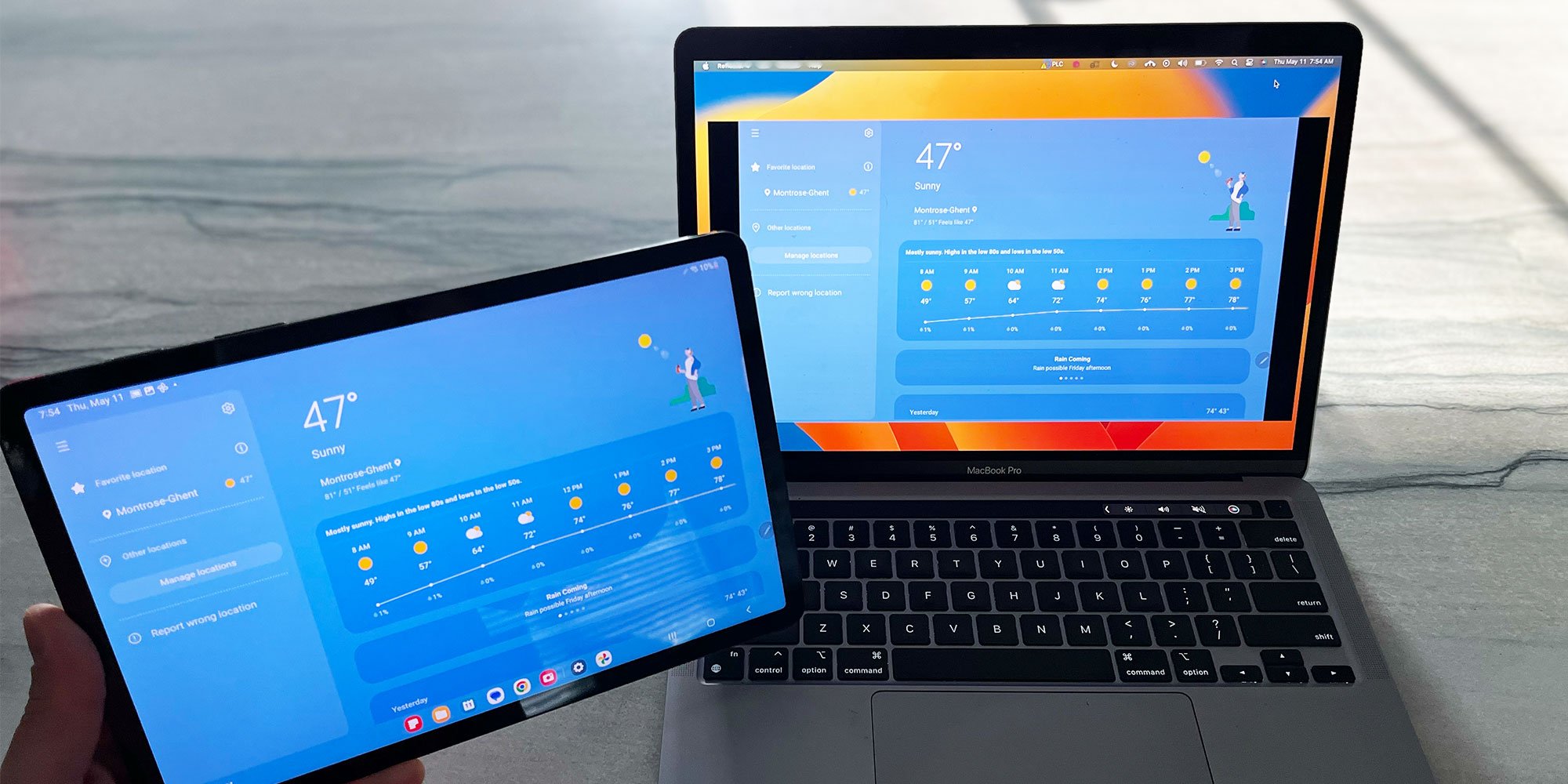
Here are the steps for screen mirroring a Samsung Galaxy Tab S8, S8+ and S8 Ultra to Samsung TVs, Mac and Windows computers, and other TV brands.
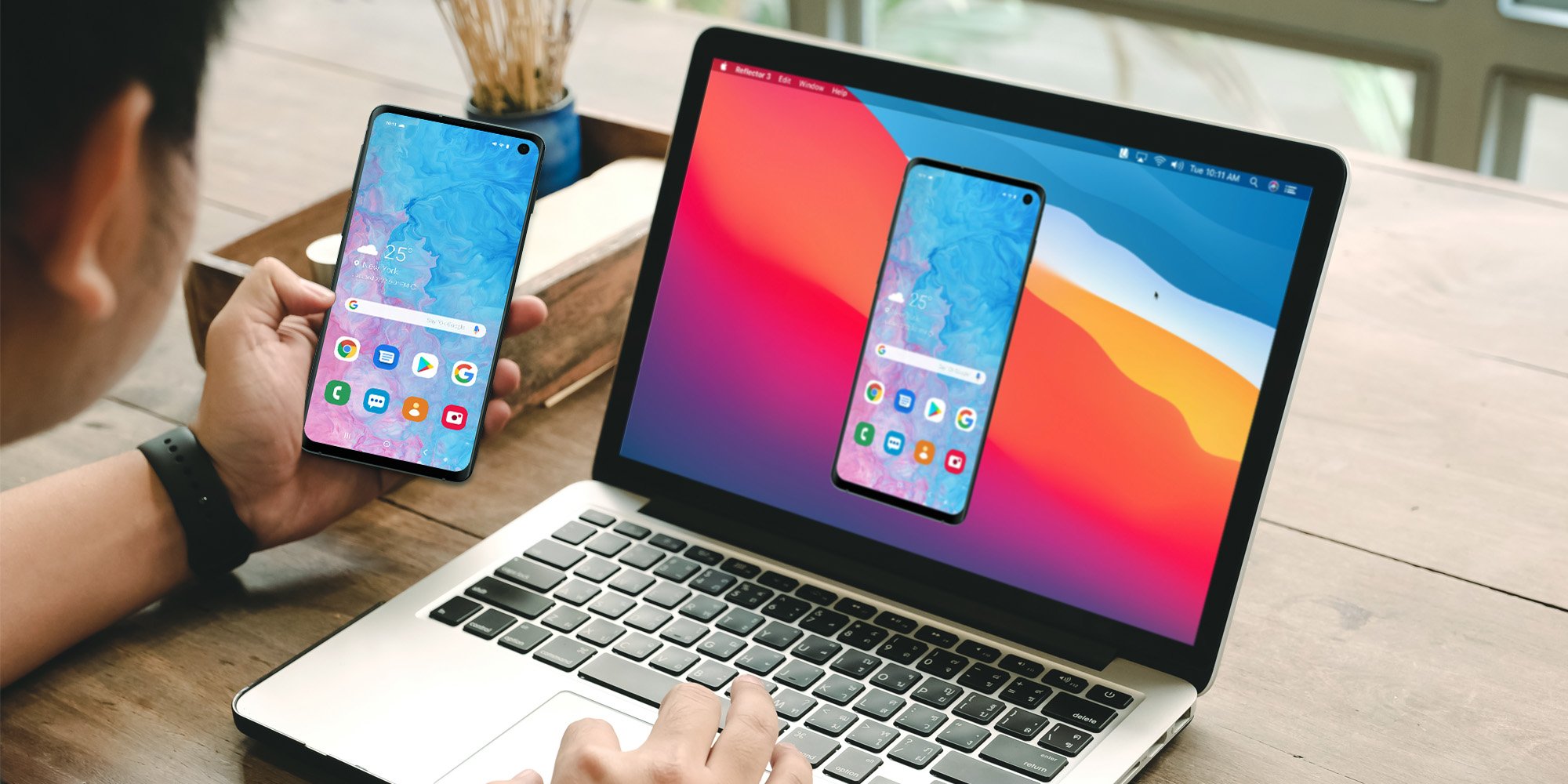
Starting on Android 11, you must enable Google Cast to screen mirror / cast Samsung phones and tablets to any non-Samsung device. Learn how with the...
Mirror any device to your screen — wirelessly.
One universal license for each app — works on macOS and Windows.
— or buy Reflector 4 on its own —


For schools, districts or volume licensing — contact us.

Stream audio and video from your Mac or PC to any screen.
One universal license for each app — works on macOS and Windows.
— or buy AirParrot 3 on its own —
For schools, districts or volume licensing — contact us.