Introducing the Ditto Fire OS Receiver
The new Ditto Fire OS Receiver brings wireless screen mirroring, digital signage and emergency alerts to Fire OS devices. It joins Windows, Apple TV...

2 min read
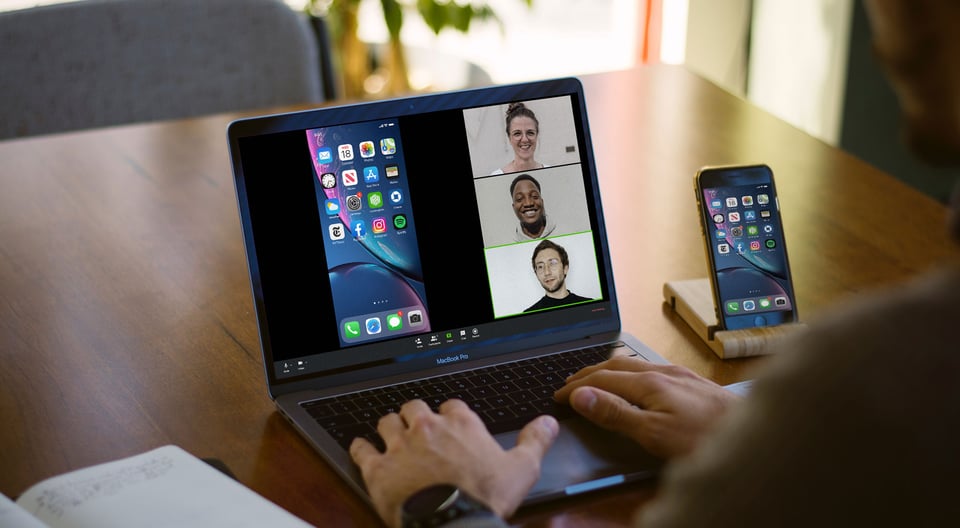
One of the most important ways to collaborate and share information while working remotely is to share your screen. While screensharing for your computer is built-in to most popular web conferencing software today, it’s not as easy to show everyone your mobile device or additional computer displays. This guide shows you how to share your iPhone, iPad and Android screens.
In addition to your preferred web conferencing software like Zoom, GoToMeeting or Microsoft Teams, you only need one app to share your mobile device: Reflector.
Reflector is a desktop app that turns your computer into a wireless receiver. That means you can screen mirror almost any device directly to your computer without any cables or adapters. This is vital if you need to share screens from your phone, tablet or another computer during a web conference. Read on to learn how.
Download and install Reflector on your Mac or Windows computer.
Make sure your computer and mobile device are connected to the same wifi network.
Launch Reflector and open your preferred web conferencing tool on your computer.
On your mobile device, open the screen mirroring/cast options and begin screen mirroring to Reflector.
Not sure how? Check these out:
Important: To make sure your mobile device screen shares properly, hover over your device in Reflector and click the green settings cog next to the device name. Ensure "Always on Top" and "Fullscreen" are toggled off.
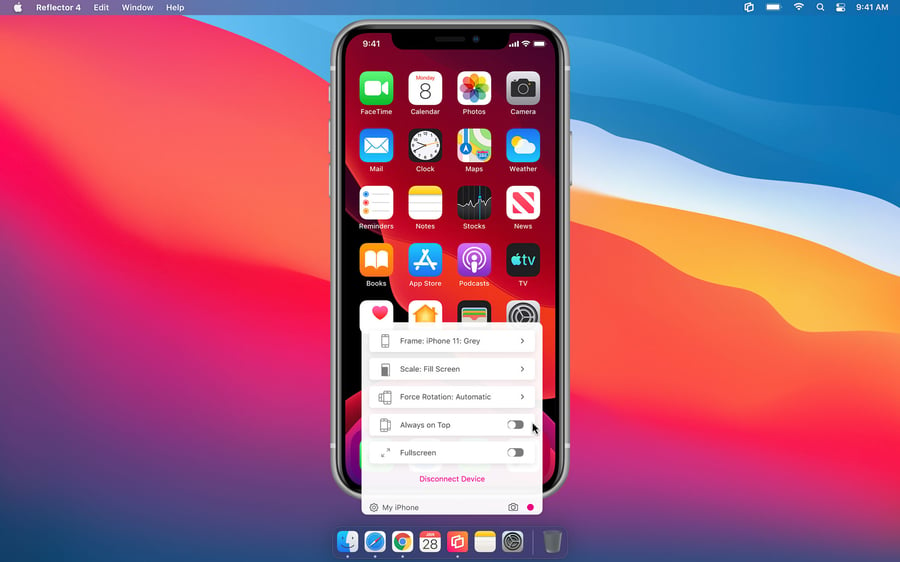
These must be toggled off to successfully begin sharing your device screen over a web conferencing platform. If you prefer, you can toggle these settings back on after you begin presenting your computer screen.
Within your web conferencing tool, select the option to share your screen. You can choose to share your computer's desktop or the window labeled "Reflector" that displays only your mobile device.
Your screen will now be shared to everyone in your meeting.
Everyone will be able to see what's on your phone screen. Learn how to turn off notifications on your mobile device.
You can share more than just mobile devices. Computers can screen mirror to Reflector, too. If your computer doesn’t have a built-in way to cast or screen mirror to Reflector (most computers do), check out AirParrot. AirParrot is an advanced AirPlay and Google Cast mirroring software that includes extended desktop, specific app mirroring, streaming and more.
This is just one quick way Reflector can help turn your home into a more productive workspace. Subscribe to the Squirrels blog for more tips on working, learning and teaching from home.
Updated 5/3/23
The new Ditto Fire OS Receiver brings wireless screen mirroring, digital signage and emergency alerts to Fire OS devices. It joins Windows, Apple TV...
Ditto now runs on Android-powered displays. The new Ditto Android Receiver gives schools and businesses another way to bring wireless screen...
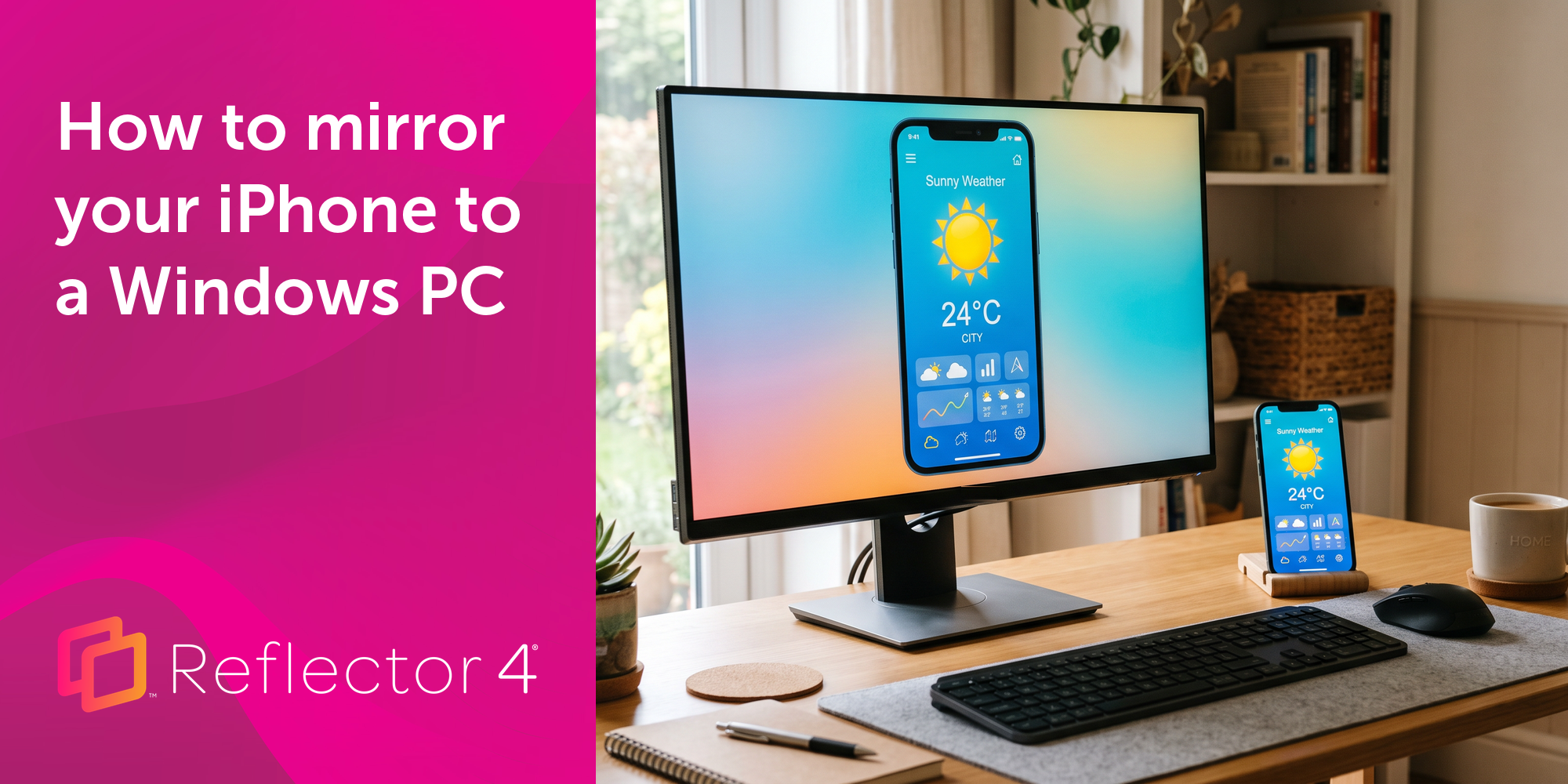
Windows still can't receive AirPlay connections on its own. Try to open Screen Mirroring on an iPhone in a room full of PCs. The list comes back...
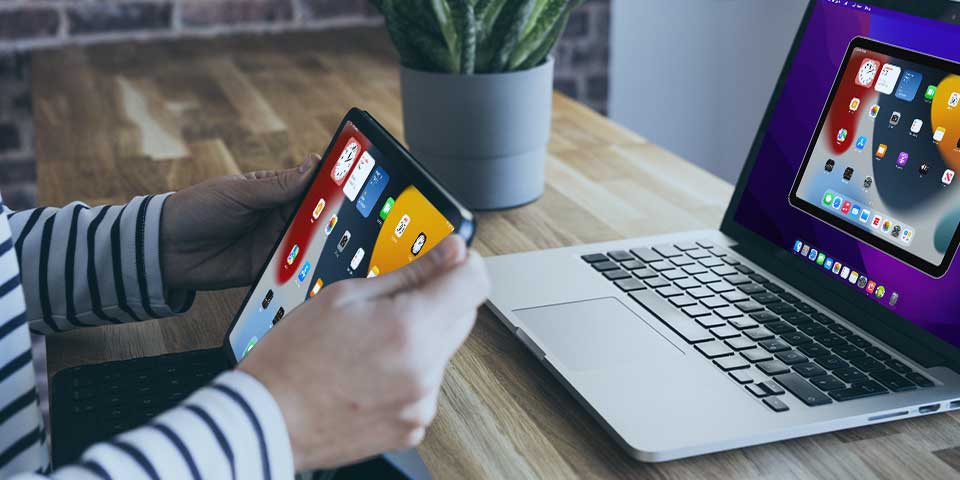
This quick guide shows you how to screen mirror an iPad to a Mac computer with iPadOS 15. Follow these simple steps using AirPlay and Reflector to...
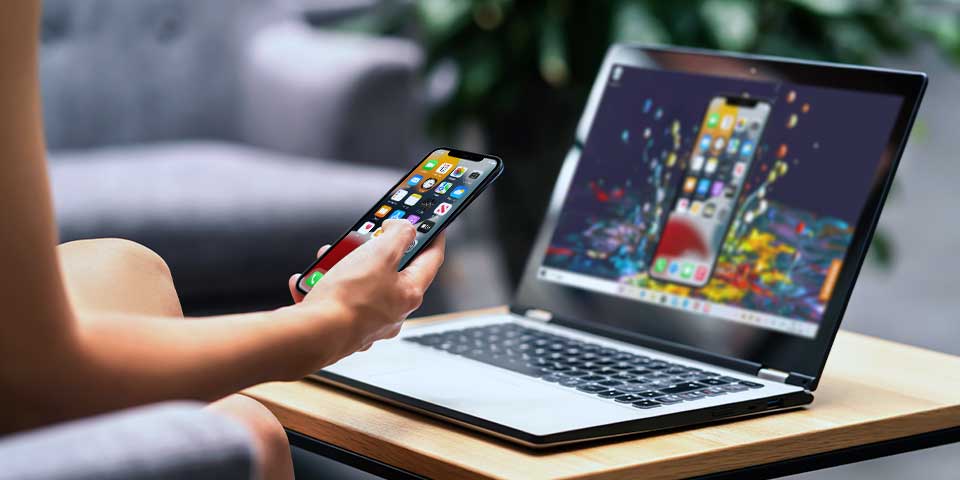
See how to screen mirror iPhone to Windows on iOS 15. Use AirPlay screen mirroring to share iPhone to Windows with Reflector. Instructional video...
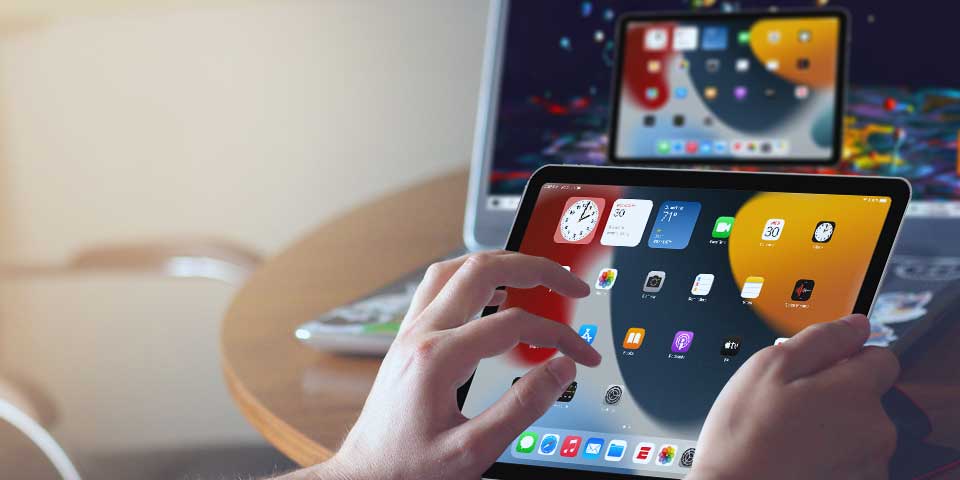
Learn how to share your iPad with AirPlay to Windows using the app Reflector and iPadOS 15. Quickly screen mirror an iPad to any PC.
Mirror any device to your screen — wirelessly.
One universal license for each app — works on macOS and Windows.
— or buy Reflector 4 on its own —



For schools, districts or volume licensing — contact us.

Stream audio and video from your Mac or PC to any screen.
One universal license for each app — works on macOS and Windows.
— or buy AirParrot 3 on its own —
For schools, districts or volume licensing — contact us.