Introducing the Ditto Fire OS Receiver
The new Ditto Fire OS Receiver brings wireless screen mirroring, digital signage and emergency alerts to Fire OS devices. It joins Windows, Apple TV...

2 min read
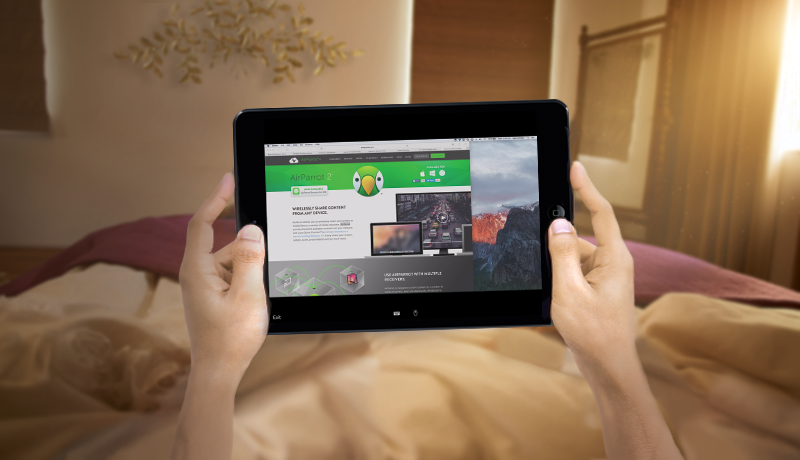
If you ever wished you could turn your iPad or iPhone into a remote desktop for your computer, then we’re about to make your day.
Our new AirParrot Remote iOS app makes it possible to view your computer’s display and control its mouse and keyboard from your iPad or iPhone. Similar remote desktop solutions are expensive, but AirParrot Remote costs just $6.99 in the App Store.
AirParrot Remote lets you manage and edit all of your computer’s documents and applications from your mobile phone or tablet. You don’t even have to be in the same room as your computer. Just make sure you’re connected to the same Wi-Fi.
The AirParrot Remote “remote desktop” feature is ideal for use at work or at home.
At work
If you don’t feel like taking your computer to that next meeting, leave it at your desk. You can access your computer and all of its files from your iPad.
Pro Tip: If your conference room has an Apple TV, Chromecast or Reflector-enabled display, you can use AirParrot Remote to connect your computer (which is still sitting at your desk) to one of those devices for the entire room to see. It’s convenient, and everyone in the room will think you’re some sort of crazy tech genius or computer hacker.
At home
The same concept applies at home. You can use your iPhone or iPad to edit a document or view a file that’s on your computer from anywhere in the house. This will come in handy when you’re in bed and realize you need your computer. Rather than getting up and going downstairs, simply open AirParrot Remote on your tablet or phone to access your Mac or PC.
What you need
How it works
Open AirParrot 2 on your computer and wirelessly connect your iPad or iPhone to it via the AirParrot Remote connection menu. Tap the “Display 1” option in the AirParrot Remote menu. Then tap on the screen preview window in the top right corner of the AirParrot Remote app. This will show you whatever is on your computer screen. Lastly, turn on the mouse and keyboard control options in AirParrot Remote by tapping the corresponding images at the bottom of the screen preview. You will now be able to control the computer’s mouse and keyboard from your mobile device.
Learn more about the AirParrot Remote iOS app and AirParrot 2 desktop mirroring/streaming app. You can grab AirParrot 2 on our website and AirParrot Remote from the Apple App Store.
The new Ditto Fire OS Receiver brings wireless screen mirroring, digital signage and emergency alerts to Fire OS devices. It joins Windows, Apple TV...
Ditto now runs on Android-powered displays. The new Ditto Android Receiver gives schools and businesses another way to bring wireless screen...
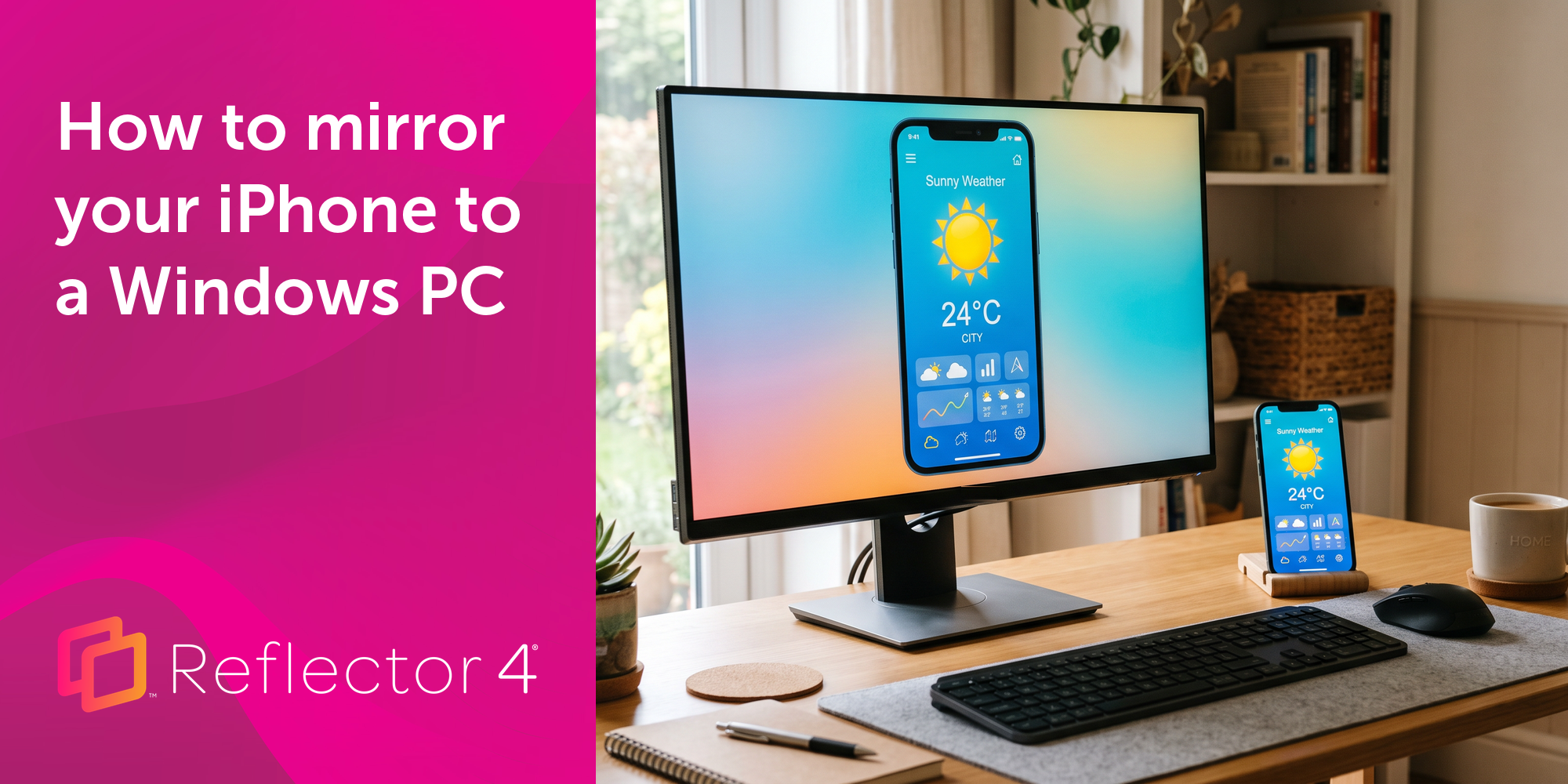
Windows still can't receive AirPlay connections on its own. Try to open Screen Mirroring on an iPhone in a room full of PCs. The list comes back...
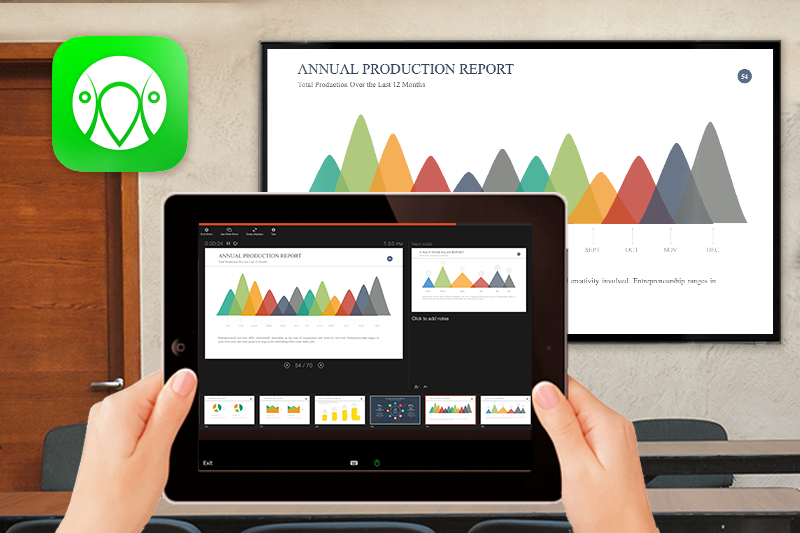
How to use your iPad as a Second Screen While Presenting
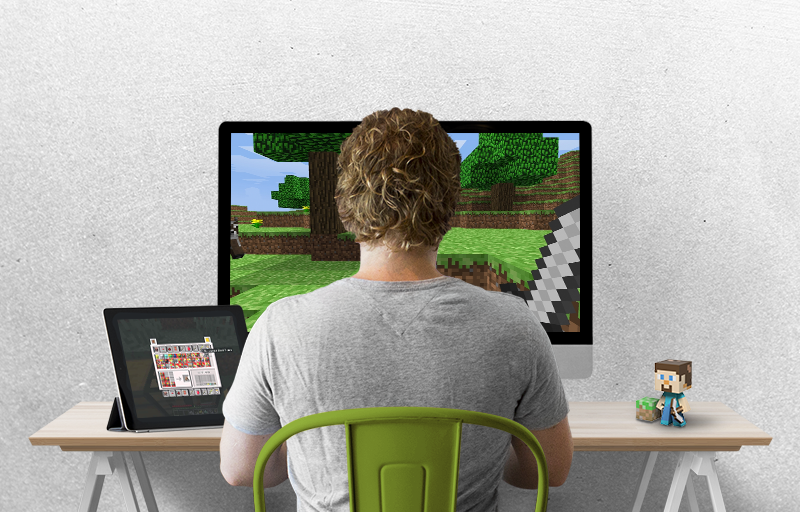
How to Turn Your iPad into an Extended Desktop for Mac.
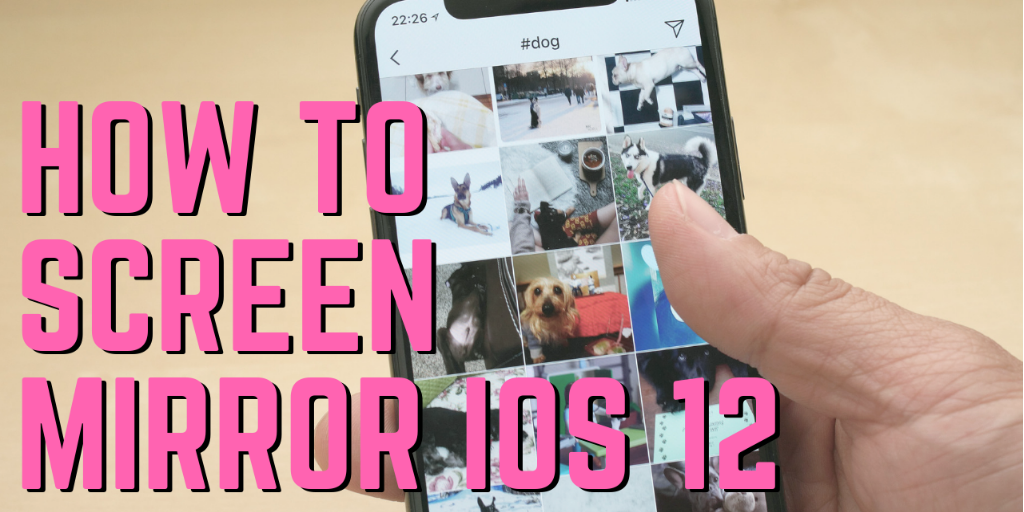
The best way to wirelessly screen mirror iOS 12 devices like iPad, iPhone X, iPhone XS Max and more to Mac or Windows computers is with Reflector....
Mirror any device to your screen — wirelessly.
One universal license for each app — works on macOS and Windows.
— or buy Reflector 4 on its own —



For schools, districts or volume licensing — contact us.

Stream audio and video from your Mac or PC to any screen.
One universal license for each app — works on macOS and Windows.
— or buy AirParrot 3 on its own —
For schools, districts or volume licensing — contact us.