Introducing the Ditto Fire OS Receiver
The new Ditto Fire OS Receiver brings wireless screen mirroring, digital signage and emergency alerts to Fire OS devices. It joins Windows, Apple TV...

2 min read
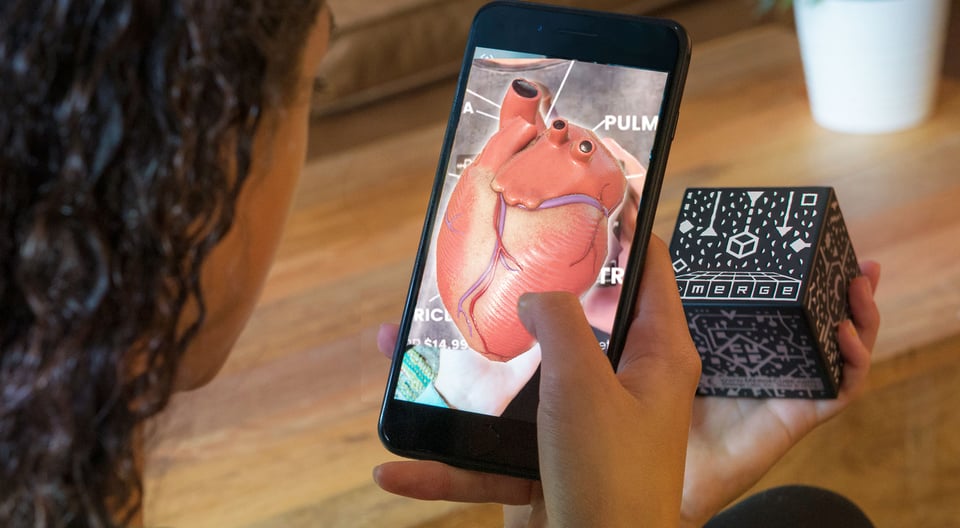
It may seem impossible to incorporate interactive technology like augmented reality (AR) and virtual reality (VR) while teaching remotely. Educators are looking for ways to keep students engaged while teaching from afar.
Good news: There’s an easy and inexpensive way to add AR to your remote lessons with the Merge Cube.
If you’re new to Merge Cube, take a minute to learn about it from one of our certified EdTech experts, Christine Danhoff. Merge Explorer is one of many experiences available with your Merge Cube. It allows you to bring a physical object to life as a hologram for your students. Explore everything from the stars in our galaxy to a strand of DNA all from your device.
Reflector, along with a videoconferencing tool like GoToMeeting or Microsoft Teams, can be the easy solution to show off this AR and VR technology seamlessly to your students no matter where they are learning.
Note: This setup will also work if you want to share a recorded lesson with your students instead of holding a live class. Learn more below.
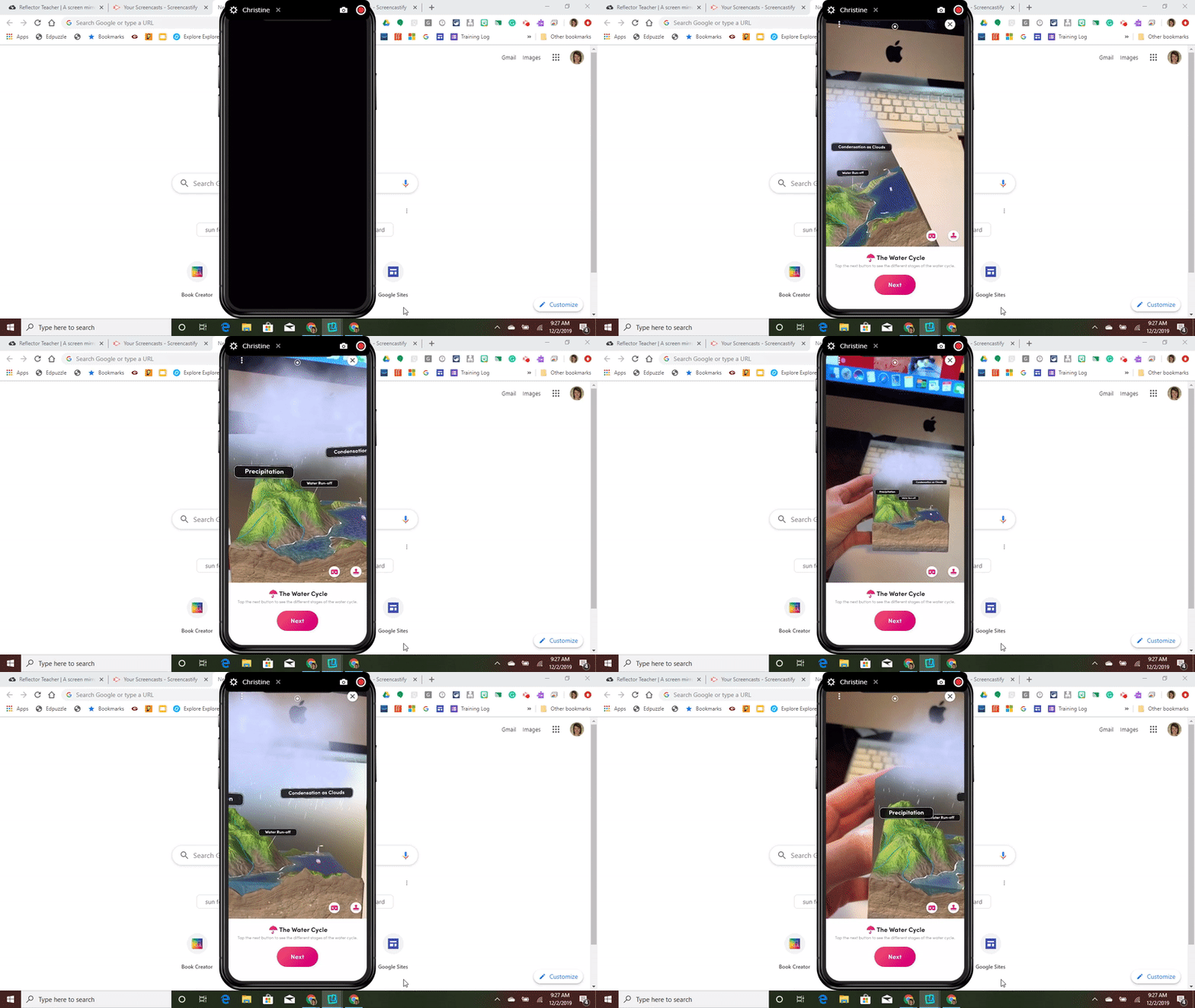
Download and install Reflector on your Mac or PC.
You will use the screen mirroring function on your devices to wirelessly share your screen directly to your Mac or Windows computer.
Open the Merge Explorer app on your mobile device and have your Merge Cube ready.
Note: Merge Explorer is available in the App Store and Google Play.
Open your preferred videoconferencing tool on your computer.
Open Reflector on your computer.
On your mobile device, open the screen mirroring/cast options and tap the name of your computer to begin screen mirroring to Reflector.
Not sure how? Check these out:
Note: Make sure your device is connected to the same wifi network as your computer.
Within your videoconferencing tool, select the option to share your screen.
Note: The videoconferencing tool is not needed if you prefer to record your lesson and share it at a later time instead of holding a live remote class. Simply utilize the recording features in Reflector. These features allow you to record your mirrored device screen as well as your own voiceover commentary. You can also enable your computer’s webcam to include it in the recording.
Select your preferred experience in the Merge Explorer app. Tap the play icon and point your device at the Merge Cube.
Your students will see the Merge Cube come to life. You can create engaging, interactive lessons for your students wherever they are. AR and VR aren’t exclusive to a classroom lesson. Bring your remote lessons to life with Merge Cube and Reflector.
Last updated 9/27/21
The new Ditto Fire OS Receiver brings wireless screen mirroring, digital signage and emergency alerts to Fire OS devices. It joins Windows, Apple TV...
Ditto now runs on Android-powered displays. The new Ditto Android Receiver gives schools and businesses another way to bring wireless screen...
Windows still can't receive AirPlay connections on its own. Try to open Screen Mirroring on an iPhone in a room full of PCs. The list comes back...
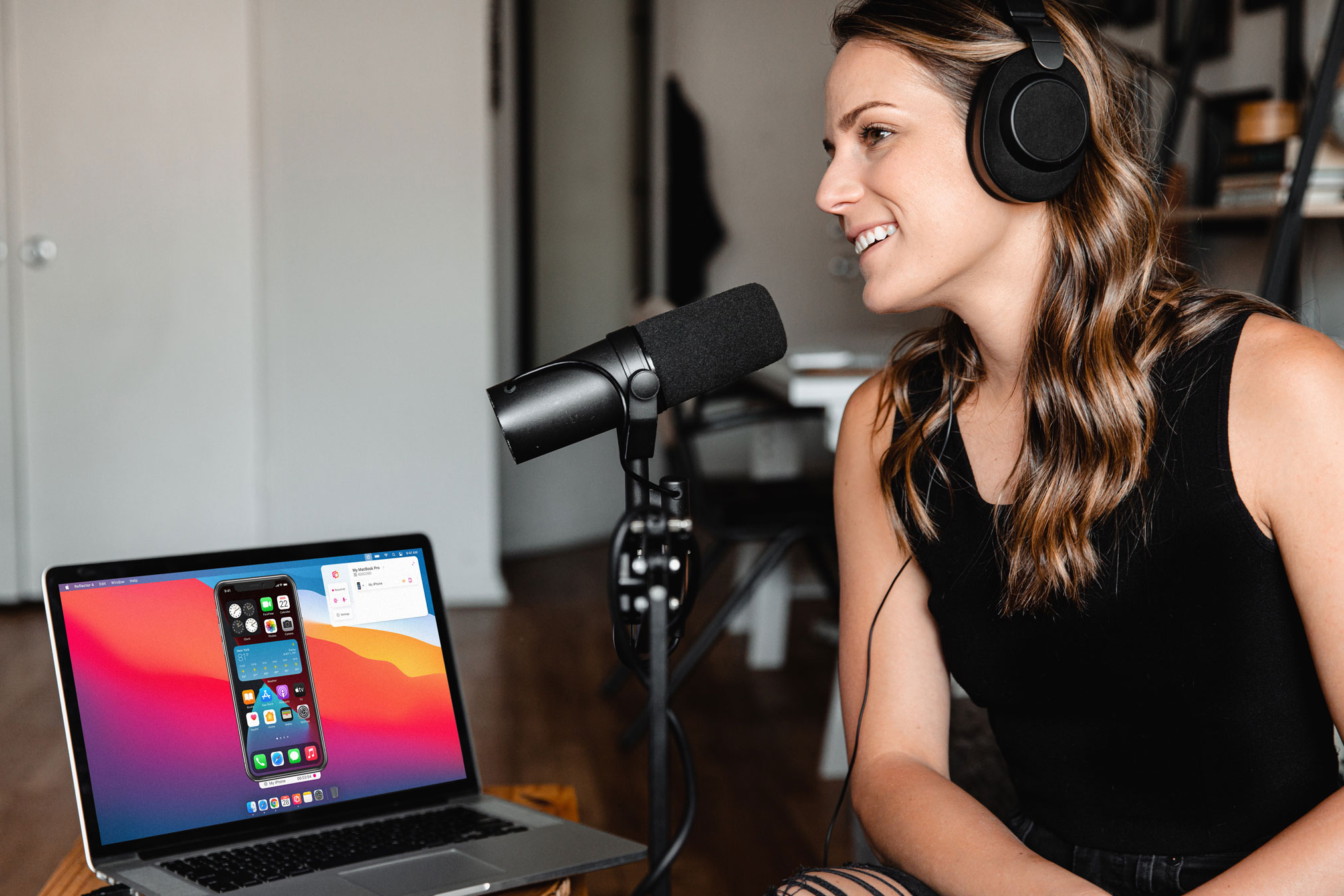
Learn how to easily narrate audio and record voiceover while screen recording iPhone using this quick guide.
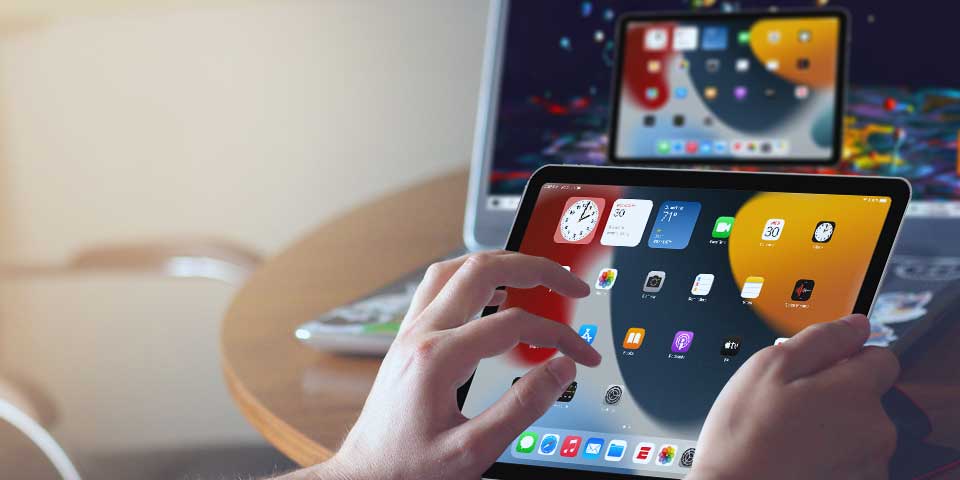
Learn how to share your iPad with AirPlay to Windows using the app Reflector and iPadOS 15. Quickly screen mirror an iPad to any PC.
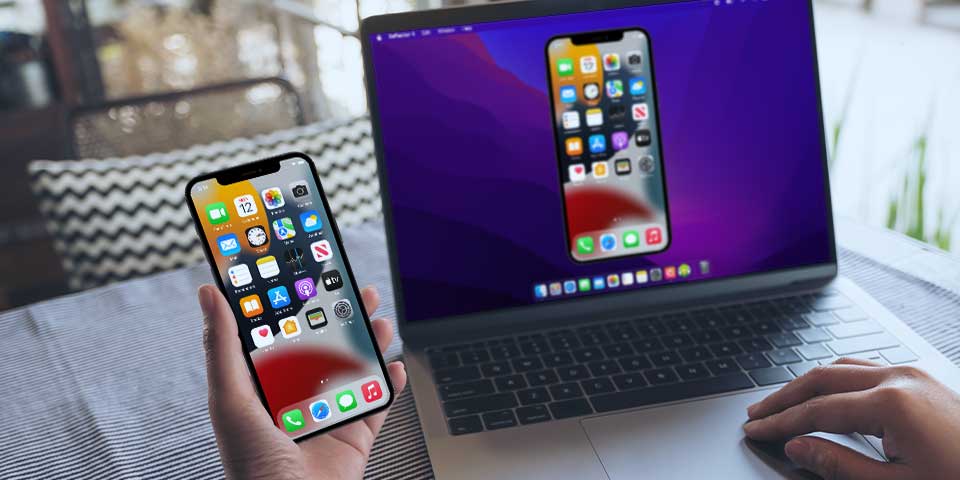
Learn how to screen mirror iOS 15 iPhones. Discover easy steps to cast your iPhone screen to MacBook and other devices using AirPlay and Reflector.
Mirror any device to your screen — wirelessly.
One universal license for each app — works on macOS and Windows.
— or buy Reflector 4 on its own —



For schools, districts or volume licensing — contact us.

Stream audio and video from your Mac or PC to any screen.
One universal license for each app — works on macOS and Windows.
— or buy AirParrot 3 on its own —
For schools, districts or volume licensing — contact us.