Introducing the Ditto Fire OS Receiver
The new Ditto Fire OS Receiver brings wireless screen mirroring, digital signage and emergency alerts to Fire OS devices. It joins Windows, Apple TV...

1 min read
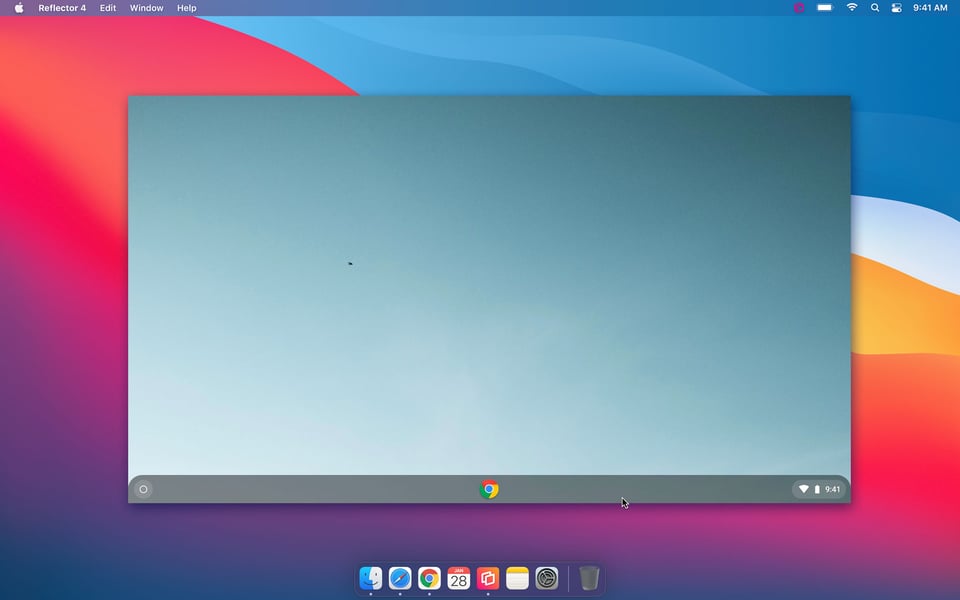
Many educators and consumers use Reflector to wirelessly mirror their Chromebook screen to another computer. People often ask us why they can only mirror a single internet browser window (the Chrome browser) instead of the entire Chromebook screen. We've got good news: It is possible to mirror an entire Chromebook display to any Reflector-enabled device or Apple TV.
To mirror your Chromebook screen to a computer running Reflector:
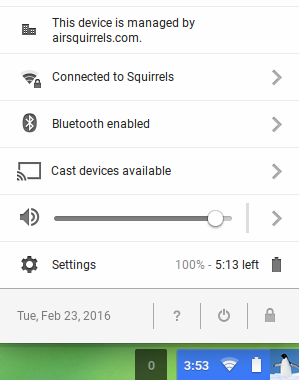
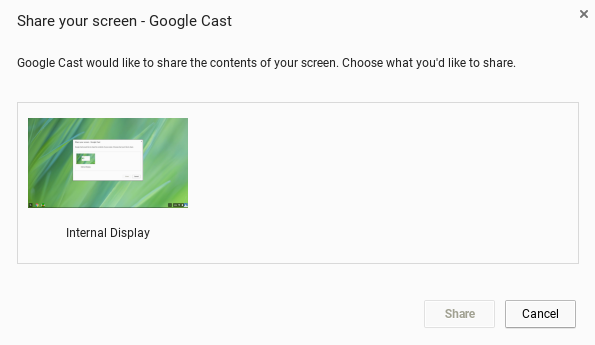
Remember, you can mirror audio and connect multiple Chromebooks to Reflector at once, as well as iPhones, iPads, Surface Pros and Android devices. You may also change mirroring quality in the bottom right window to best fit your preferences.
To mirror your Chromebook screen to Apple TV:
For a greater range of Chromebook mirroring features in educational environments, check out Ditto. Ditto allows students and teachers to wirelessly mirror a Chromebook screen to Apple TVs and other devices. See how Ditto makes collaboration easy for schools here.
Last updated 9/23/21
The new Ditto Fire OS Receiver brings wireless screen mirroring, digital signage and emergency alerts to Fire OS devices. It joins Windows, Apple TV...
Ditto now runs on Android-powered displays. The new Ditto Android Receiver gives schools and businesses another way to bring wireless screen...
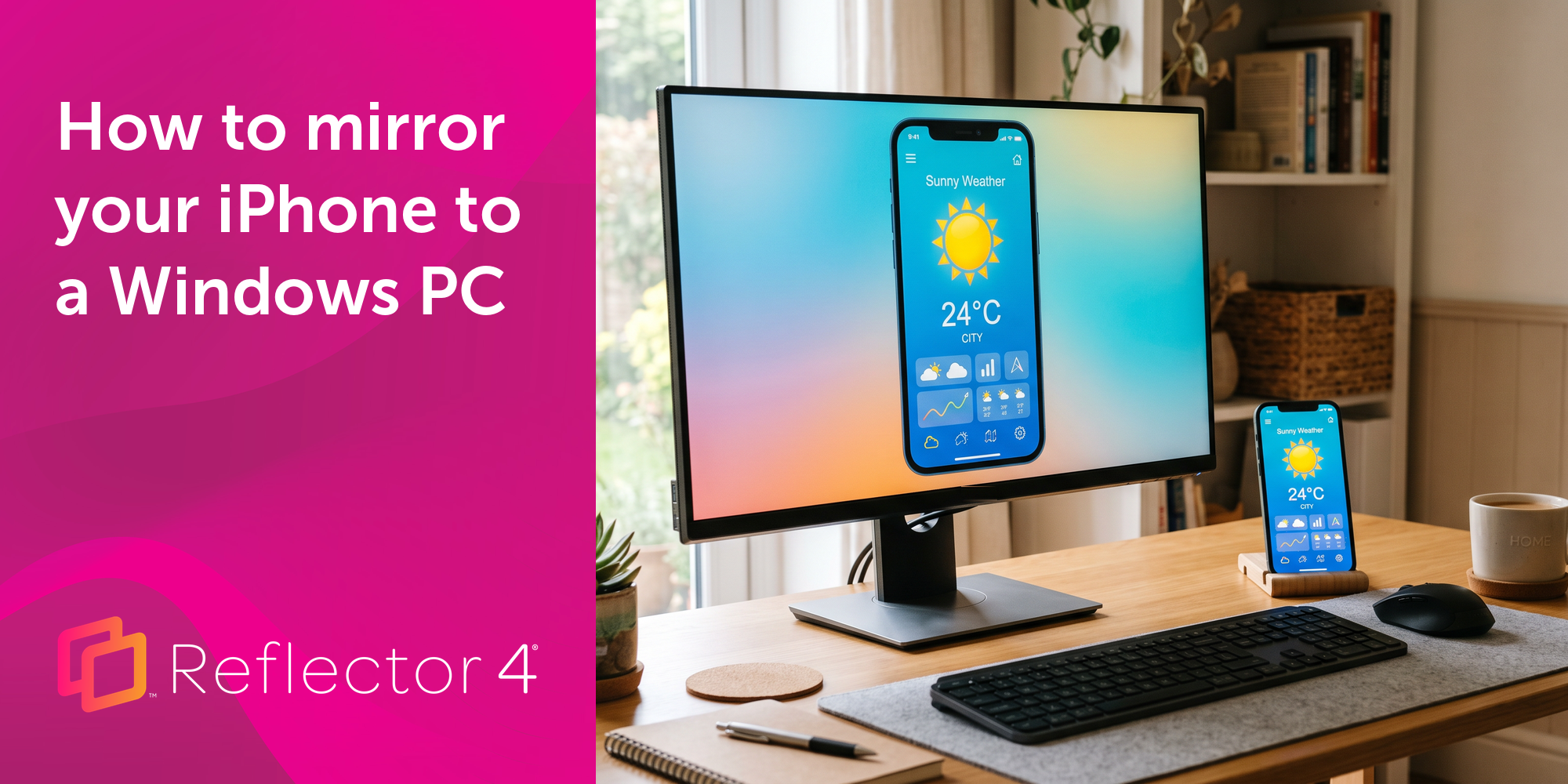
Windows still can't receive AirPlay connections on its own. Try to open Screen Mirroring on an iPhone in a room full of PCs. The list comes back...
1 min read
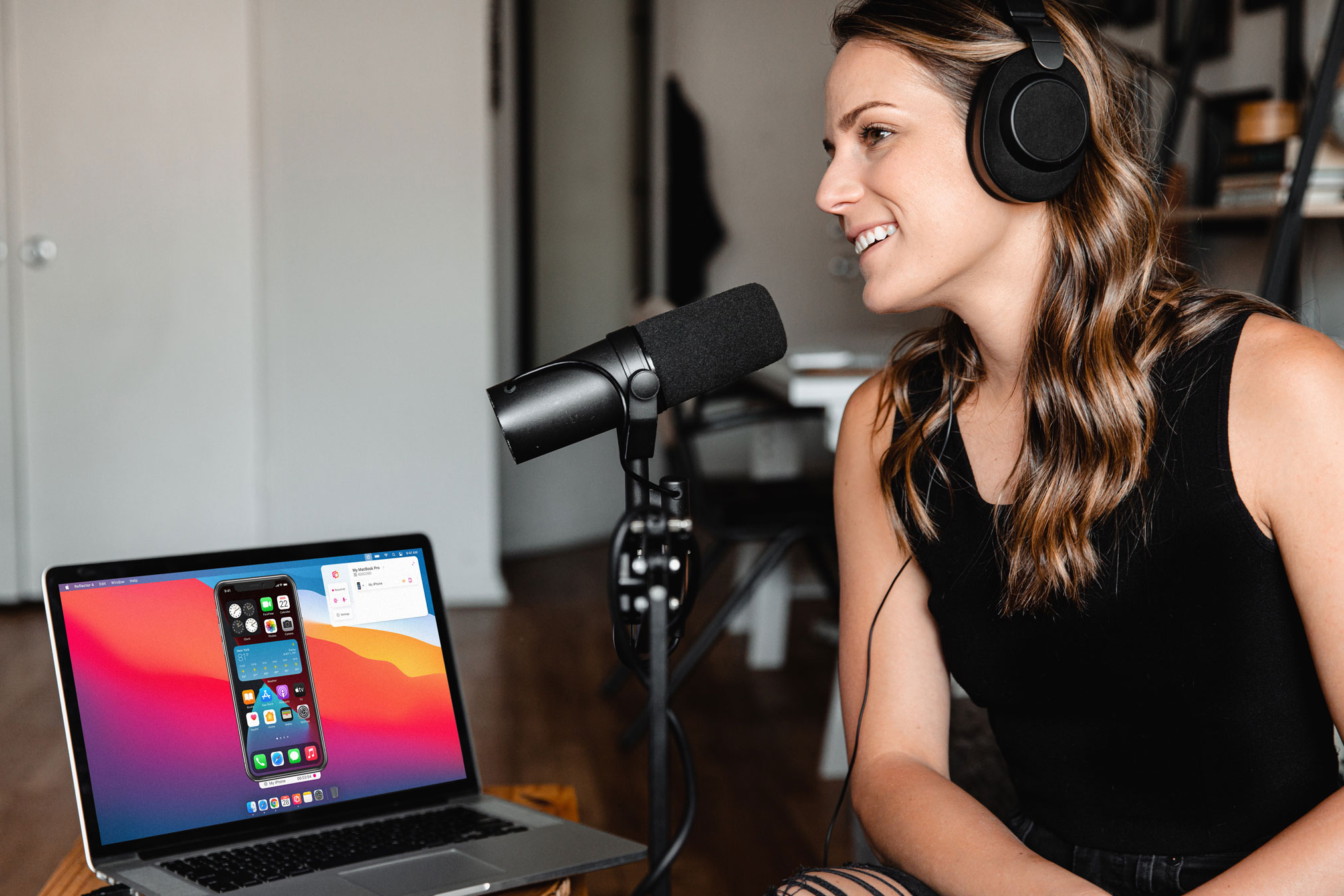
Recording instructional videos on iPhone, demonstrating apps, teaching from home andproducing digital how-to content oftenrequires voiceover narrat...
1 min read
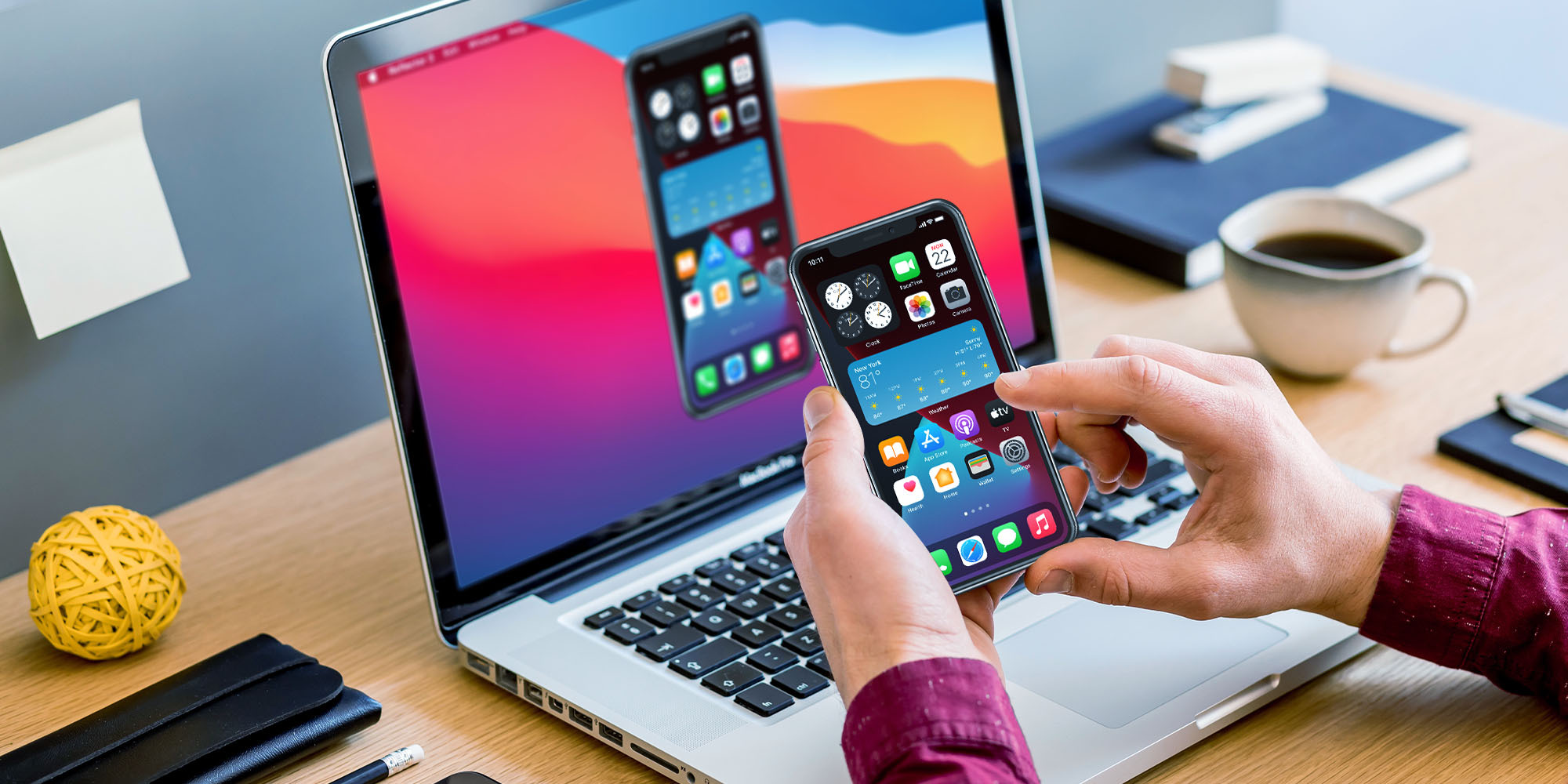
Screen mirroring an iPhone is easy with iOS 14, especially with an iPhone 12. The latest operating system uses AirPlay to place content from an...
1 min read
Screen mirroring iPad and iPhone screens to your Mac or Windows computer is a breeze with iOS 12. Don’t even think about using cords or cables — it’s...
Mirror any device to your screen — wirelessly.
One universal license for each app — works on macOS and Windows.
— or buy Reflector 4 on its own —



For schools, districts or volume licensing — contact us.
Stream audio and video from your Mac or PC to any screen.
One universal license for each app — works on macOS and Windows.
— or buy AirParrot 3 on its own —
For schools, districts or volume licensing — contact us.