Introducing the Ditto Fire OS Receiver
The new Ditto Fire OS Receiver brings wireless screen mirroring, digital signage and emergency alerts to Fire OS devices. It joins Windows, Apple TV...

2 min read
iOS 13 makes it easy to share content from your iPhone. In just a few taps, you can screen mirror your iPhone wirelessly so everyone can see what’s on your screen.
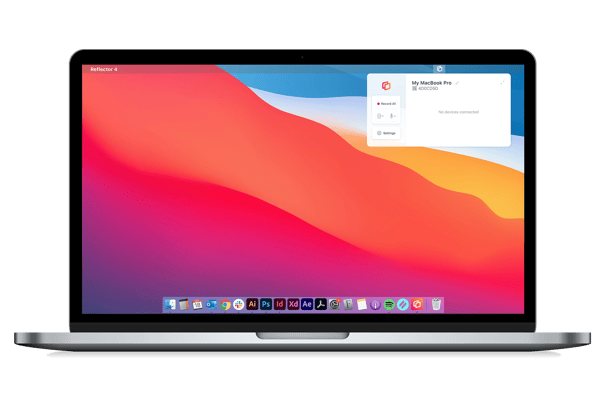
To screen mirror your iPhone to your computer, all you need to do is add one app to your computer:  . Reflector is an app that makes screen mirroring simple, easy and completely wireless — no need for cords or cables.
Mirror photos, videos and your entire iPhone screen to your computer in real time with Reflector. Our guide below shows you how.
Update: iOS 17 is now available on iPhone. We have the complete guide for screen mirroring the all-new iOS 17. See it here.
Want to become a screen mirroring expert? Here’s everything you need to know.
Need to screen mirror your iPad with iPadOS? We have a screen mirroring guide for that, too.
Download and install Reflector on your computer. It’s available for both macOS and Windows.
Connect your computer and iPhone to the same wifi network.
Open Reflector on your computer.
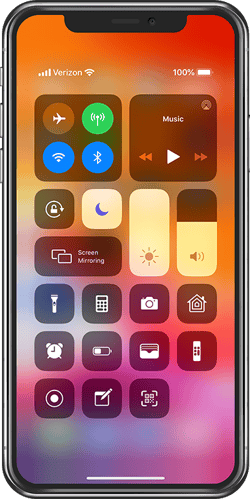
On your iPhone, swipe down from the top right corner of the screen to open Control Center. Tap "Screen Mirroring."
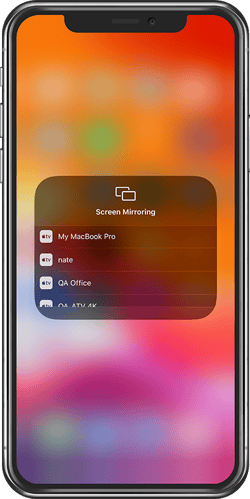
Scroll through the list of receivers and select where you want to mirror your screen. If you’re using Reflector, this will be the name of your computer.
That’s it! Now you’re wirelessly screen mirroring your iPhone with iOS 13.
If you want to screen mirror to another display like an Apple TV, the steps to connect will remain the same. All you have to do is choose the name of your Apple TV or other wireless receiver from the screen mirroring list.
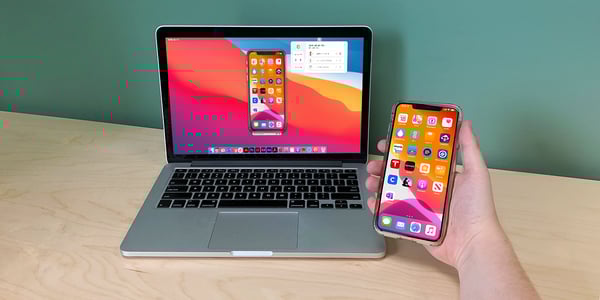
With Reflector, you can take screenshots and record your devices. Just click the camera icon or the red button above your connected device to snap a photo or record video of its screen.
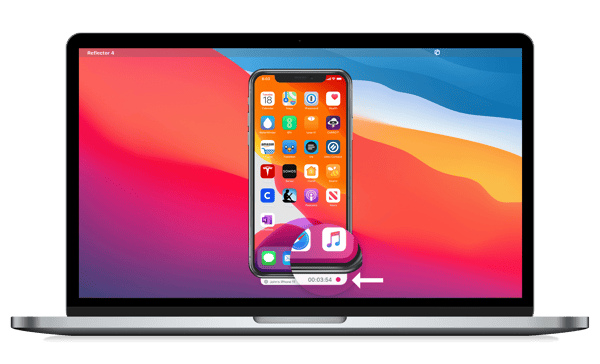
If you want to screen mirror to a projector or TV, simply connect your Reflector-enabled computer to the projector or TV with an HDMI cord. You’ll be wirelessly mirroring your device to the big screen in seconds.
Use Reflector to share your phone or tablet screen during remote meetings, stream mobile games to Twitch, record high quality video tutorials and much more.
Reflector lets you screen mirror iPads, Android devices, Chromebooks and other devices. You can even mirror different devices at the same time.
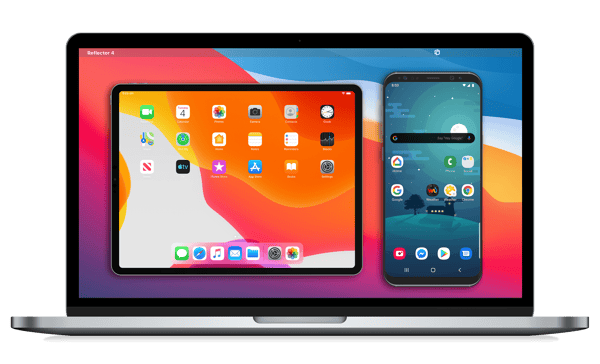
Get Reflector today to mirror all of your devices to the big screen.
Last updated 8/29/2023
The new Ditto Fire OS Receiver brings wireless screen mirroring, digital signage and emergency alerts to Fire OS devices. It joins Windows, Apple TV...
Ditto now runs on Android-powered displays. The new Ditto Android Receiver gives schools and businesses another way to bring wireless screen...
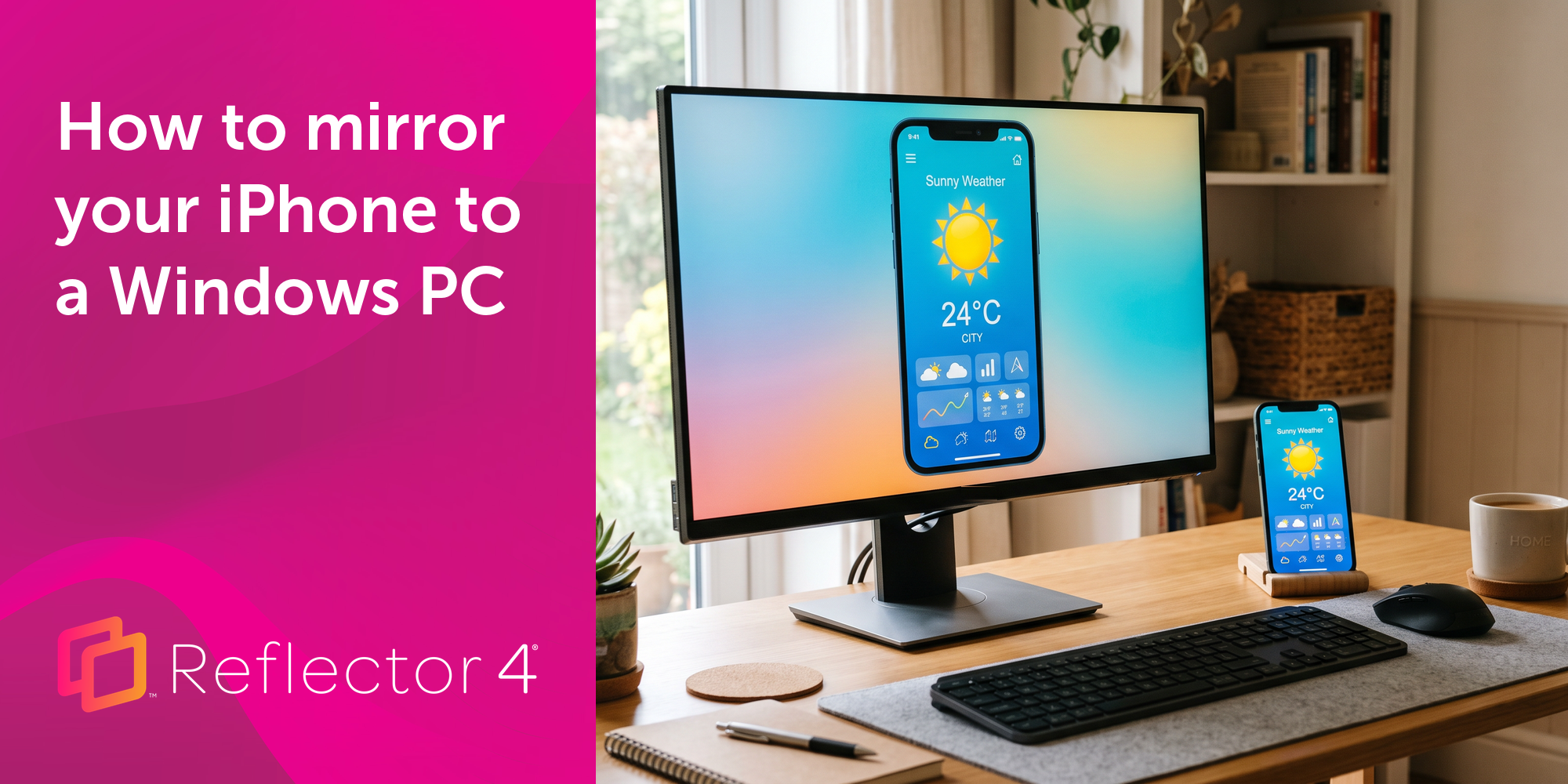
Windows still can't receive AirPlay connections on its own. Try to open Screen Mirroring on an iPhone in a room full of PCs. The list comes back...
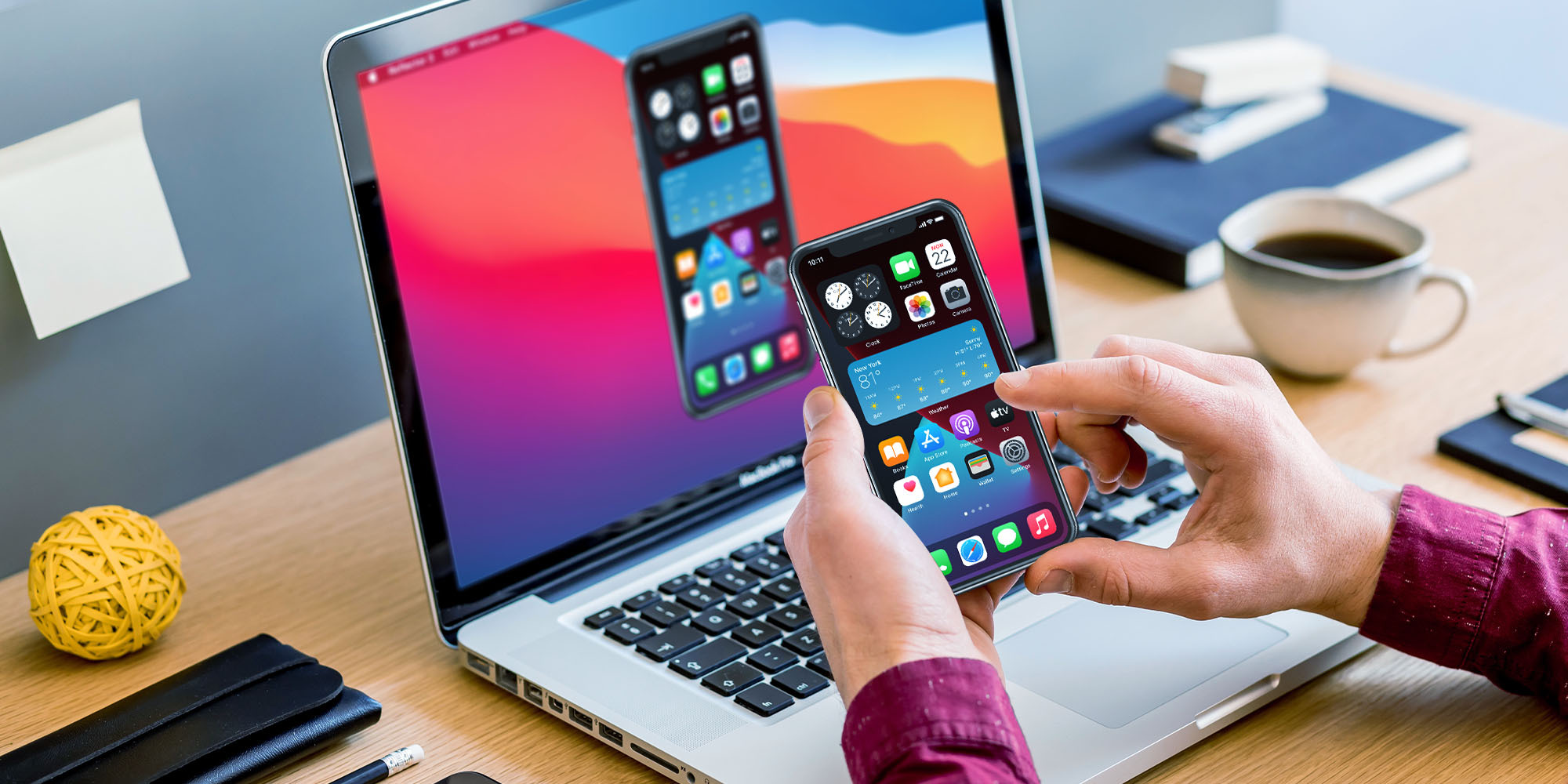
Learn how to wirelessly screen mirror an iPhone with iOS 14 to an Apple TV, Mac or Windows computer using this guide. Includes instructions for...
The best way to wirelessly screen mirror iOS 12 devices like iPad, iPhone X, iPhone XS Max and more to Mac or Windows computers is with Reflector....
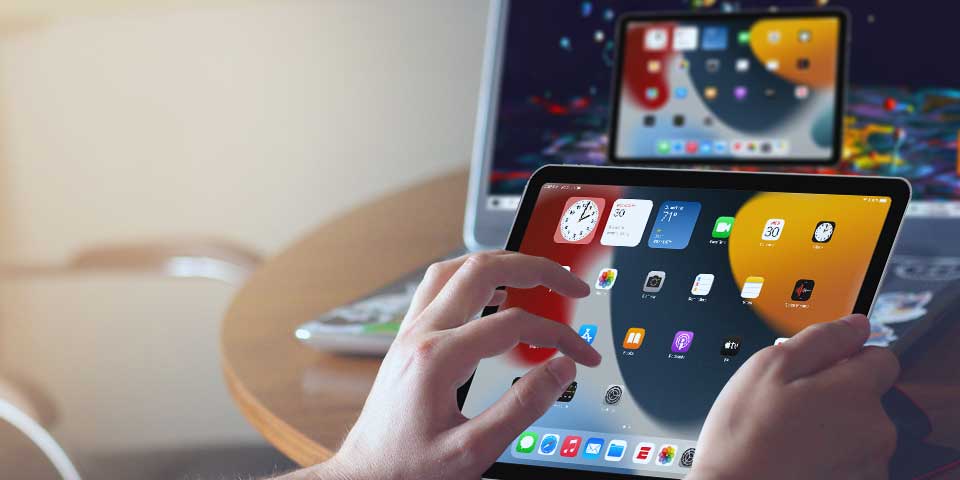
Learn how to share your iPad with AirPlay to Windows using the app Reflector and iPadOS 15. Quickly screen mirror an iPad to any PC.
Mirror any device to your screen — wirelessly.
One universal license for each app — works on macOS and Windows.
— or buy Reflector 4 on its own —



For schools, districts or volume licensing — contact us.

Stream audio and video from your Mac or PC to any screen.
One universal license for each app — works on macOS and Windows.
— or buy AirParrot 3 on its own —
For schools, districts or volume licensing — contact us.